dsh-model-switch
Run the following command in DeepSeek Harness:
dsh plugin install succlz123/dsh-model-switch
Paste the following prompt into your AI chat to install this plugin:
Run dsh plugin install succlz123/dsh-model-switch in the DeepSeek Harness terminal to install this plugin; source is available at https://github.com/succlz123/dsh-model-switch.
About this plugin
Switching models in DSH normally means hovering a dropdown, picking a model, then tweaking the reasoning intensity — and if you are sitting across the room with only a Bluetooth mini-keypad or an IR remote in hand, that flow gets annoying fast. dsh-model-switch collapses the whole thing into a single keypress: hit it and the model plus intensity level change instantly, with no floating pop-up stealing your focus.
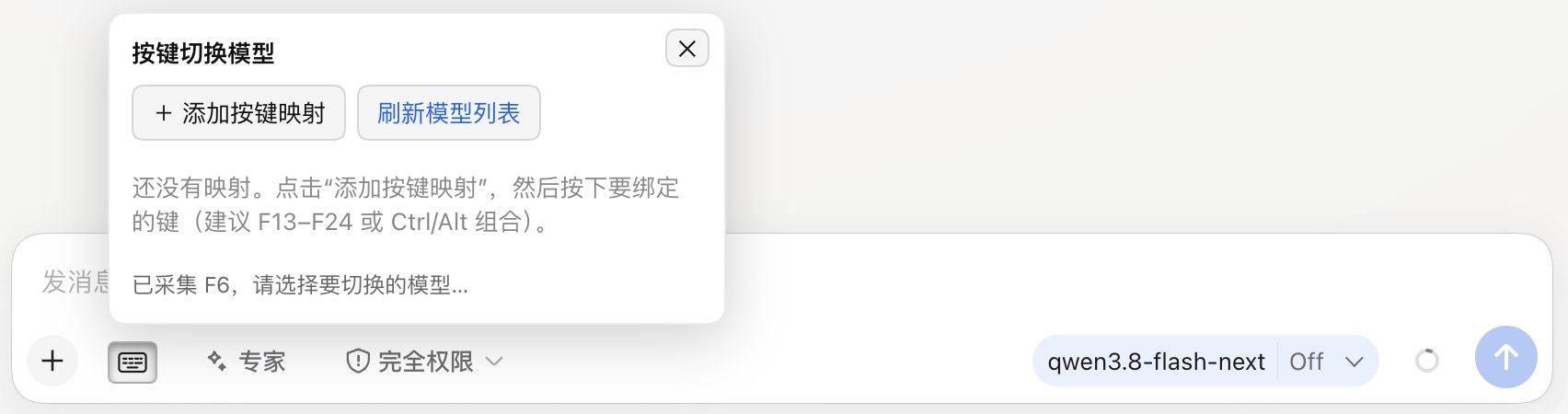
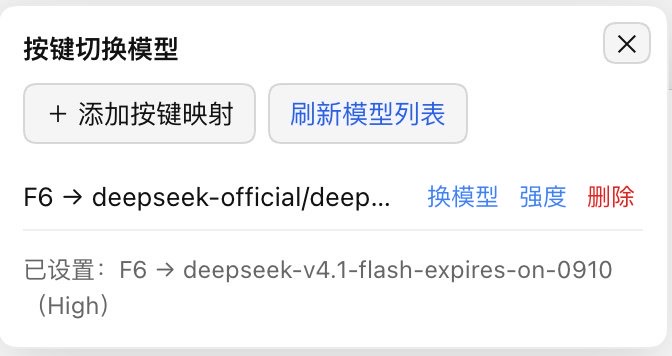
The plugin renders a mechanical-keycap button on the left side of the model row beneath the input box. Open the panel and you can bind any key combination (F13–F24, Ctrl/Alt chords, etc.) to a specific provider, model, and thinking-intensity tier. While capturing a key the panel echoes back what it received in real time, then you pick the model and intensity — the panel stays open the entire time so nothing is interrupted. The model list is sourced from DSH's native modelDirectories service, keeping it in sync with the built-in selector. A lightweight diagnostic channel writes key node logs to $DSH_HOME/.dms-diag.ndjson, so when a key simply does not register you can debug without reaching for DevTools.
It is made for power users who hop between multiple provider models several times a session, and especially for anyone who prefers to drive their whole workflow with a remote or external HID keyboard — zero mouse, zero visual noise, just one satisfying click of a keycap.
Screenshots
Use Cases
- Switch between provider models and intensity tiers with a single remote press
- Rapidly compare multiple models during debugging without touching the mouse
- Drive a fully keyboard-only workflow from across the room with an external HID keypad
Best For
- Power users who hop between multiple provider models several times a session
- Efficiency-focused users who prefer keyboard-only flows over mouse-driven ones
- Remote operators using IR remotes or external HID keyboards to drive DSH
Related Plugins
A unified suite combining hot runtime injection, task-aware thinking-mode routing, and a graded session protocol with red-team gates to sustain model diligence across long-horizon inference.
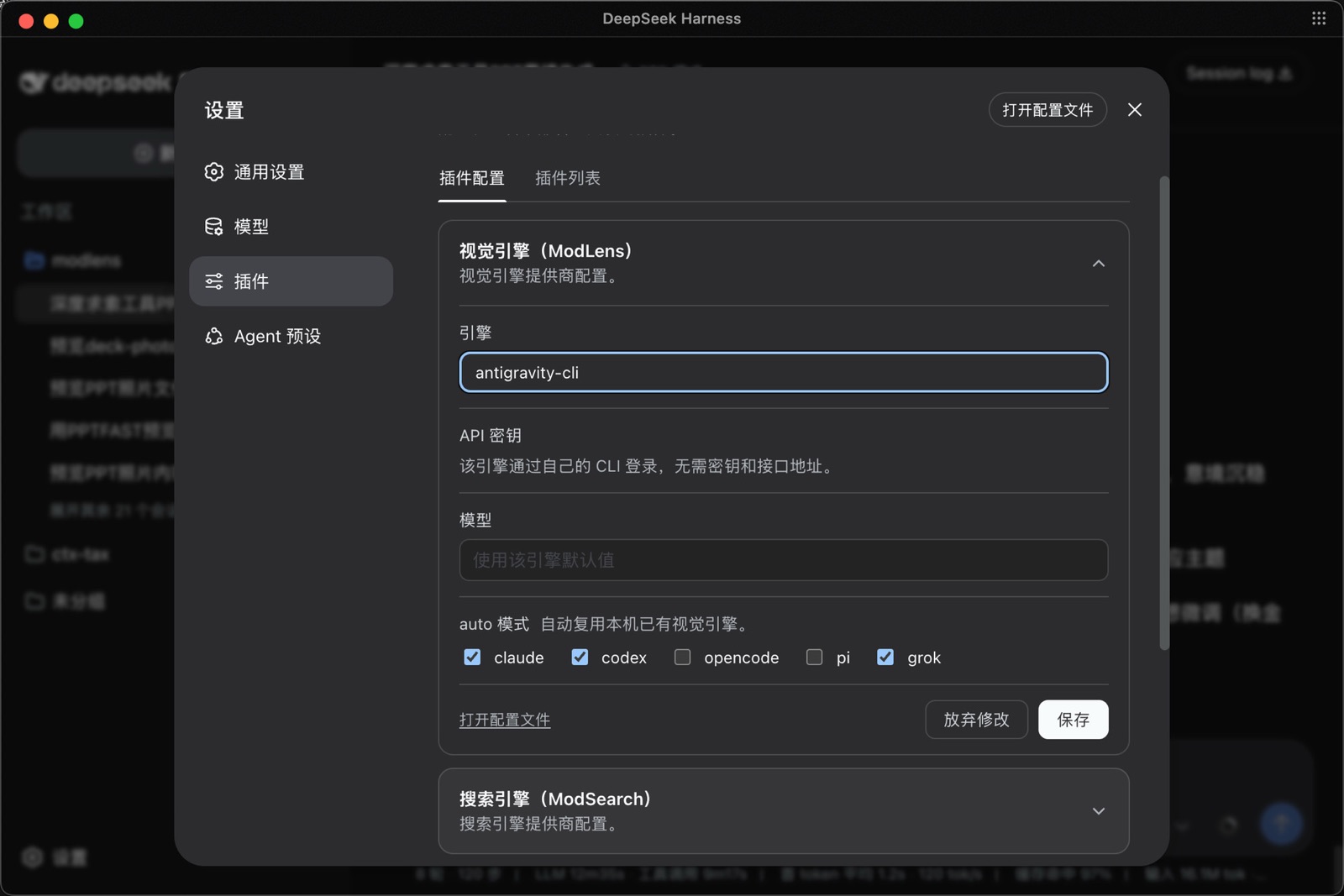
ModLens is a vision plugin for DeepSeek Harness that gives text-only models sight by reading images pasted directly into chat, with zero-config setup and multiple vision engines.
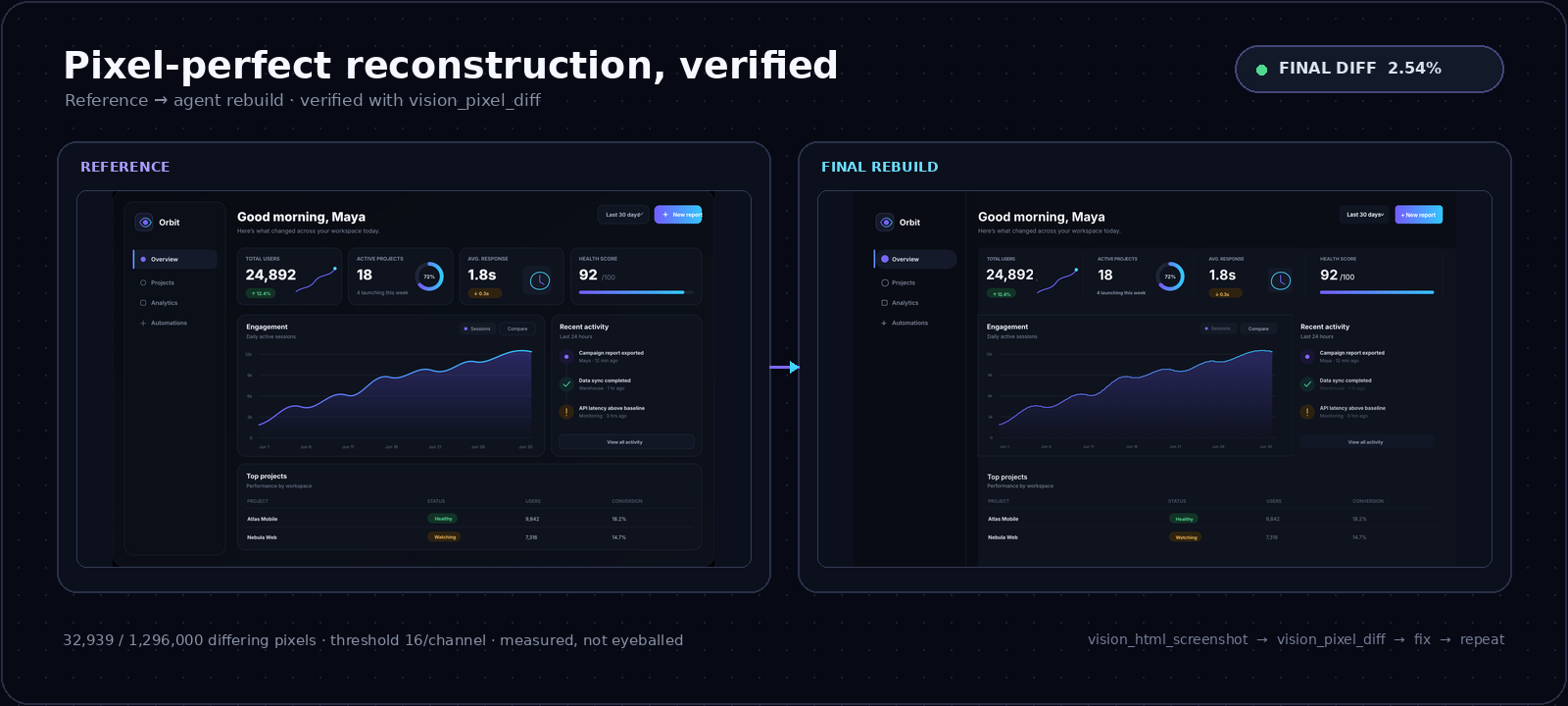
On-demand vision for text-only DeepSeek Harness agents: built-in free keyless vision chain and 14 vision tools, routing image turns as tool calls to vision models with pixel fidelity, no Python needed, one-command install.
Give text-only models in DeepSeek Harness eyes, enabling image Q&A, long-screenshot OCR, UI restoration, and GUI visual tasks.