dsh-notify
Run the following command in DeepSeek Harness:
dsh plugin install idoall/dsh-notify
Paste the following prompt into your AI chat to install this plugin:
Run dsh plugin install idoall/dsh-notify in your DeepSeek Harness terminal to install this plugin; the source repository is https://github.com/idoall/dsh-notify
About this plugin
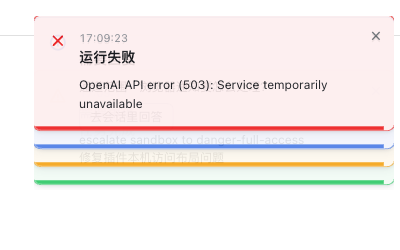
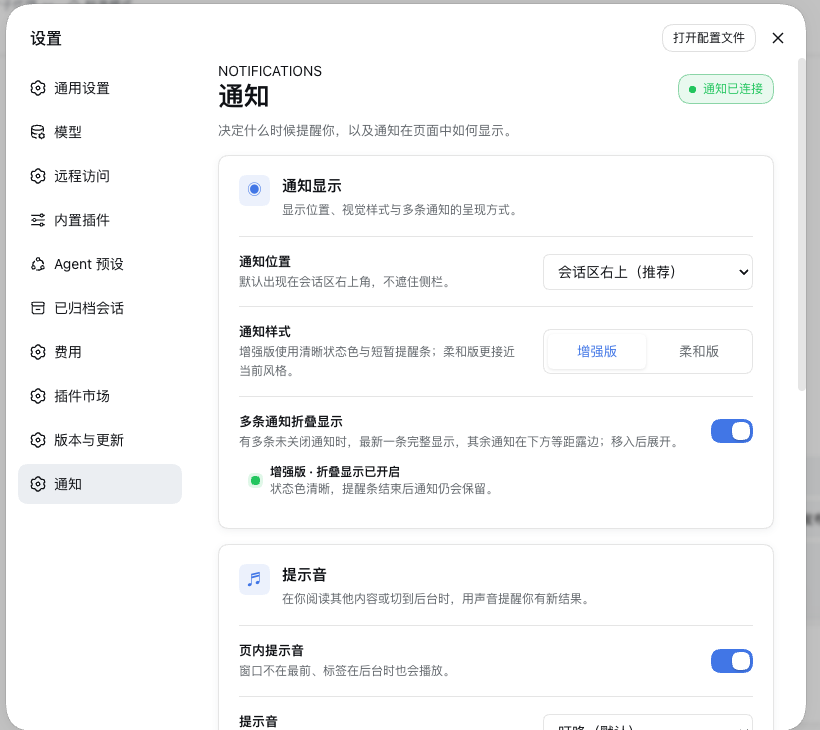
When running DeepSeek Harness sessions, it is easy to miss the moment a task silently finishes, fails, or waits on your approval. dsh-notify drops a lightweight card into the top-right corner of the current page, colour-coded for completion, failure, approval, and questions, so you can pick up on status changes without switching windows or enabling OS-level notifications.
The core experience revolves around three things. A collapsible stack keeps the newest card fully visible on top while older cards tuck neatly beneath it; hover or keyboard focus expands the pile. Clicking any card jumps straight to its originating session and turn, and the left-hand session tree auto-locates the row even across workspaces. Approval and question cards render the same answer options as the composer inline, blue for ordinary questions and amber for execution approvals, so you can respond without a second round-trip. A one-shot WebAudio cue fires when a card enters the visible queue, and a temporary bell prefix on the favicon flags any unread notifications in a background tab.
Every notification lives only in the in-memory queue of the open page; a refresh clears it, nothing is written to disk, and no service worker, web-push channel, or OS permission is required. Completion is tied strictly to the native DSH Agent idle transition, so intermediate rounds or queued replies never produce a false done card, and each task yields exactly one green finish card. It suits anyone juggling long-running background tasks, running multiple concurrent sessions, or simply wanting fewer window switches without resorting to system notifications.
Screenshots
Use Cases
- A background task finishes or fails and a card appears instantly — no need to switch back to check status.
- Multiple sessions are waiting for approval or a question; click the card to jump to the exact turn and answer inline.
- Before leaving a tab, the favicon bell flags unread notifications so you know where to return.
Best For
- Users who run long background tasks and want immediate awareness of the outcome.
- Users juggling multiple concurrent sessions who need to quickly distinguish approvals from questions.
- Users who prefer lightweight in-page notifications over OS-level push or toast services.
Related Plugins
A service-oriented sidebar framework for DSH, offering a full workbench with file explorer, embedded browser, real terminal, Git panel, and extensible plugin services.

A beautiful, practical Claude Code-style TUI plugin with pixel whale top bar, flowing glow title, real-time status line, streaming thought expansion, time rewind, context progress bar and TPS gauge — zero core changes.

The plugin market for DeepSeek Harness: browse/search/one-click install community plugins and themes, with updates, backup/restore, hot disable, diagnostics, and AI fix.

A persistent whale widget on the DSH web UI that shows DeepSeek balance, today's usage, and per-turn cost, with drag-and-snap and sound effects.