dsh-selection-tools
Run the following command in DeepSeek Harness:
dsh plugin install fyisgod/dsh-selection-tools
Paste the following prompt into your AI chat to install this plugin:
Install it in DeepSeek Harness by running dsh plugin install fyisgod/dsh-selection-tools; the source repository is at https://github.com/fyisgod/dsh-selection-tools
About this plugin
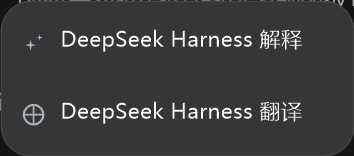
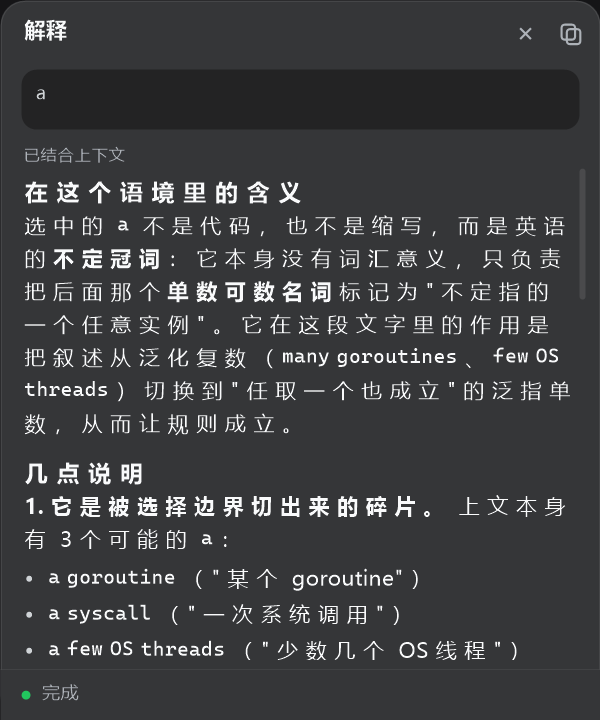
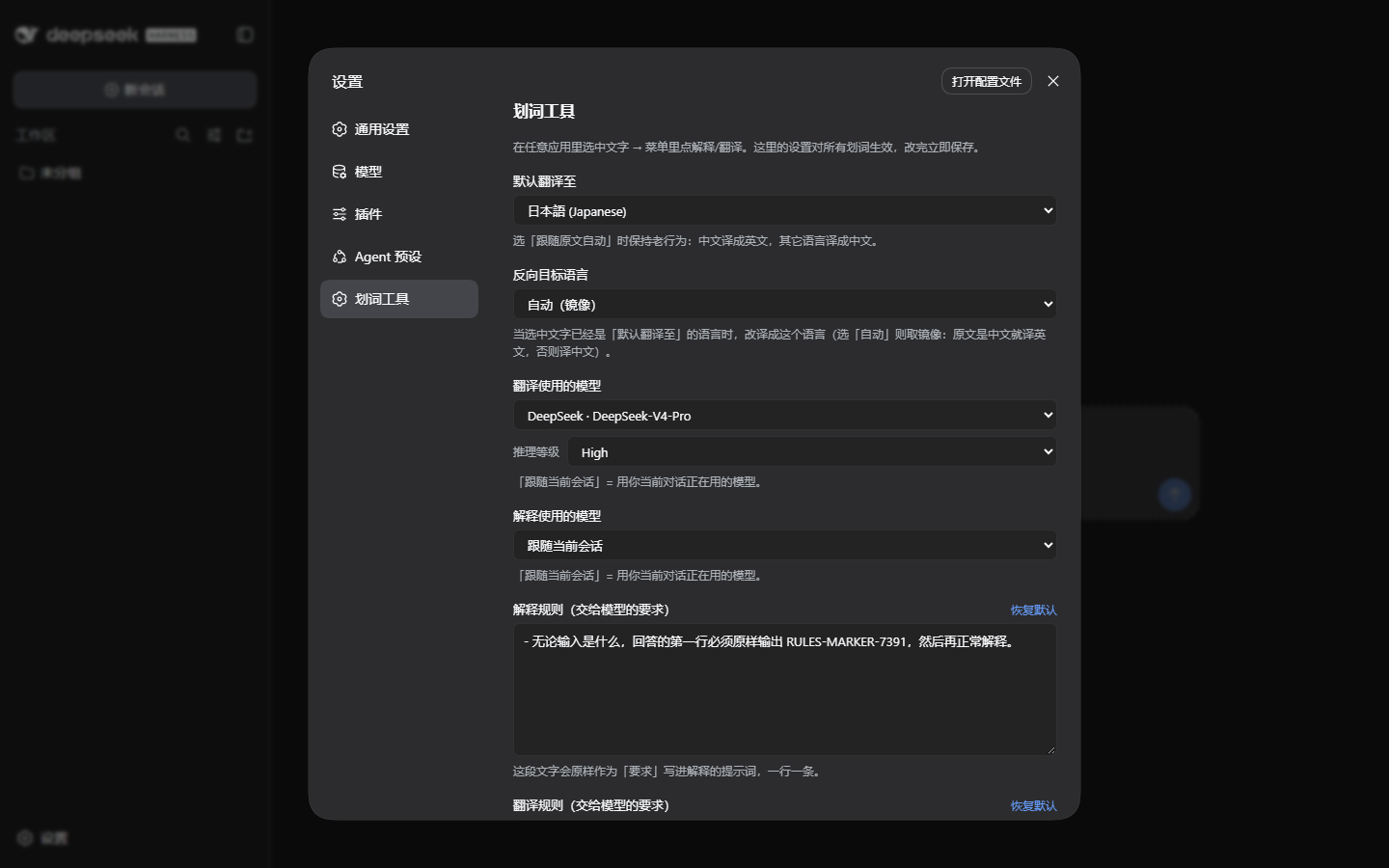
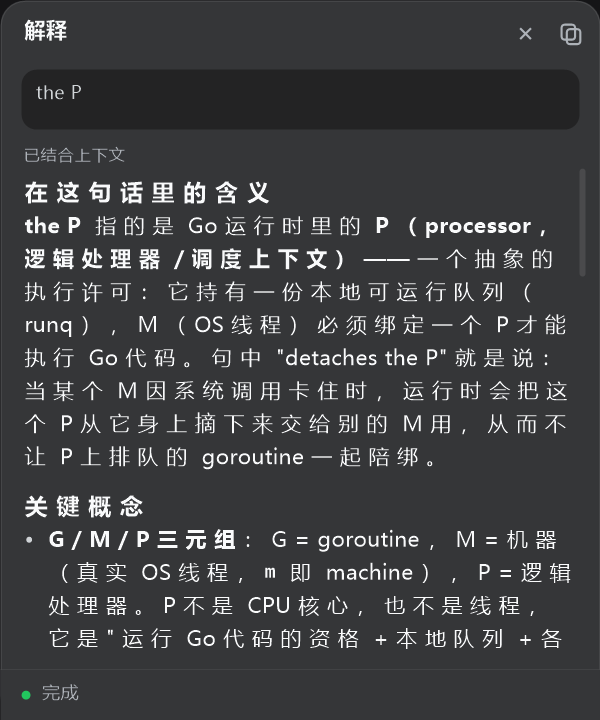
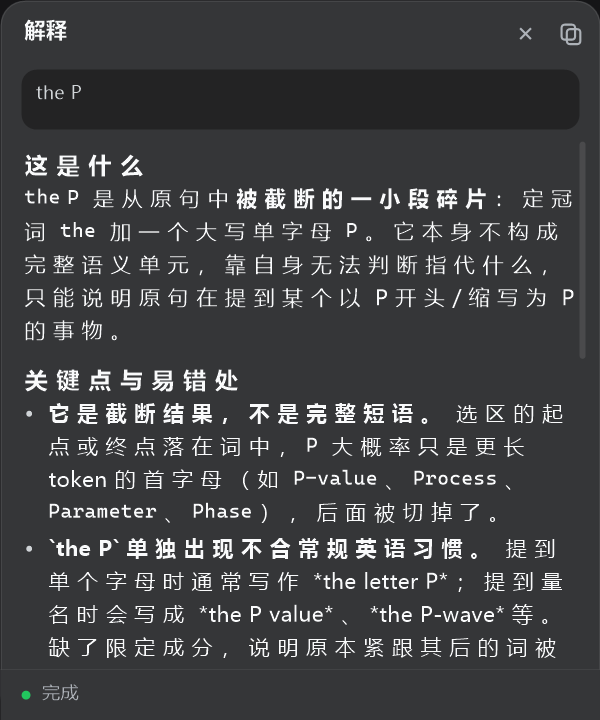
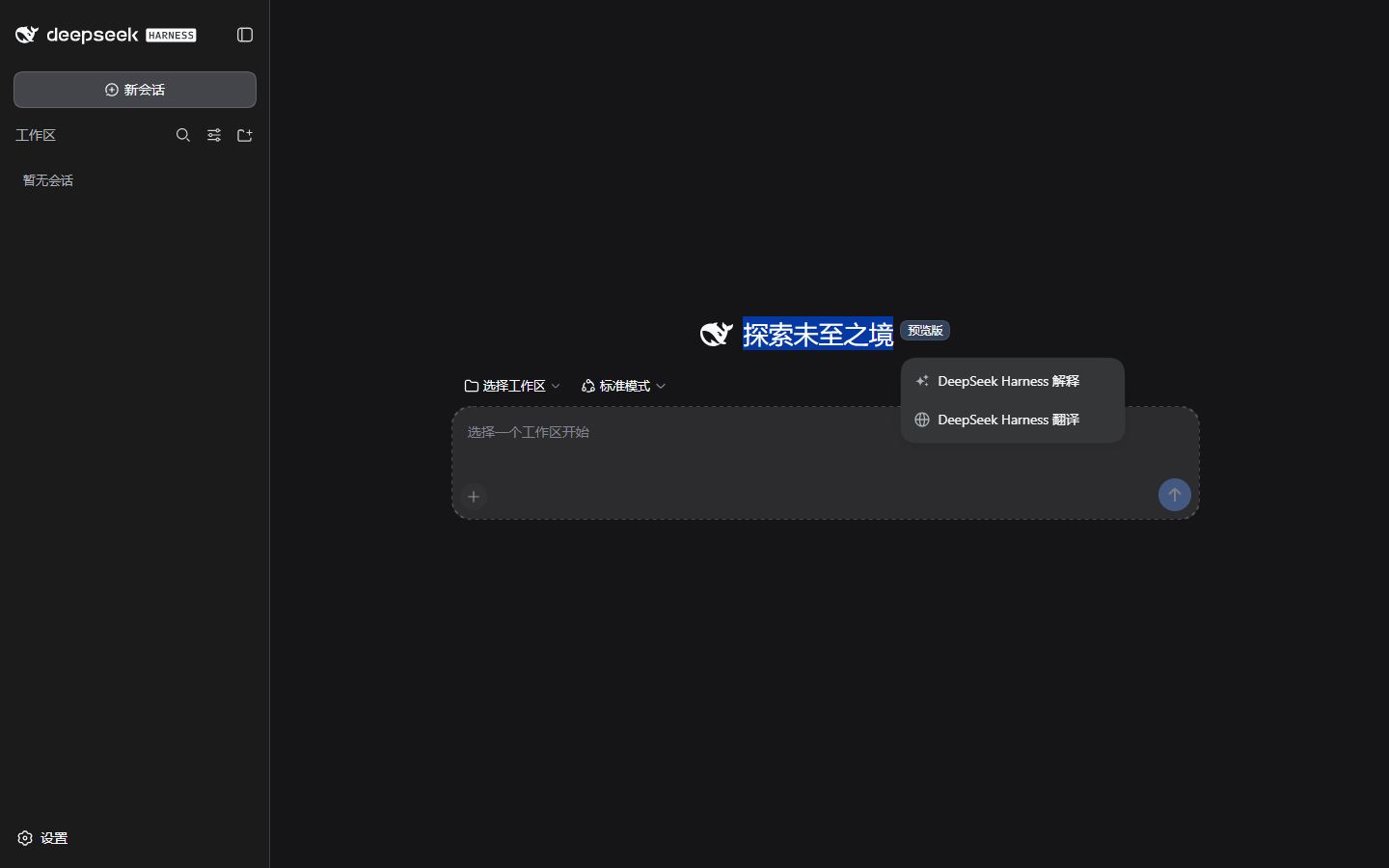
Looking up a precise definition, translating a foreign-language passage, or understanding a technical paragraph usually means breaking your flow: switching windows, hunting for a translation tool, pasting text, waiting, then switching back. dsh-selection-tools collapses that into a single gesture — select any text in any Windows app, a menu appears instantly, and one click on Explain or Translate streams the answer into a native, always-on-top overlay you can drag and resize.
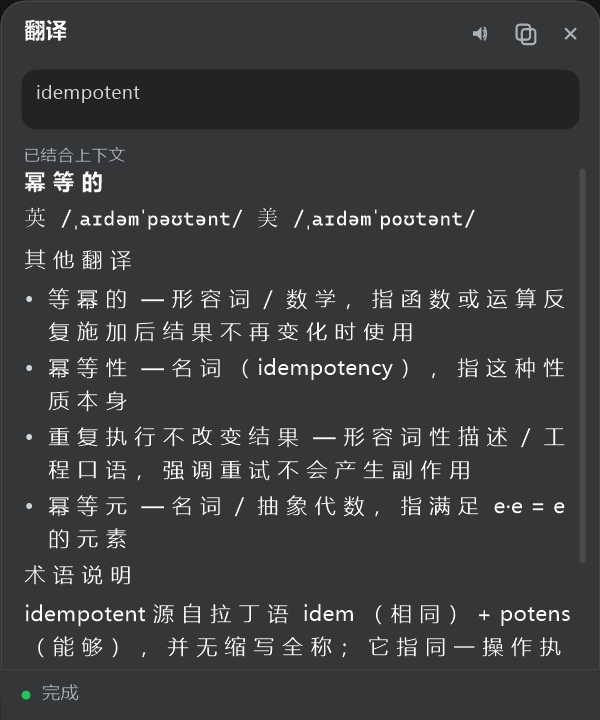
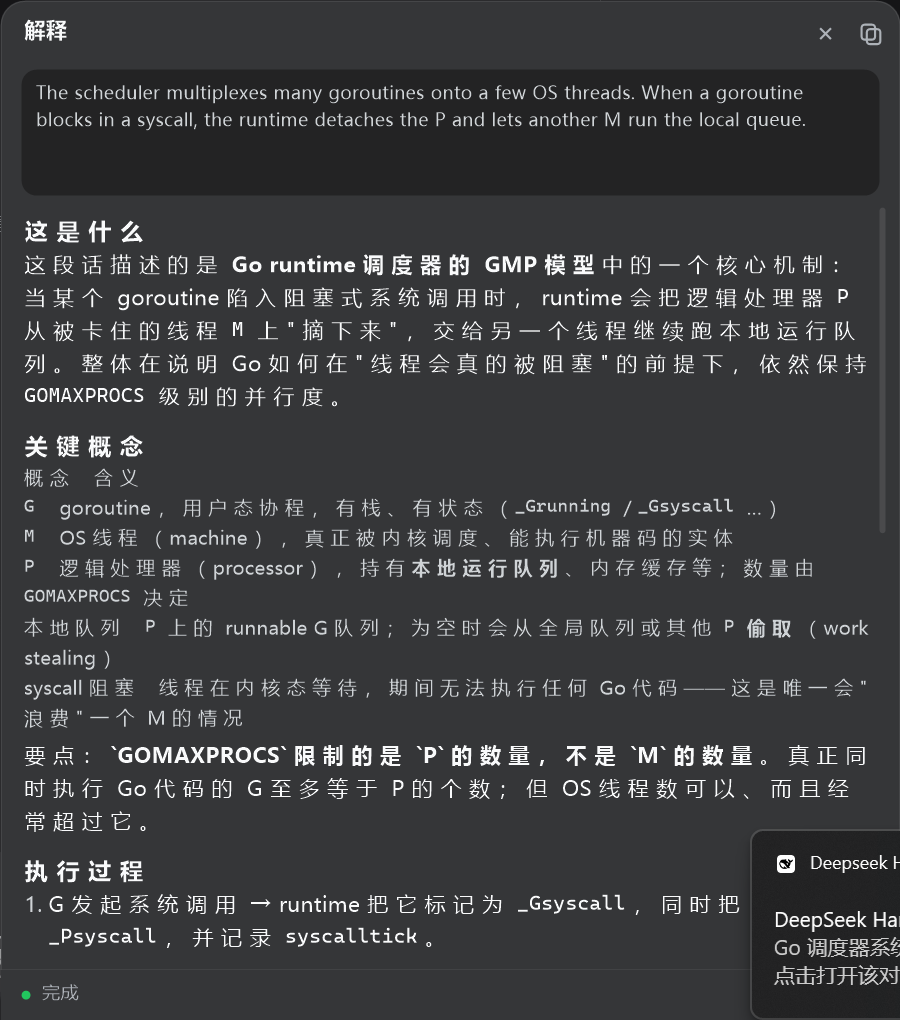
The primary path never touches the clipboard: a companion process reads the selection and its surrounding paragraph via UI Automation, then hands the context to a real Harness agent session turn. The overlay is a native Win32 layered window with GDI+ rendering — no Edge, no Chrome, no extra processes — and it inherits DSH theme tokens for color and corner radius. Translation adapts to the input: words and phrases get dictionary-style entries with phonetics and usage; full sentences and paragraphs get a complete translation plus a glossary of key terms. The title bar offers one-click copy and built-in Windows speech (SAPI) for reading the source text aloud. When system-level capabilities are unavailable, the same menu and overlay degrade gracefully to in-page selection inside DSH, so nothing is lost.
It is built for developers, researchers, and learners who repeatedly find themselves needing to explain a snippet, translate a passage, or unpack a technical term while working inside a code editor, terminal, IDE, or any other desktop application. As long as DeepSeek Harness is running, a quick mouse selection is all it takes to get an answer without leaving your current workflow.
Screenshots
Use Cases
- Select an error snippet in a code editor or terminal and get a context-aware explanation instantly
- Highlight a sentence in a foreign-language paper or spec to get a full translation with key-term glossary
- Double-click an unfamiliar API name or abbreviation to see a dictionary-style entry with phonetics and usage
Best For
- Developers who repeatedly switch apps to look up terms mid-coding
- Learners working through foreign-language technical docs or papers
- Power desktop users who want fewer window switches and a smoother workflow
Related Plugins
A service-oriented sidebar framework for DSH, offering a full workbench with file explorer, embedded browser, real terminal, Git panel, and extensible plugin services.

A beautiful, practical Claude Code-style TUI plugin with pixel whale top bar, flowing glow title, real-time status line, streaming thought expansion, time rewind, context progress bar and TPS gauge — zero core changes.

The plugin market for DeepSeek Harness: browse/search/one-click install community plugins and themes, with updates, backup/restore, hot disable, diagnostics, and AI fix.

A persistent whale widget on the DSH web UI that shows DeepSeek balance, today's usage, and per-turn cost, with drag-and-snap and sound effects.