dsh-terminal-panel
Run the following command in DeepSeek Harness:
dsh plugin install EasyTZ/dsh-terminal-panel
Paste the following prompt into your AI chat to install this plugin:
Search for terminal in the Discover tab of DeepSeek Harness and click Install, or run dsh plugin install EasyTZ/dsh-terminal-panel; source repository: https://github.com/EasyTZ/dsh-terminal-panel
About this plugin
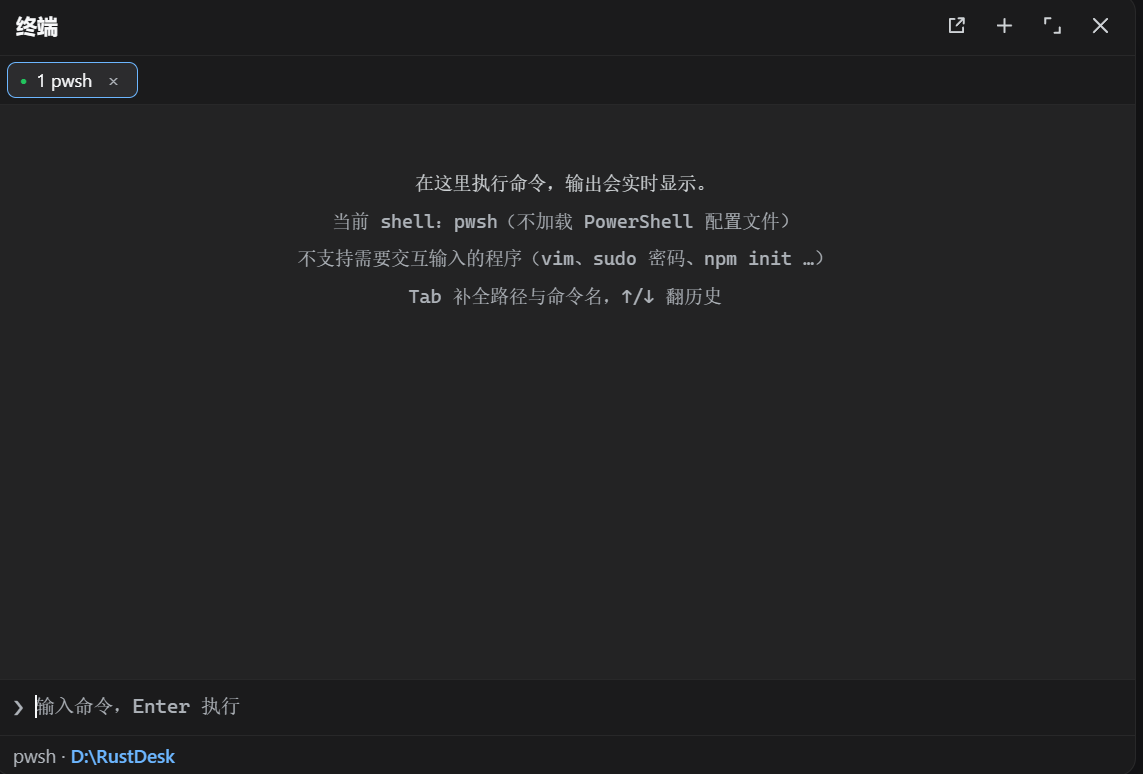
Developing inside DeepSeek Harness means alt-tabbing to a system terminal for every command, staring at output, then switching back—especially painful while a long build is running and you need to run something else or check docs. dsh-terminal-panel drops a command console into the sidebar so you can type, watch live streaming output, and manage processes without ever leaving the workspace. When a command finishes its exit code appears immediately, making non-zero exits obvious at a glance.
Tab completion covers file paths and command names on PATH; arrow keys walk through history; Ctrl+C interrupts a running process. Up to 8 header tabs let you kick off a build in one and investigate an error in another, side by side. The status bar tracks the current shell and working directory for you—even though each command is its own process and cd does not persist at the OS level, the panel maintains directory context so the next command runs where you expect. For genuinely full-screen interactive programs (vim, sudo password prompts, npm init questionnaires), the panel acknowledges the limit and offers a one-click button to open your OS terminal at the same directory.
Built for developers who live in the Harness workspace and run commands, tail logs, and juggle parallel long-running tasks daily. It is a command console, not a PTY—full-screen TTY apps are outside its scope—but the everyday loop of type, watch output, keep working stays in one place.
Screenshots
Use Cases
- Run a command and watch output stream in live without alt-tabbing to a system terminal
- Kick off a build in one tab and debug in another, side by side
- Execute commands, scroll history, and interrupt processes right inside the Harness workspace
Best For
- Developers who run commands frequently inside the DeepSeek Harness workspace
- Engineers juggling parallel long-running tasks without constant window-switching
- Solo builders who want a tight feedback loop with minimal context switching
Related Plugins
A service-oriented sidebar framework for DSH, offering a full workbench with file explorer, embedded browser, real terminal, Git panel, and extensible plugin services.

A beautiful, practical Claude Code-style TUI plugin with pixel whale top bar, flowing glow title, real-time status line, streaming thought expansion, time rewind, context progress bar and TPS gauge — zero core changes.

The plugin market for DeepSeek Harness: browse/search/one-click install community plugins and themes, with updates, backup/restore, hot disable, diagnostics, and AI fix.

A persistent whale widget on the DSH web UI that shows DeepSeek balance, today's usage, and per-turn cost, with drag-and-snap and sound effects.