dsh-tool-highlight
Run the following command in DeepSeek Harness:
dsh plugin install vollegrewar/dsh-tool-highlight
Paste the following prompt into your AI chat to install this plugin:
Install this plugin in DeepSeek Harness by running dsh plugin install vollegrewar/dsh-tool-highlight. Source: https://github.com/vollegrewar/dsh-tool-highlight
About this plugin
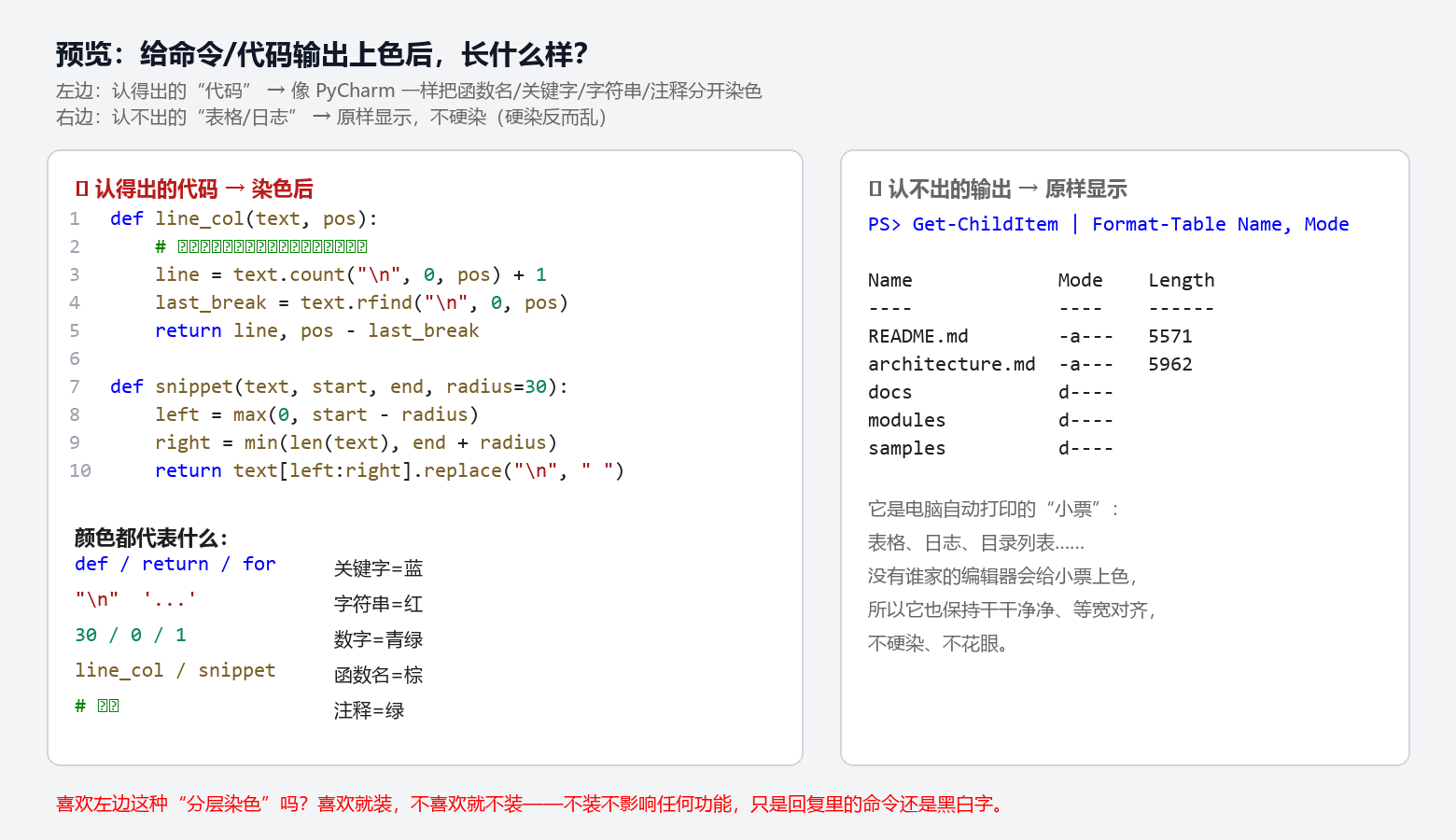
In DeepSeek Harness, when the model reads a Python file or executes a shell script, the terminal output is typically a wall of plain, uncolored text: keywords, strings, and comments all blend together, making extended reading tedious. dsh-tool-highlight tackles exactly this problem by adding layered syntax highlighting to read code output and bash / pwsh command output, assigning distinct colors to keywords, strings, numbers, function names, and comments in the VS Code Dark+ palette, with automatic light/dark theme switching that follows DSH global tokens.
The plugin follows a "color only what you recognize" philosophy: read cards detect language by file extension (.py, .js, .ts, .json, .ps1, .sh, etc.), while command output is classified by content heuristics: JSON-structured text gets JSON coloring, code-like content gets syntax coloring, and tables or logs are left untouched to avoid noisy over-highlighting. Each card also shows an exit-code status bar (green for success, red for non-zero exit) and supports a default-collapsed single-line title that expands on click; running and error states auto-expand so you never miss live output.
The entire plugin is pure front-end rendering: it adds no new conversation content, modifies nothing, calls no model, and incurs zero token cost. The tokenizer is a self-written lightweight regex engine with zero runtime dependencies. It exclusively handles the read, bash, and pwsh tool cards (priority -2), coexisting cleanly with dsh-better-tool-ui, which manages the remaining tools. Ideal for developers who frequently inspect code reads and command output in the DSH web interface.
Screenshots
Use Cases
- Reading long multi-language code snippets from model output
- Inspecting bash or pwsh command output with JSON and exit codes
- Quickly distinguishing code, tables, and logs in output
Best For
- Developers who frequently read code output in the DSH web UI
- DevOps engineers who monitor terminal output for extended periods
- Technical users with a strong preference for colorized, readable code
Related Plugins
A service-oriented sidebar framework for DSH, offering a full workbench with file explorer, embedded browser, real terminal, Git panel, and extensible plugin services.

A beautiful, practical Claude Code-style TUI plugin with pixel whale top bar, flowing glow title, real-time status line, streaming thought expansion, time rewind, context progress bar and TPS gauge — zero core changes.

The plugin market for DeepSeek Harness: browse/search/one-click install community plugins and themes, with updates, backup/restore, hot disable, diagnostics, and AI fix.

A persistent whale widget on the DSH web UI that shows DeepSeek balance, today's usage, and per-turn cost, with drag-and-snap and sound effects.