dsh-flyout-sidebar
Run the following command in DeepSeek Harness:
dsh plugin install oxlyn/dsh-flyout-sidebar
Paste the following prompt into your AI chat to install this plugin:
Run dsh plugin install oxlyn/dsh-flyout-sidebar in DeepSeek Harness (DSH) to install this plugin; the full source code is hosted at https://github.com/oxlyn/dsh-flyout-sidebar — after installation, restart dsh web and hard-refresh your browser (Cmd/Ctrl+Shift+R) to apply changes.
About this plugin
Switching between DSH conversations and an external editor or terminal every time you need to check a file tree, review Git changes, or read a diff breaks your flow. dsh-flyout-sidebar embeds a file panel directly into the conversation interface so you can do all of that without leaving the session.
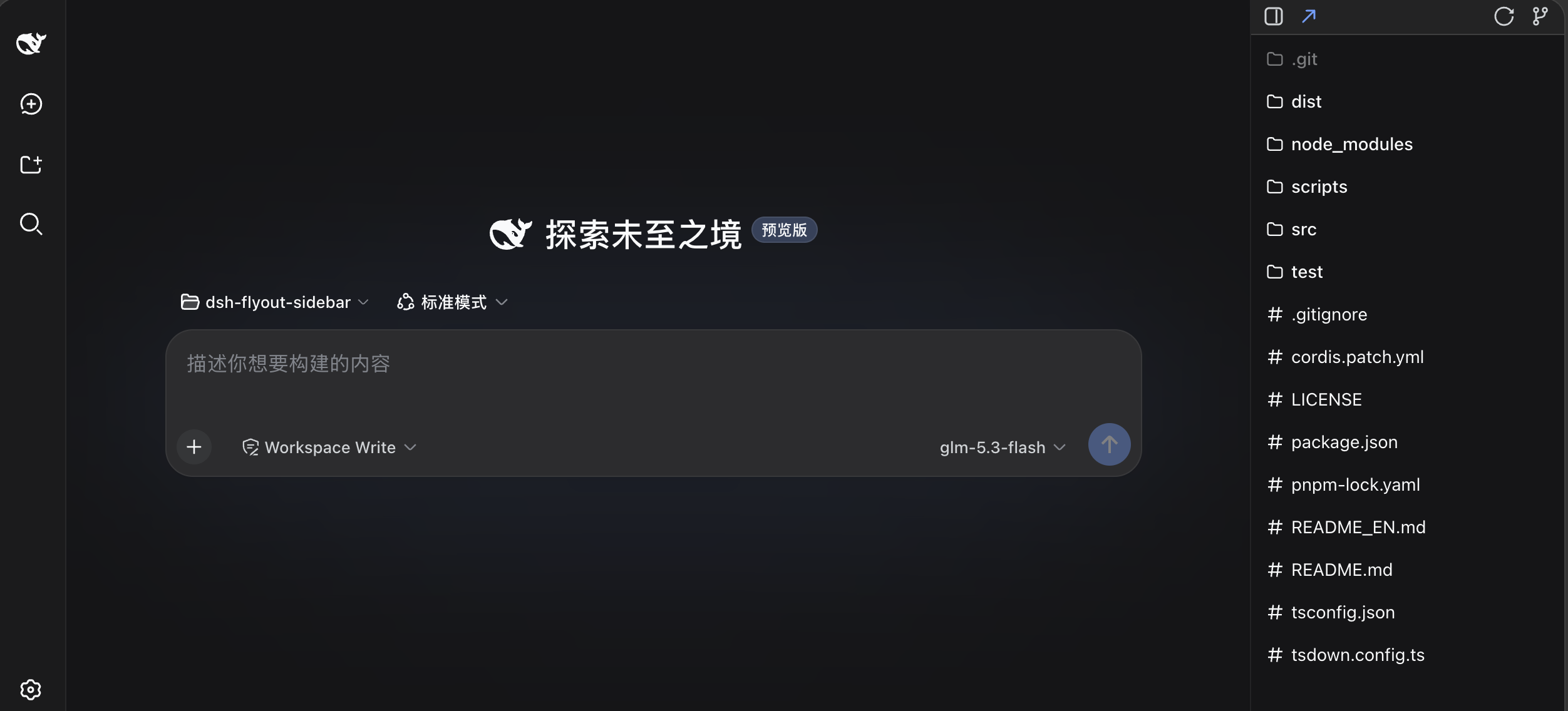
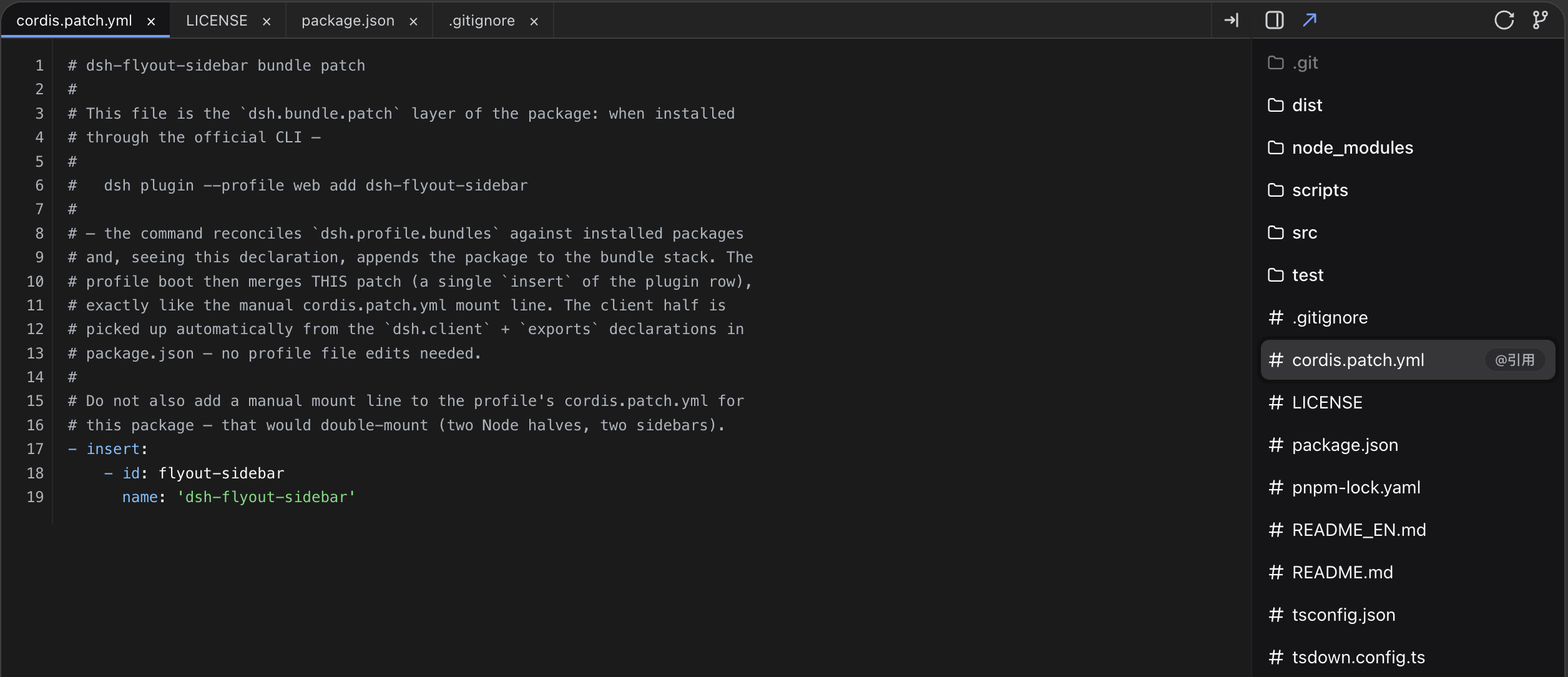
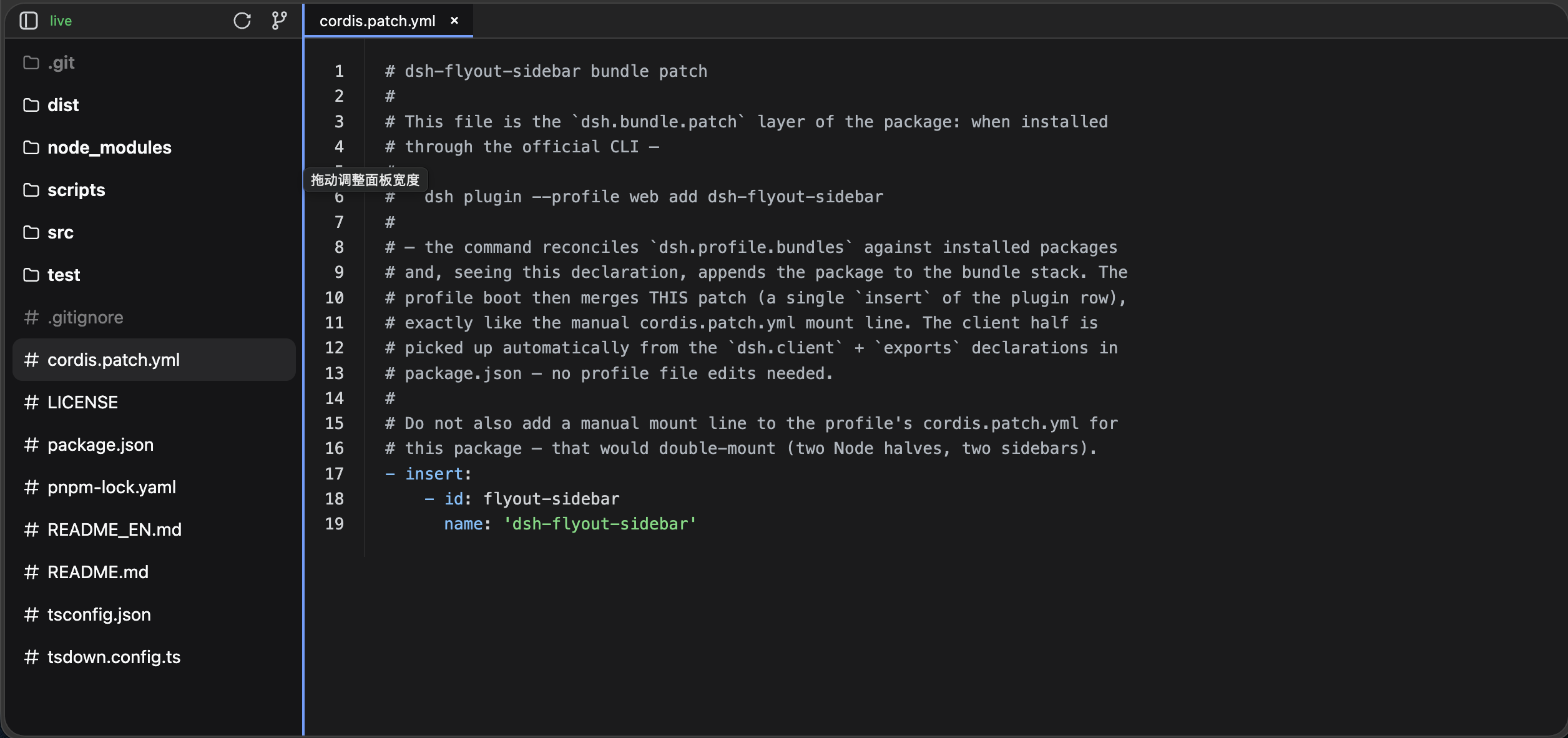
The sidebar offers a lazy-loading file tree (with repo-wide filename search via git ls-files) and a Git uncommitted-changes list with M/A/D badges, staged/unstaged indicators, and +n/−n line stats. Clicking a file opens a multi-tab preview that covers the entire session area—enough width for long files, syntax-highlighted code, rendered Markdown, scroll-to-zoom images, embedded PDF (offline-capable), and sandboxed HTML. The ↗ button in the top-left corner pops the panel out as an independent browser tab you can drag to a second monitor, keeping the main screen completely unobstructed; the pop-out page and main panel stay in real-time sync on session and theme via localStorage. The Git changes list auto-refreshes after each agent tool call (700 ms debounce + 2 s polling + 15 s fallback) and even picks up out-of-band edits made in an IDE.
Built for developers who frequently inspect code, track Git state, and read diffs inside DSH—especially dual- or multi-monitor users who want a persistent file panel on one screen and the conversation on the other. Bilingual UI, live light/dark theme sync, automatic yielding to other sidebar plugins, and per-session preview-tab restoration after a browser refresh are small touches that make daily use comfortable.
Screenshots
Use Cases
- Browse the file tree and Git changes alongside DSH conversations without leaving the window
- Click a changed file to see a highlighted unified diff, with multi-tab support for comparing several changes
- Pop the sidebar out as an independent tab on a second monitor, keeping the main screen unobstructed
Best For
- Developers who frequently inspect code files and Git state within DSH
- Dual- or multi-monitor users who want a dedicated file panel separated from the conversation
- DSH users who need real-time tracking of file changes after each agent tool call
Related Plugins
A service-oriented sidebar framework for DSH, offering a full workbench with file explorer, embedded browser, real terminal, Git panel, and extensible plugin services.

A beautiful, practical Claude Code-style TUI plugin with pixel whale top bar, flowing glow title, real-time status line, streaming thought expansion, time rewind, context progress bar and TPS gauge — zero core changes.

The plugin market for DeepSeek Harness: browse/search/one-click install community plugins and themes, with updates, backup/restore, hot disable, diagnostics, and AI fix.

A persistent whale widget on the DSH web UI that shows DeepSeek balance, today's usage, and per-turn cost, with drag-and-snap and sound effects.