dsh-omc-tui
Run the following command in DeepSeek Harness:
dsh plugin install ipromise2021/dsh-omc-tui
Paste the following prompt into your AI chat to install this plugin:
Run dsh plugin install ipromise2021/dsh-omc-tui in your terminal to install the plugin; source code is available at https://github.com/ipromise2021/dsh-omc-tui
About this plugin
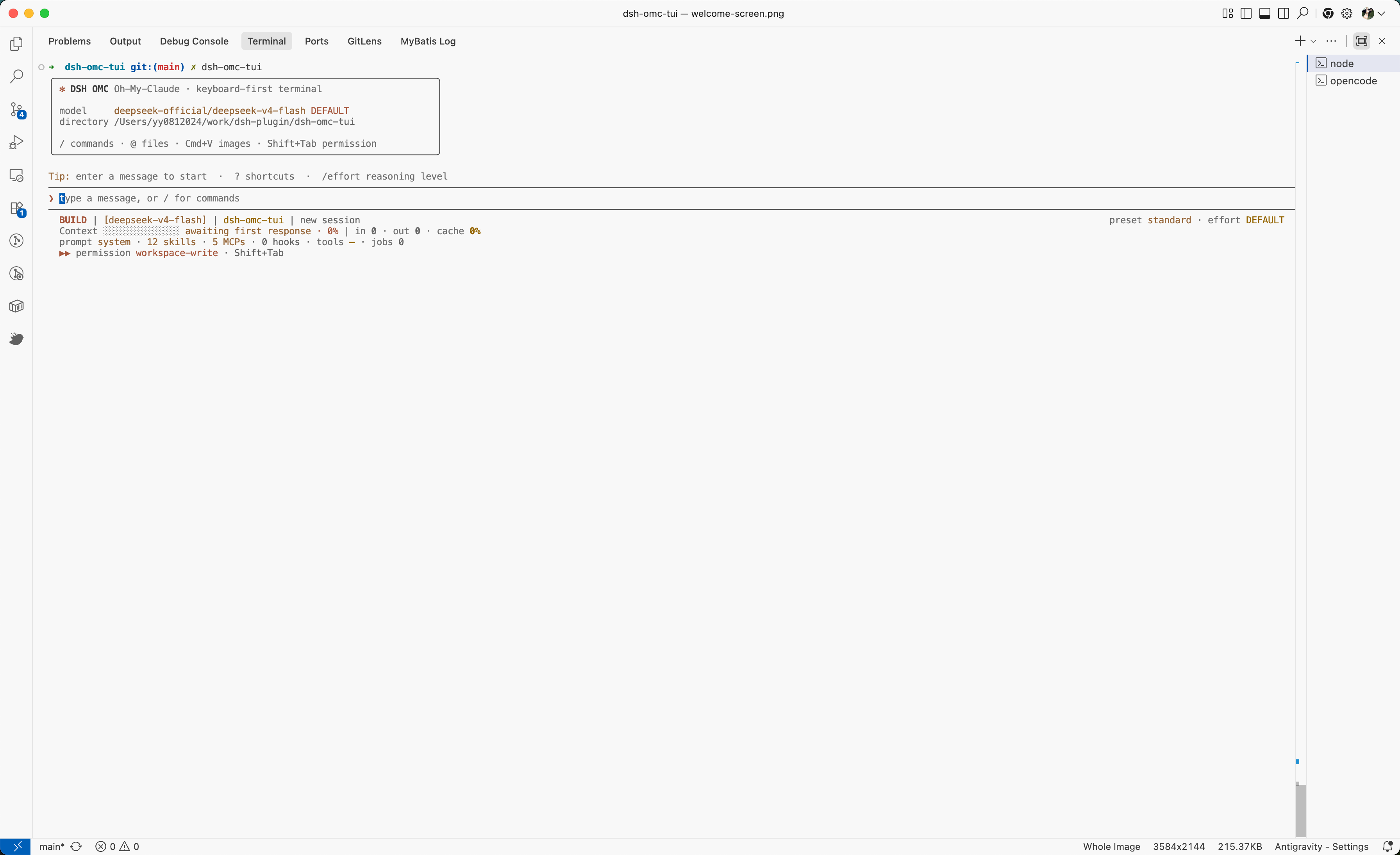
Running DeepSeek Harness in a terminal usually means the TUI seizes the alternate screen buffer, making scrollback and text selection painfully clunky; and when a text-only coding model hits a screenshot or a UI error image, the user must manually swap the global model and invoke a vision skill, breaking the flow of thought. dsh-omc-tui removes both frictions: it never enters the alternate screen, so every message, tool call, Thinking block, and Diff appends to the regular terminal buffer, preserving native scrollback, selection, and copy behavior. At the same time, a zero-touch autonomous vision pipeline lets the main agent spin up an isolated, ephemeral vision Subagent on its own, parse the image, and feed the result back as a standard tool output-the user never switches models or types a command.\n\nBeyond vision, the plugin covers the key pieces of a terminal workflow: inline Diff approval and permission toggling, Plan and Jobs management, an adaptive status bar (current model, Context watermark, Git state, recent tools and latency, in three density modes), file references, session resume, and context compaction. On the safety front, a built-in Danger Guard watchdog performs structured syntax review before every tool execution, blocking high-destructiveness patterns such as recursive deletes, disk formatting, fork bombs, and deeply nested shell obfuscation, with support for project-level custom rules.\n\nWho it is for: developers who already use DeepSeek Harness in a terminal, value native scrollback and clipboard workflows, and need multimodal image understanding plus fine-grained permission control. The plugin handles only rendering and keyboard interaction; model inference, session persistence, sandboxing, and tool execution all remain with the official Harness services, keeping the boundary clean and the integration cost low.
Screenshots
Use Cases
- Paste a screenshot of an error or UI reference via Cmd+V and the main agent automatically spins up a vision subagent to parse it before continuing to code
- Scroll back through long conversations and select-copy text with the same feel as a native terminal, with no lost scrollback
- Review file diffs and command outputs inline, then approve or reject without leaving the terminal
Best For
- Developers whose daily workflow lives inside DeepSeek Harness in a terminal
- Coders who need multimodal image understanding without manually switching models or invoking skills
- Terminal power users who value native scrollback, keyboard shortcuts, and clipboard workflows
Related Plugins
A service-oriented sidebar framework for DSH, offering a full workbench with file explorer, embedded browser, real terminal, Git panel, and extensible plugin services.

A beautiful, practical Claude Code-style TUI plugin with pixel whale top bar, flowing glow title, real-time status line, streaming thought expansion, time rewind, context progress bar and TPS gauge — zero core changes.

The plugin market for DeepSeek Harness: browse/search/one-click install community plugins and themes, with updates, backup/restore, hot disable, diagnostics, and AI fix.

A persistent whale widget on the DSH web UI that shows DeepSeek balance, today's usage, and per-turn cost, with drag-and-snap and sound effects.