fexp-file-explorer
Run the following command in DeepSeek Harness:
dsh plugin install ShanHaiFish/fexp-file-explorer
Paste the following prompt into your AI chat to install this plugin:
Run dsh plugin install ShanHaiFish/fexp-file-explorer in your DeepSeek Harness terminal to install the plugin; source code is at https://github.com/ShanHaiFish/fexp-file-explorer .
About this plugin
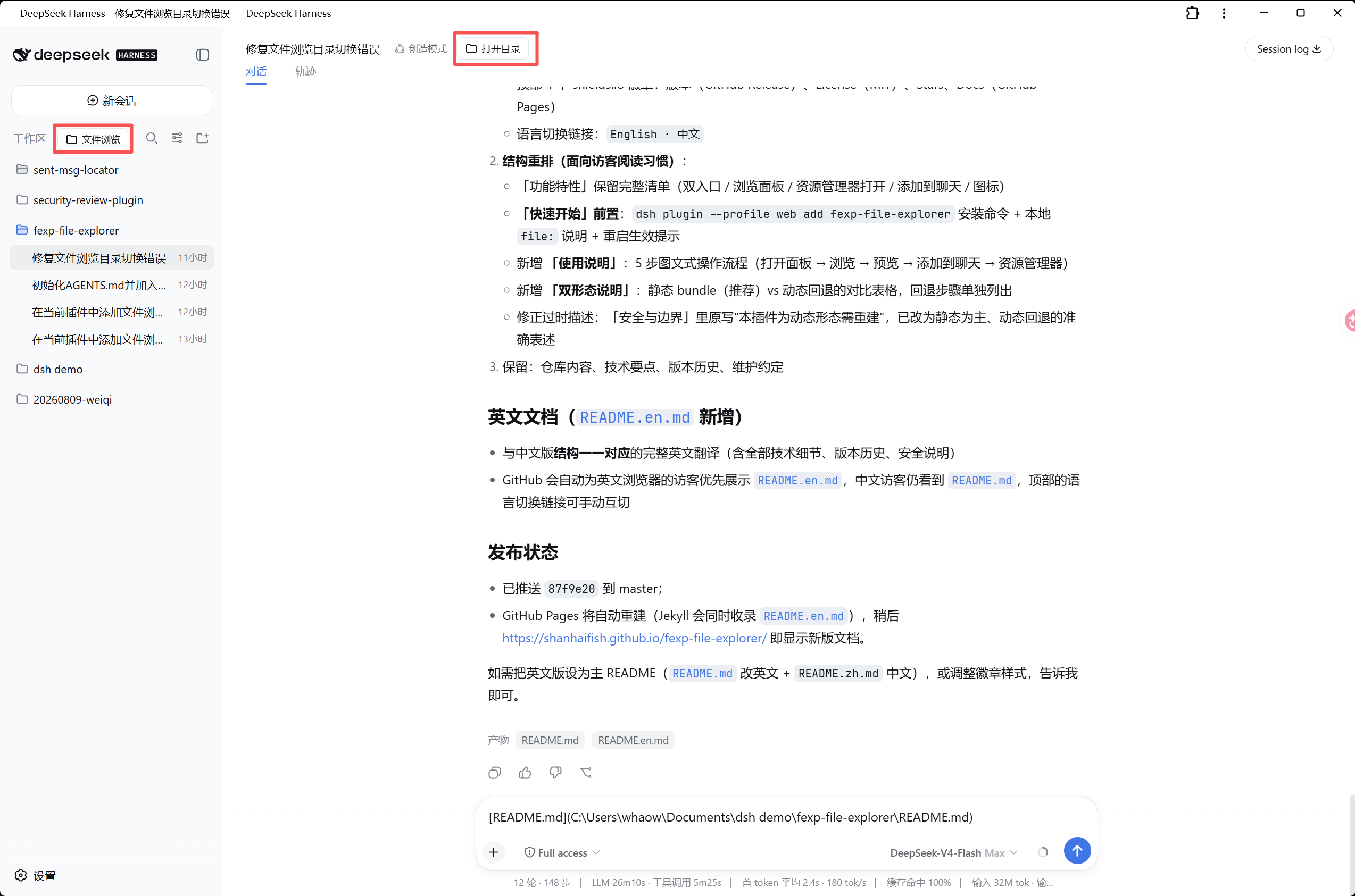
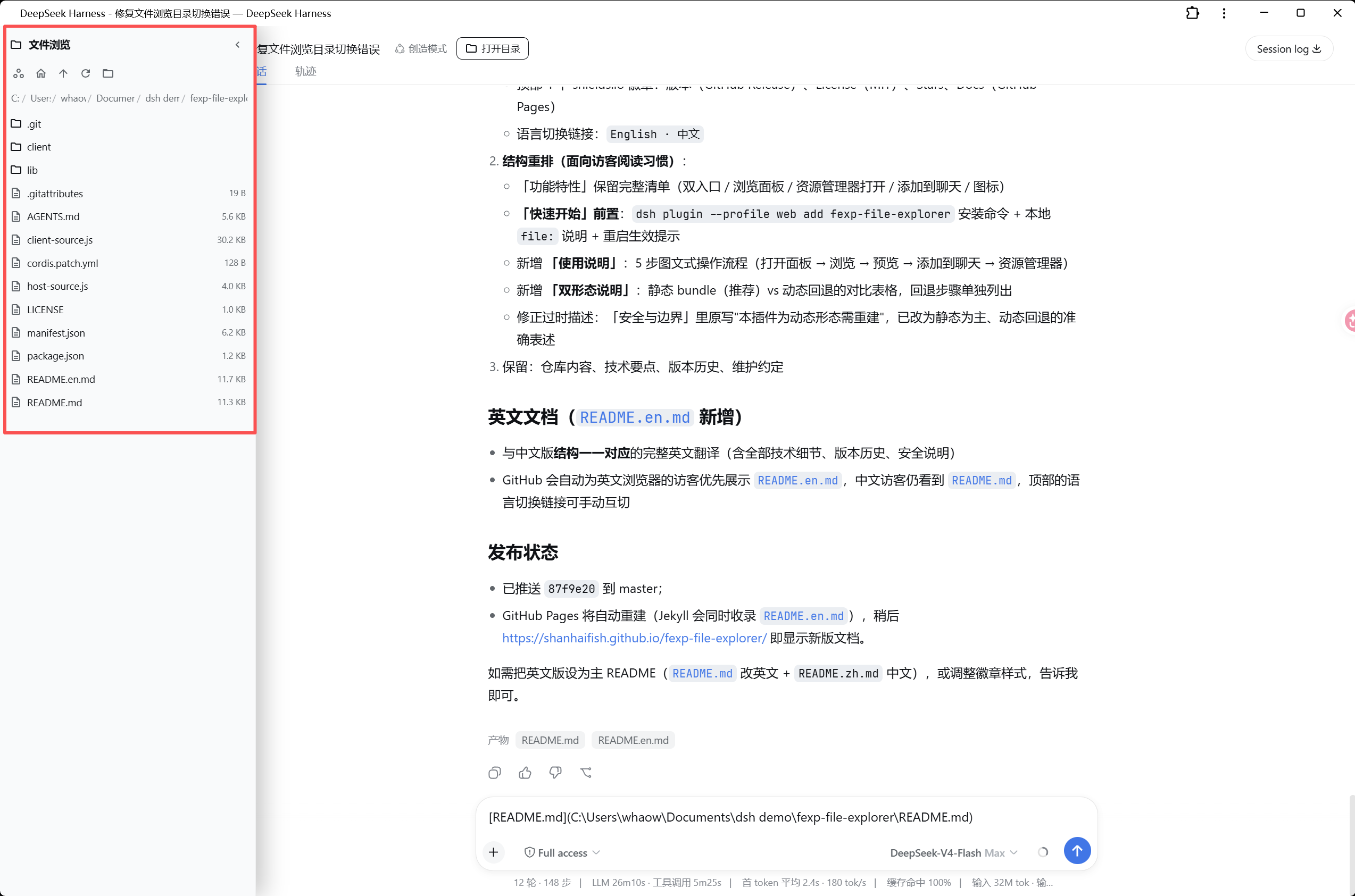
Working in DSH day-to-day often means hunting for files scattered between the terminal and the editor. You want to browse the workspace tree, confirm a path, or reference a file in the conversation, but every action requires leaving the chat. fexp-file-explorer solves this by putting a full file browser directly into the DSH left-hand workspace: click the File Browser capsule in the sidebar or the Open Directory button in the conversation header, and a 320 px panel slides out, automatically anchored to the current workspace root with zero context switching.
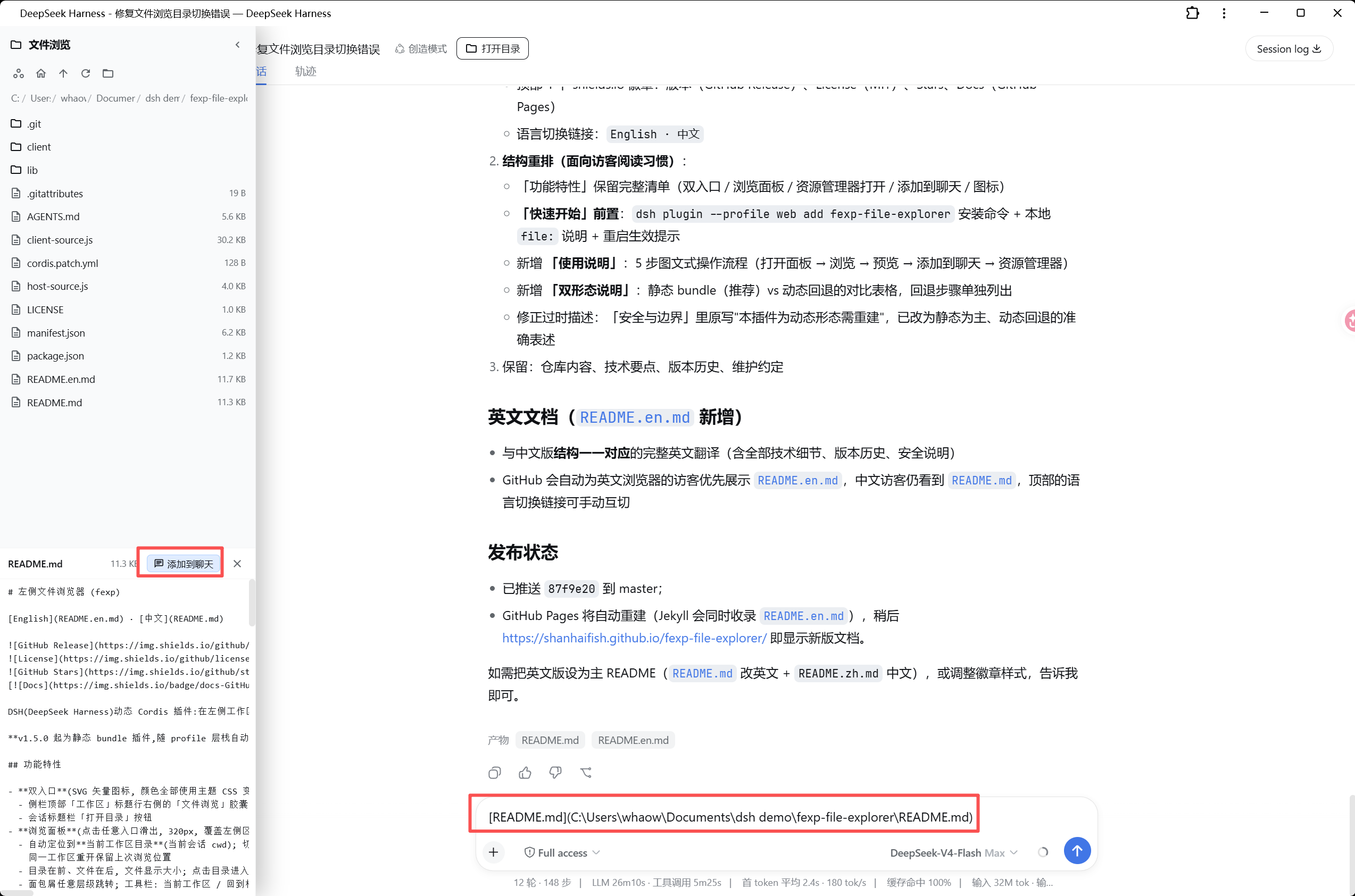
The panel offers a complete browsing experience. Directories appear first, files follow, and a breadcrumb bar lets you jump to any level. The toolbar provides one-click navigation to root, parent directory, or a refresh. Click a text file to preview its contents inline at the bottom of the panel (256 KB default cap), and use the Add to Chat button in the preview header to append a native DSH @file reference into the input draft. The model recognises the @ prefix and calls the read tool when it needs the file contents, so you no longer hand-type paths or paste long strings. The toolbar also includes an Open in Explorer button that launches the current directory in your OS file manager without spawning external processes.
It is built for developers who work in DSH regularly and reference workspace files often. The plugin loads as a static bundle with the profile stack, adapts to any light or dark theme automatically, and declares only basic fs and rpc capabilities with no network requests and no process spawning, keeping it lightweight and safe by design.
Screenshots
Use Cases
- Browse workspace directory structure within DSH without switching windows
- Preview files and insert @file references into the chat input draft
- Open the current workspace directory in the system file manager with one click
- Get a consistent file browsing experience across light and dark themes
Best For
- Engineers who use DSH for daily development conversations
- Developers who frequently reference workspace file paths and contents
- Technical teams that prefer browsing directories and previewing files directly in the chat interface
Related Plugins
A service-oriented sidebar framework for DSH, offering a full workbench with file explorer, embedded browser, real terminal, Git panel, and extensible plugin services.

A beautiful, practical Claude Code-style TUI plugin with pixel whale top bar, flowing glow title, real-time status line, streaming thought expansion, time rewind, context progress bar and TPS gauge — zero core changes.

The plugin market for DeepSeek Harness: browse/search/one-click install community plugins and themes, with updates, backup/restore, hot disable, diagnostics, and AI fix.

A persistent whale widget on the DSH web UI that shows DeepSeek balance, today's usage, and per-turn cost, with drag-and-snap and sound effects.