dsh-vscode-shell
Run the following command in DeepSeek Harness:
dsh plugin install lonebone/dsh-vscode-shell
Paste the following prompt into your AI chat to install this plugin:
Run dsh plugin install lonebone/dsh-vscode-shell inside DeepSeek Harness to install this plugin, then restart dsh web and refresh the page to activate it. Source: https://github.com/lonebone/dsh-vscode-shell
About this plugin
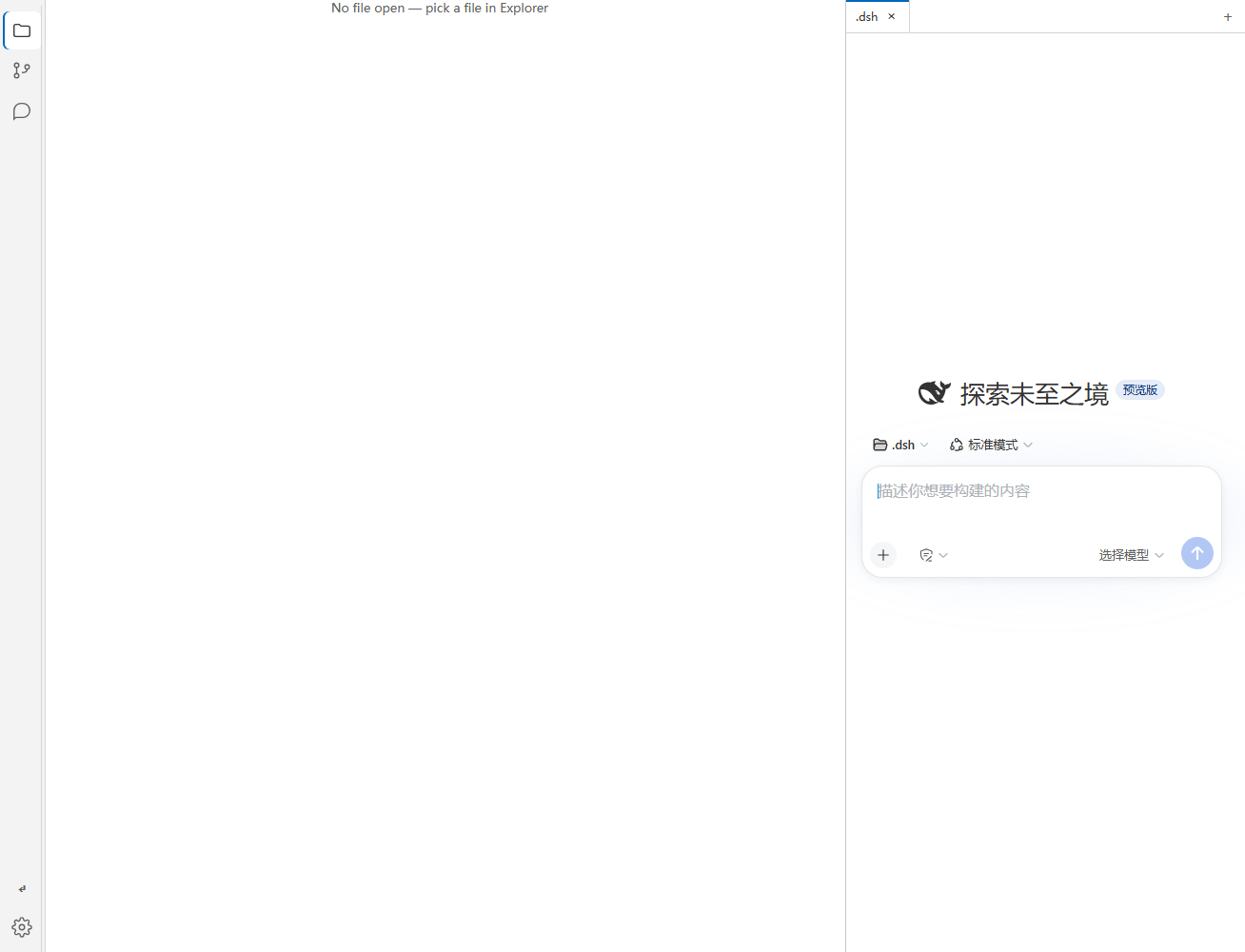
When working with DeepSeek Harness, the default web UI focuses entirely on chat and session management, leaving file operations and version control to the terminal or a separate IDE. dsh-vscode-shell replaces the entire web shell with a VS Code-style workbench, bringing file browsing and Git operations into the same window and reducing the context loss that comes from constant tool switching.
The activity bar on the left offers three views: Explorer, Source Control, and Sessions. Explorer lets you navigate the workspace directory tree, copy relative or absolute paths, and reveal files in the OS file manager. Source Control is a full Git panel covering branch display, grouped file changes, per-file or bulk stage and unstage, discard changes, adding entries to .gitignore, a commit message box (Ctrl+Enter to commit), and per-file diff viewing. Multiple sessions appear as editor tabs that can be switched, closed, or created on the fly. The UI follows DSH light and dark tokens, sidebar and panel widths are draggable, and all labels adapt to the configured language.
If you prefer to complete the full coding-to-committing loop inside DSH without ever leaving the browser, this plugin gives your web workbench genuine file awareness and version-control capability. It is also a good fit for teams that want a visual Git workflow, flexible light and dark theming, and quick file-manager access in a browser-based environment.
Screenshots
Use Cases
- Browse files, stage and commit Git changes, and switch sessions entirely within the browser without bouncing to an IDE
- Navigate the workspace directory tree, copy relative or absolute paths, and reveal files in the OS file manager instantly
- Stage, unstage, discard, and view per-file diffs right from the web panel, eliminating terminal round-trips
Best For
- Developers who prefer a browser-only workflow and do not want to leave the DSH web window
- Solo developers who want a visual Git panel and tab-based multi-session management
- Teams that want a consistent light or dark theme with file browsing and version control on the same screen
Related Plugins
A service-oriented sidebar framework for DSH, offering a full workbench with file explorer, embedded browser, real terminal, Git panel, and extensible plugin services.

A beautiful, practical Claude Code-style TUI plugin with pixel whale top bar, flowing glow title, real-time status line, streaming thought expansion, time rewind, context progress bar and TPS gauge — zero core changes.

The plugin market for DeepSeek Harness: browse/search/one-click install community plugins and themes, with updates, backup/restore, hot disable, diagnostics, and AI fix.

A persistent whale widget on the DSH web UI that shows DeepSeek balance, today's usage, and per-turn cost, with drag-and-snap and sound effects.