dsh-produced-file-paths
Run the following command in DeepSeek Harness:
dsh plugin install flyhigao/dsh-produced-file-paths
Paste the following prompt into your AI chat to install this plugin:
Run dsh plugin install flyhigao/dsh-produced-file-paths in DeepSeek Harness to install; the source code is available at https://github.com/flyhigao/dsh-produced-file-paths . After installation, restart dsh web and perform a hard refresh on the remote web page.
About this plugin
In DSH's remote web UI, the files produced by the current turn appear as clickable items, but they are actually JavaScript-driven buttons rather than ordinary href links. That means you cannot right-click to copy a URL, cannot see the full absolute path on screen, and the remote host typically has no desktop file opener. When your next step is to pick up those files in SSH, a terminal, or a local editor, the absence of a visible, copyable path becomes a real friction point.
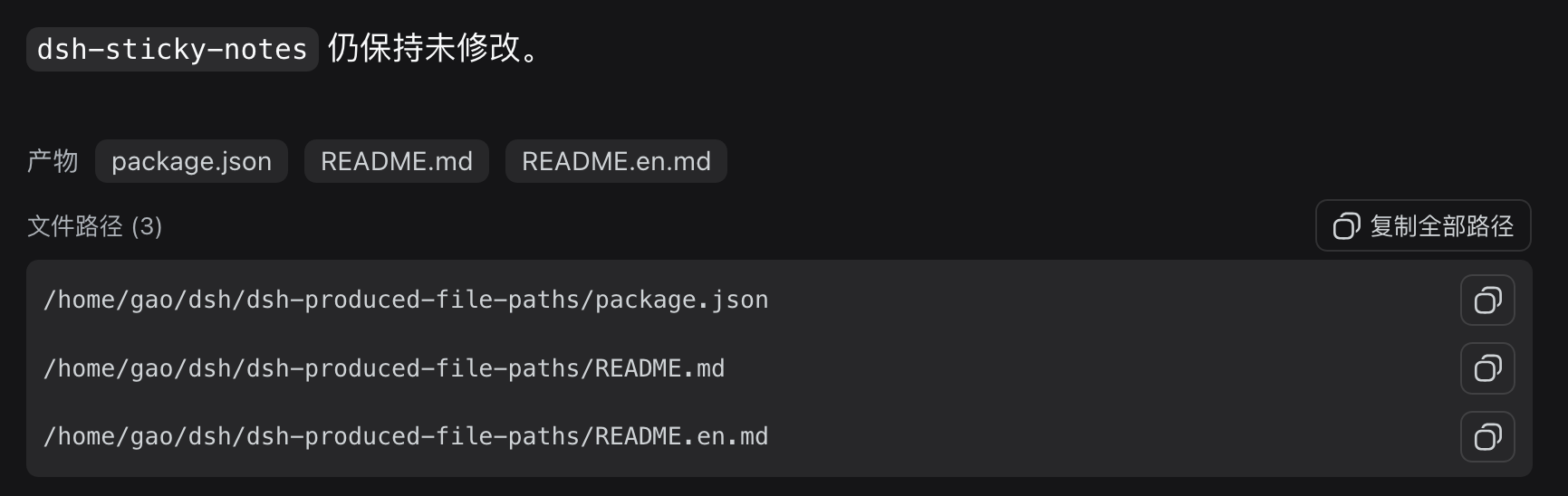
dsh-produced-file-paths keeps things deliberately lightweight: it does not add a file-download service, does not disguise remote files as browser URLs, and does not scan the workspace or read file contents. It simply reuses the produced-file list that DSH has already identified for the current turn, renders the corresponding absolute filesystem paths directly below the built-in file row, and provides a copy button for each path plus a one-click copy-all (one per line). The path text is also freely selectable for manual copying into a terminal or editor.
The plugin has zero external runtime dependencies, injects via the standard DSH slot conversation.chat.turnTail, and coexists with the built-in file row without modifying dsh-stiky-notes. It supports DSH 0.1.0-rc.6 and later. Ideal for anyone who accesses DSH remotely over the web and needs to continue working on generated files in a terminal or local editor.
Screenshots
Use Cases
- Copy absolute paths of generated files into an SSH terminal after a remote web session
- Batch-copy all produced file paths and paste them into a local editor for quick access
- Grab full filesystem paths in a web UI where right-click copy is unavailable
Best For
- Users who access DSH remotely via web and continue file work in a terminal or editor
- Developers on headless hosts who need quick access to absolute file paths
- Teams seeking a zero-dependency, lightweight enhancement to the DSH web experience
Related Plugins
A service-oriented sidebar framework for DSH, offering a full workbench with file explorer, embedded browser, real terminal, Git panel, and extensible plugin services.

A beautiful, practical Claude Code-style TUI plugin with pixel whale top bar, flowing glow title, real-time status line, streaming thought expansion, time rewind, context progress bar and TPS gauge — zero core changes.

The plugin market for DeepSeek Harness: browse/search/one-click install community plugins and themes, with updates, backup/restore, hot disable, diagnostics, and AI fix.

A persistent whale widget on the DSH web UI that shows DeepSeek balance, today's usage, and per-turn cost, with drag-and-snap and sound effects.