dsh-trajectory-traceview
Run the following command in DeepSeek Harness:
dsh plugin install AFAP/dsh-trajectory-traceview
Paste the following prompt into your AI chat to install this plugin:
Run dsh plugin install AFAP/dsh-trajectory-traceview in the DeepSeek Harness Web terminal to install the plugin; the source code is hosted at https://github.com/AFAP/dsh-trajectory-traceview — restart dsh web after installation for it to take effect.
About this plugin
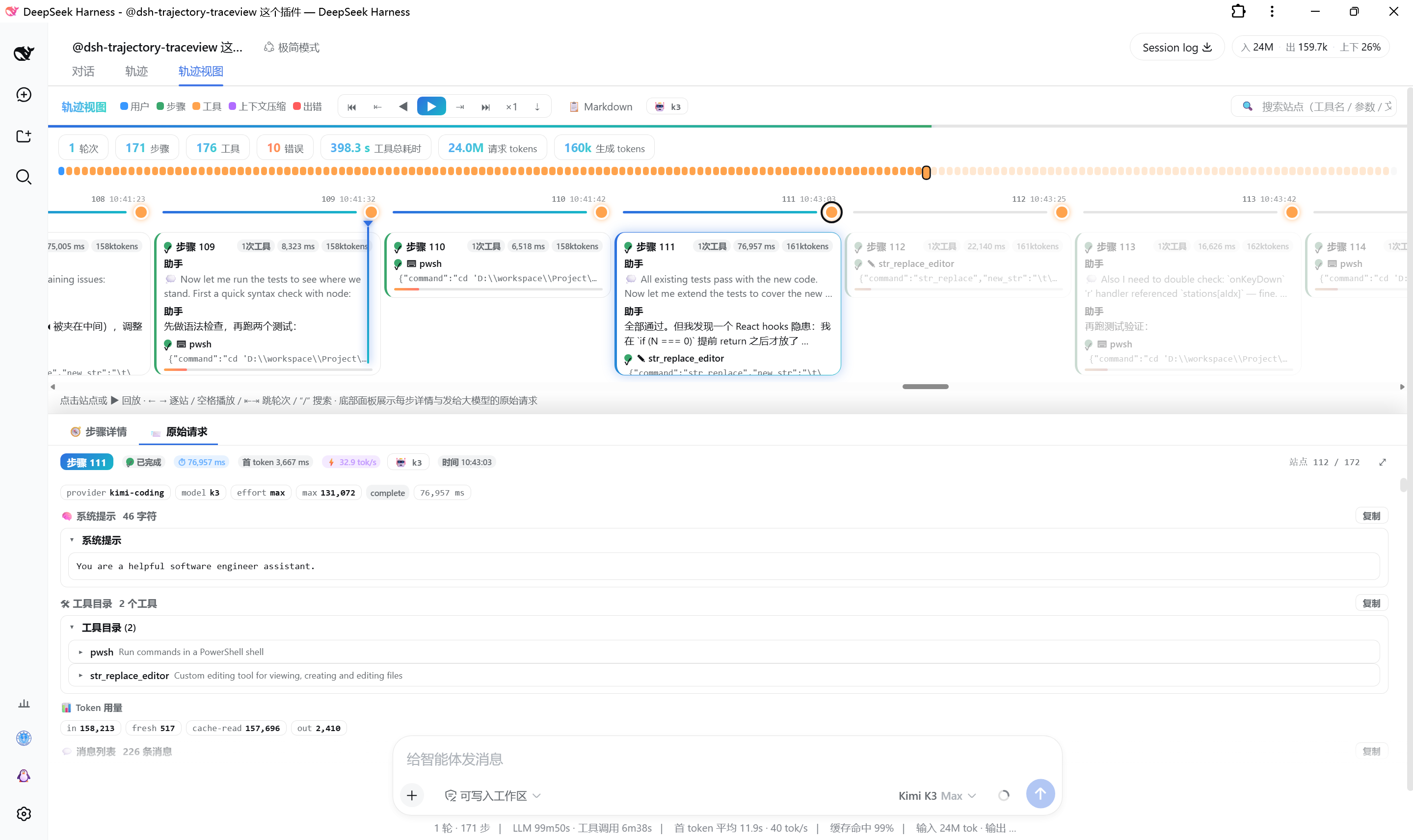
Reconstructing what an AI actually did in a long session is painful: the built-in trajectory tab forces you to scroll through a flat event list, and the raw payloads sent to the model—system prompt, tool directory, rebuilt messages—remain buried in internal state with no visual surface. dsh-trajectory-traceview adds a Trace View tab beside Trajectory, rendering the same conversation snapshot as a replayable, searchable, exportable horizontal timeline where every step and every request is laid out in plain sight.
The timeline is topped by a color-coded minimap: user messages, assistant steps, tool calls, context compression, round failures, model retries, and commands are all positioned by real wall-clock time. Selecting any assistant step opens a detail panel with the model's reasoning, formatted tool arguments, full result text, sub-call cards, and timing metrics. Switching to the Raw Request tab reveals model configuration, a prompt-diff summary of what changed since the last request, the full system prompt with tool-directory JSON, and an approximately rebuilt message list—each entry expandable and copyable. The entire trajectory can also be exported as a Markdown study note with one click.
The plugin is strictly read-only: it never modifies files, never touches the network, and writes nothing to storage. All data stays in the browser. It is built for learners who want to demystify how an AI executes a task, developers iterating on prompts and tool orchestration, and engineers debugging tool-call failures who need to see the exact context the model received at each step.
Screenshots
Use Cases
- Replay every step of a long AI session including reasoning, tool calls, and retries
- Inspect the exact payload sent to the model in a given request for prompt learning
- Pinpoint failed or oversized tool calls by reviewing their parameters, results, and model config
Best For
- Learners who want to understand why an AI produced a given answer
- Developers iterating on prompts and tool orchestration in AI applications
- Engineers debugging unexpected model behavior or tool-call failures
Related Plugins
A service-oriented sidebar framework for DSH, offering a full workbench with file explorer, embedded browser, real terminal, Git panel, and extensible plugin services.

A beautiful, practical Claude Code-style TUI plugin with pixel whale top bar, flowing glow title, real-time status line, streaming thought expansion, time rewind, context progress bar and TPS gauge — zero core changes.

The plugin market for DeepSeek Harness: browse/search/one-click install community plugins and themes, with updates, backup/restore, hot disable, diagnostics, and AI fix.

A persistent whale widget on the DSH web UI that shows DeepSeek balance, today's usage, and per-turn cost, with drag-and-snap and sound effects.