dsh-remote-desktop
Run the following command in DeepSeek Harness:
dsh plugin install zptalk0221-cpu/dsh-remote-desktop
Paste the following prompt into your AI chat to install this plugin:
Run dsh plugin install zptalk0221-cpu/dsh-remote-desktop to install this plugin; the source repository is at https://github.com/zptalk0221-cpu/dsh-remote-desktop.
About this plugin
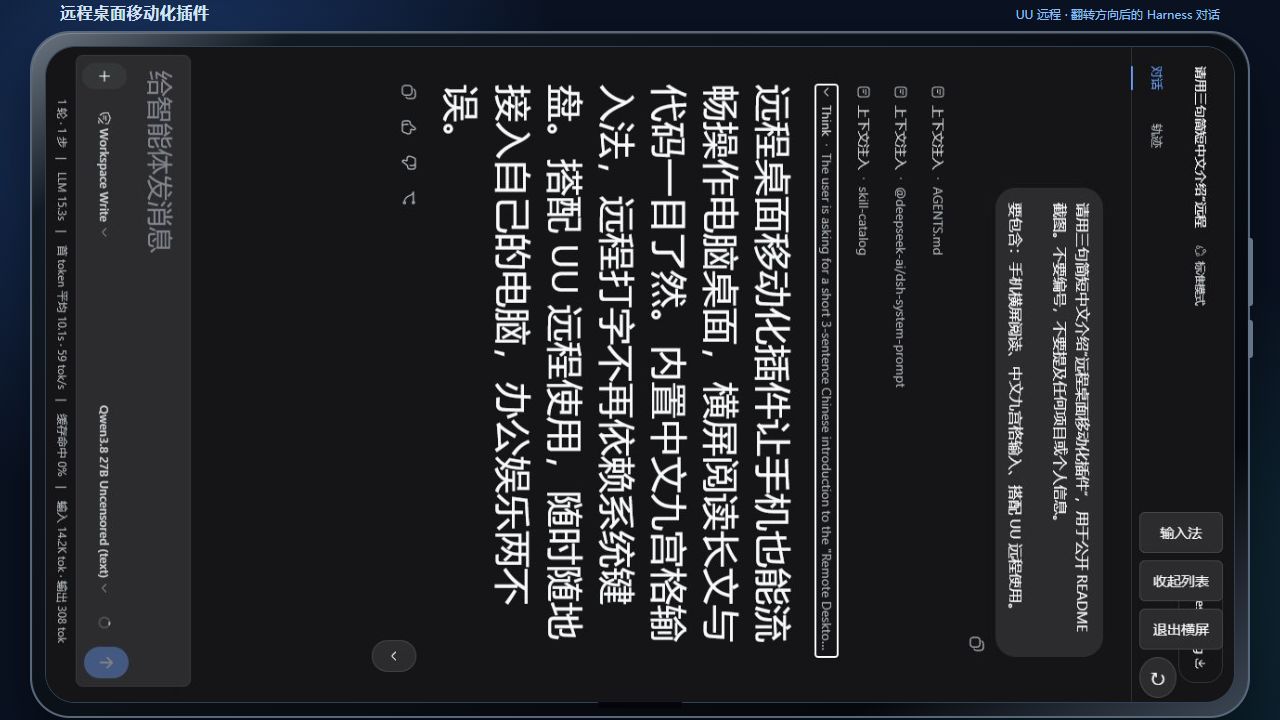
Pointing a remote-desktop app like UU Remote at DeepSeek Harness on a desktop leaves the standard Web UI awkward for touch, landscape reading, and Chinese mobile input. dsh-remote-desktop fills that gap: it does not create or carry a remote connection of its own; it reshapes the Harness Web interface into a phone-first, landscape-optimised shell designed for thumb operation and CJK typing.
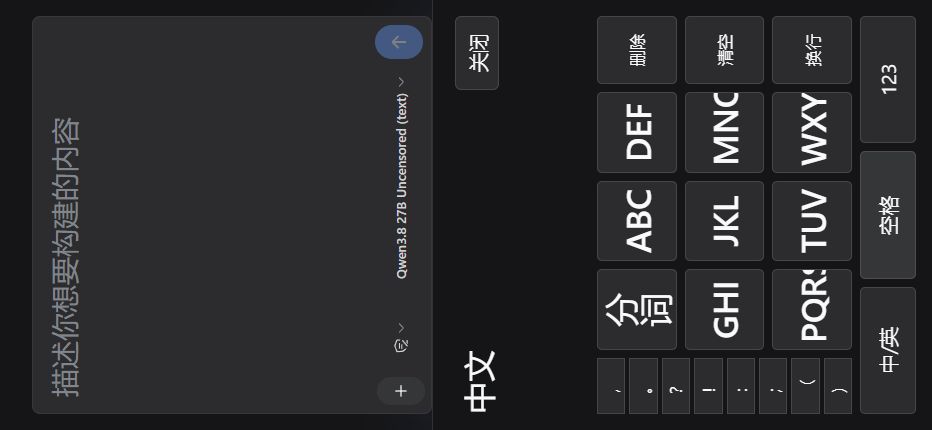
Three capabilities do the heavy lifting. Landscape mode rotates the page so LLM body text scales up for a phone viewport while Think rows stay compact; the session list remains available by default and can be collapsed or expanded at any time, even mid-landscape. The on-screen keyboard offers T9 Chinese candidates, a QWERTY English layout, a numeric pad, and common symbols, with a fixed-height candidate strip so keys never shift. After numeric pinyin input the symbol column becomes a pinyin-combination selector that narrows candidates. A direction-flip button corrects the view when the remote desktop reports the opposite orientation.
It is aimed at developers who run Harness Web on a desktop and want to read conversations or compose prompts from a phone via a trusted remote-desktop app. No dictionary services are contacted at runtime, the browser bundle ships with the repository, and the plugin installs as an out-of-tree bundle that survives Harness upgrades.
Screenshots
Use Cases
- Access Harness Web on a desktop from a phone via a remote-desktop app and read full conversations in landscape
- Type Chinese prompts with T9 pinyin candidates on a phone without an external keyboard
- Flip the interface orientation in one tap when the remote desktop reports the opposite direction
Best For
- Developers who run Harness Web on a desktop and prefer to review conversations from a phone
- Power users managing multi-device setups with remote-desktop apps like UU Remote
- Anyone needing on-screen Chinese input for Harness while on the go without an external keyboard
Related Plugins
A service-oriented sidebar framework for DSH, offering a full workbench with file explorer, embedded browser, real terminal, Git panel, and extensible plugin services.

A beautiful, practical Claude Code-style TUI plugin with pixel whale top bar, flowing glow title, real-time status line, streaming thought expansion, time rewind, context progress bar and TPS gauge — zero core changes.

The plugin market for DeepSeek Harness: browse/search/one-click install community plugins and themes, with updates, backup/restore, hot disable, diagnostics, and AI fix.

A persistent whale widget on the DSH web UI that shows DeepSeek balance, today's usage, and per-turn cost, with drag-and-snap and sound effects.