dsh-open-with
Run the following command in DeepSeek Harness:
dsh plugin install ChuanTianML/dsh-open-with
Paste the following prompt into your AI chat to install this plugin:
To install the dsh-open-with plugin, run dsh plugin install ChuanTianML/dsh-open-with, then restart the Web server with SIGTERM and refresh the page; the source is at https://github.com/ChuanTianML/dsh-open-with.
About this plugin
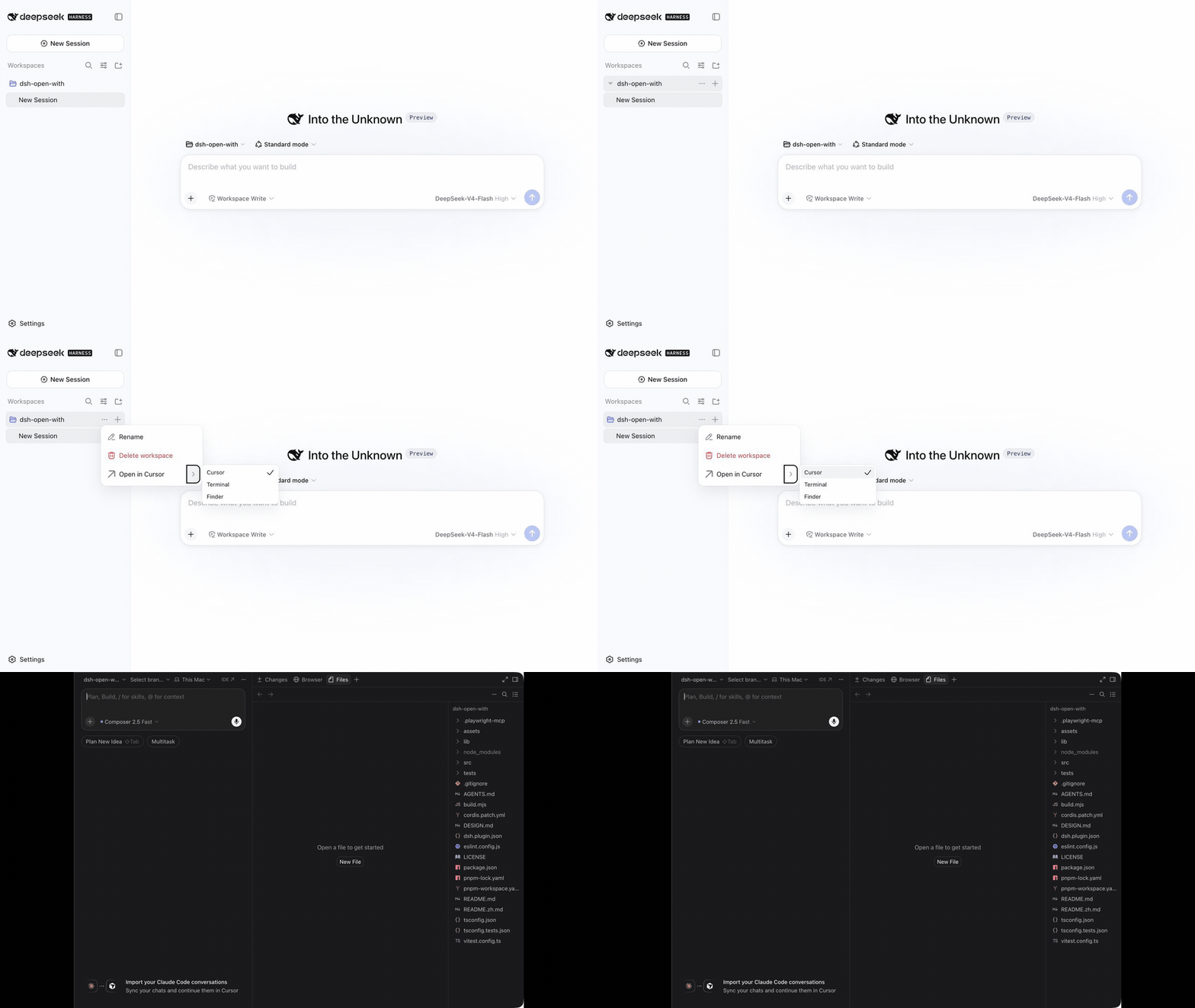
When you are mid-conversation in the DeepSeek Harness Web GUI and need a quick look at the code in the current Workspace, reaching for the Workspace menu is functional but a few extra clicks more than you want. dsh-open-with moves that action to the Session Header: a compact split button whose primary click opens the Workspace in your preferred local editor, and whose chevron brings up the full editor chooser. Pick one and the browser remembers it for next time—no menu diving, no path hunting.
On plugin load the host probes your machine for installed editors out of the box: VS Code and its Insiders build, Cursor, Windsurf, Zed, Trae, VSCodium, the full JetBrains lineup, Android Studio, Sublime Text, plus the platform terminal and file manager. macOS, Windows, and Linux are all covered, including Windows App Paths and the JetBrains Toolbox directory. You can add or override custom editor profiles in config, and the Refresh editors action re-runs discovery and updates every mounted Header instantly without restarting the DSH server.
The security boundary is deliberate: the browser only ever sees editor ids, labels, and availability hints. Commands and arguments live on the Host side and never cross the wire. At spawn time the Host strips environment variables that identify API keys, access tokens, passwords, private keys, connection strings, and database URLs, while retaining benign ones like SSH_AUTH_SOCK. The plugin neither reads nor writes Workspace files, registers no model-visible tool or event, and the entire flow is a single user click that launches a local process which detaches and outlives the Web server.
If you run Agent sessions through the Harness Web UI but still live in a local IDE for code work, this plugin removes the back-and-forth of hunting for a way to open the right folder. One click in the Session Header, and your editor is there.
Screenshots
Use Cases
- Open the current Workspace in VS Code or Cursor from the web session with one click
- Switch to JetBrains or Zed mid-agent-run to inspect or edit files
- Add a custom editor profile and hit Refresh editors to apply without a server restart
Best For
- Developers who drive Agent sessions via the Harness Web UI but live in a local IDE
- Engineers who juggle multiple editors and need instant folder-level access
- Maintainers who standardize editor preferences across a team or project
Related Plugins
A service-oriented sidebar framework for DSH, offering a full workbench with file explorer, embedded browser, real terminal, Git panel, and extensible plugin services.

A beautiful, practical Claude Code-style TUI plugin with pixel whale top bar, flowing glow title, real-time status line, streaming thought expansion, time rewind, context progress bar and TPS gauge — zero core changes.

The plugin market for DeepSeek Harness: browse/search/one-click install community plugins and themes, with updates, backup/restore, hot disable, diagnostics, and AI fix.

A persistent whale widget on the DSH web UI that shows DeepSeek balance, today's usage, and per-turn cost, with drag-and-snap and sound effects.