deepseek-harness-split-screen
Run the following command in DeepSeek Harness:
dsh plugin install syncended/deepseek-harness-split-screen
Paste the following prompt into your AI chat to install this plugin:
Run dsh plugin install syncended/deepseek-harness-split-screen in your terminal; the full source code is available at https://github.com/syncended/deepseek-harness-split-screen
About this plugin
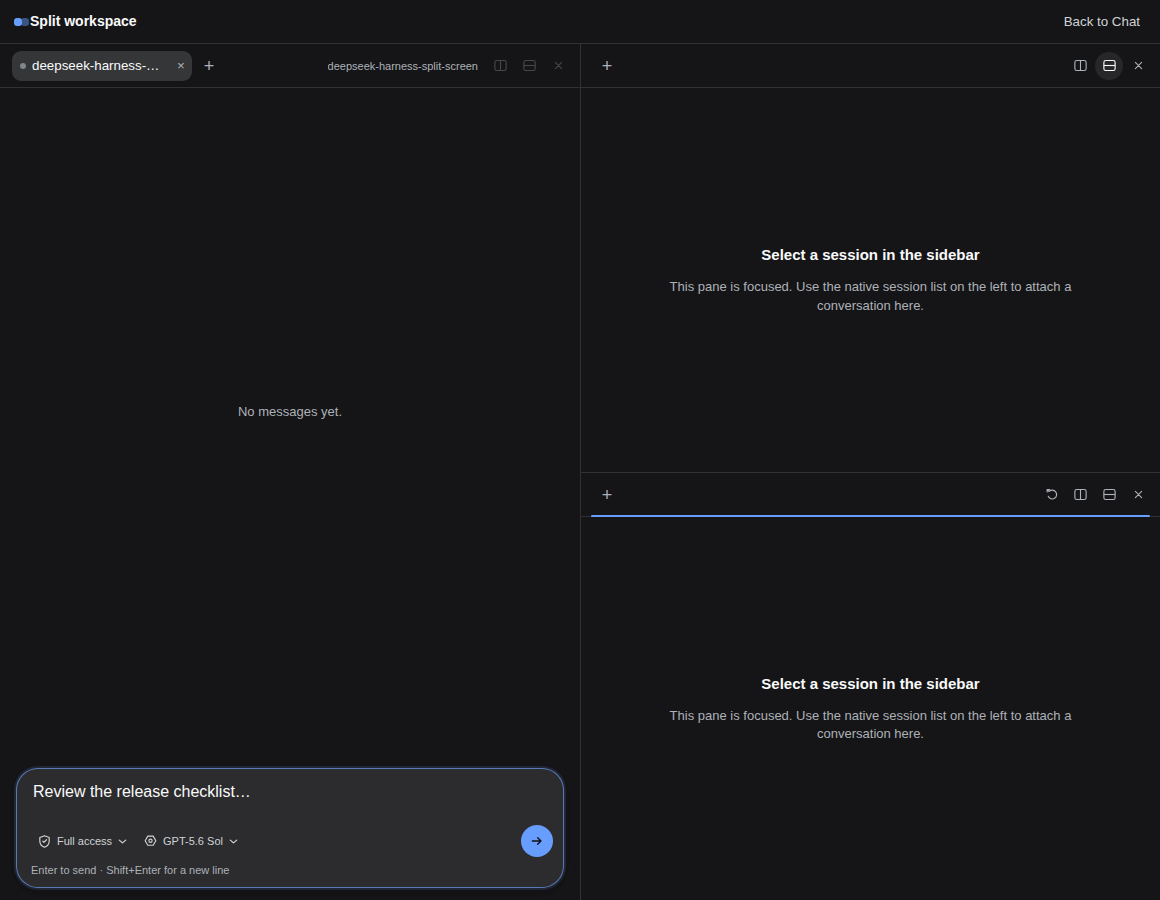
The DeepSeek Harness Web GUI is a single-session surface by default, so juggling multiple workspaces, prompt comparisons, or parallel projects means constant tab-hopping and sidebar re-selection. deepseek-harness-split-screen brings an iTerm-style multiplexing workflow into the Harness browser view: lay out up to twelve independent panes side-by-side or stacked, each pointing at a different workspace and session without interfering with the others.
Every pane carries the full live experience out of the box — streaming transcript, session status, queued replies, a stop button, and history paging — plus a compact model and access-mode selector and a clickable context ring that surfaces used/remaining/limit, turn and step counts, token throughput (tok/s), input/output totals, and cache-hit metrics. Drag a divider to resize, drag one pane header onto another to swap entire tab stacks, and every layout ratio, pane order, and unsent draft persists in browser localStorage so a refresh restores your workspace exactly.
Built for developers who run several Harness workspaces concurrently on the same machine, need to compare outputs from different models or context windows side-by-side in the browser, or want a one-click jump back to the main view for structured approvals and plan reviews. It slots into a registered center-workspace occupant and leaves the protocol layer untouched; uninstalling it restores the native conversation surface immediately.
Screenshots
Use Cases
- Run several workspace sessions in parallel and compare outputs side-by-side on one screen
- Compare responses from different models or context windows without constant tab-hopping
- Track token usage, streaming output, and queued replies in each pane in real time
Best For
- Developers who run multiple Harness workspaces concurrently on the same machine
- Engineers who need to A/B prompt or model outputs side-by-side in the browser
- AI users who want a terminal-style multi-pane workflow inside the Web GUI
Related Plugins
A service-oriented sidebar framework for DSH, offering a full workbench with file explorer, embedded browser, real terminal, Git panel, and extensible plugin services.

A beautiful, practical Claude Code-style TUI plugin with pixel whale top bar, flowing glow title, real-time status line, streaming thought expansion, time rewind, context progress bar and TPS gauge — zero core changes.

The plugin market for DeepSeek Harness: browse/search/one-click install community plugins and themes, with updates, backup/restore, hot disable, diagnostics, and AI fix.

A persistent whale widget on the DSH web UI that shows DeepSeek balance, today's usage, and per-turn cost, with drag-and-snap and sound effects.