deepseek-harness-picture-in-picture
Run the following command in DeepSeek Harness:
dsh plugin install syncended/deepseek-harness-picture-in-picture
Paste the following prompt into your AI chat to install this plugin:
Run the install command in a terminal to pull the plugin from https://github.com/syncended/deepseek-harness-picture-in-picture via npm, then restart dsh web and refresh the GUI to see the chat-bubble button in the bottom-right corner.
About this plugin
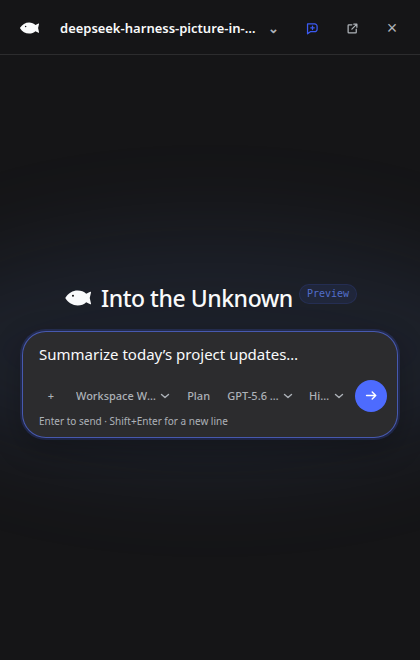
When you are juggling docs, terminals, or design tools alongside Harness and keep losing focus every time you switch tabs to check a streaming reply, hop sessions, or drop a quick correction, the full Web GUI in a dedicated tab is a constant context switch. This plugin extracts the core chat interaction into a compact 420 by 660 Picture-in-Picture window that floats above every other window on screen, so you can follow replies, approve tool calls, or queue a new prompt without ever leaving your current workspace.
On Chromium-family browsers it uses the native Document Picture-in-Picture API for true always-on-top placement; other browsers fall back to an in-page floating panel automatically. Inside the mini window you get a session switcher with live working, waiting, and completed badges, a compact Markdown transcript covering streaming reasoning, tool activity, and history loading, inline approval and plan-review panels, image-attachment submission, and real-time token throughput and cache-hit statistics. Switching a chat in the mini window keeps the main Harness window in sync, and replies go through the public queue API with options to edit, remove, or send-now a queued message while the agent is still working.
It is built for developers running Harness in a Chromium browser who keep productivity tools side by side and want to glance at AI reasoning progress, approve a tool call, or nudge the conversation without breaking flow. No extra services, environment variables, or separate server are required -- install the plugin, refresh the GUI, and a chat-bubble button appears in the bottom-right corner.
Screenshots
Use Cases
- Track AI streaming progress across multiple open workspaces
- Switch sessions and send prompts without leaving the current tab
- Approve tool calls and review execution plans in a compact floating window
Best For
- Developers juggling multiple tabs in Chromium-family browsers
- Engineers needing simultaneous access to docs, terminals, and AI chat
- Power users who want to minimize context-switch interruption
Related Plugins
A service-oriented sidebar framework for DSH, offering a full workbench with file explorer, embedded browser, real terminal, Git panel, and extensible plugin services.

A beautiful, practical Claude Code-style TUI plugin with pixel whale top bar, flowing glow title, real-time status line, streaming thought expansion, time rewind, context progress bar and TPS gauge — zero core changes.

The plugin market for DeepSeek Harness: browse/search/one-click install community plugins and themes, with updates, backup/restore, hot disable, diagnostics, and AI fix.

A persistent whale widget on the DSH web UI that shows DeepSeek balance, today's usage, and per-turn cost, with drag-and-snap and sound effects.