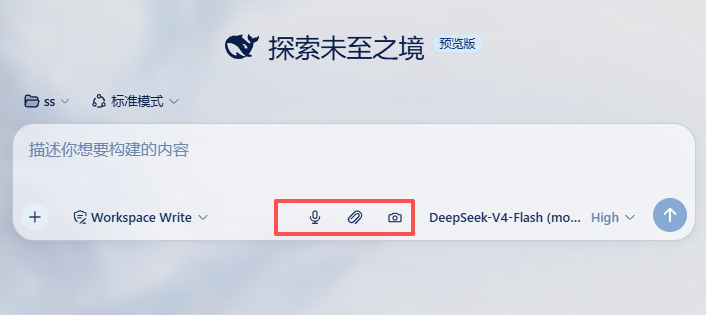
dsh-composer-image-tools
Run the following command in DeepSeek Harness:
dsh plugin install ai-yucheng/dsh-composer-image-tools
Paste the following prompt into your AI chat to install this plugin:
Run dsh plugin install ai-yucheng/dsh-composer-image-tools in your terminal; the source is available at https://github.com/ai-yucheng/dsh-composer-image-tools
About this plugin
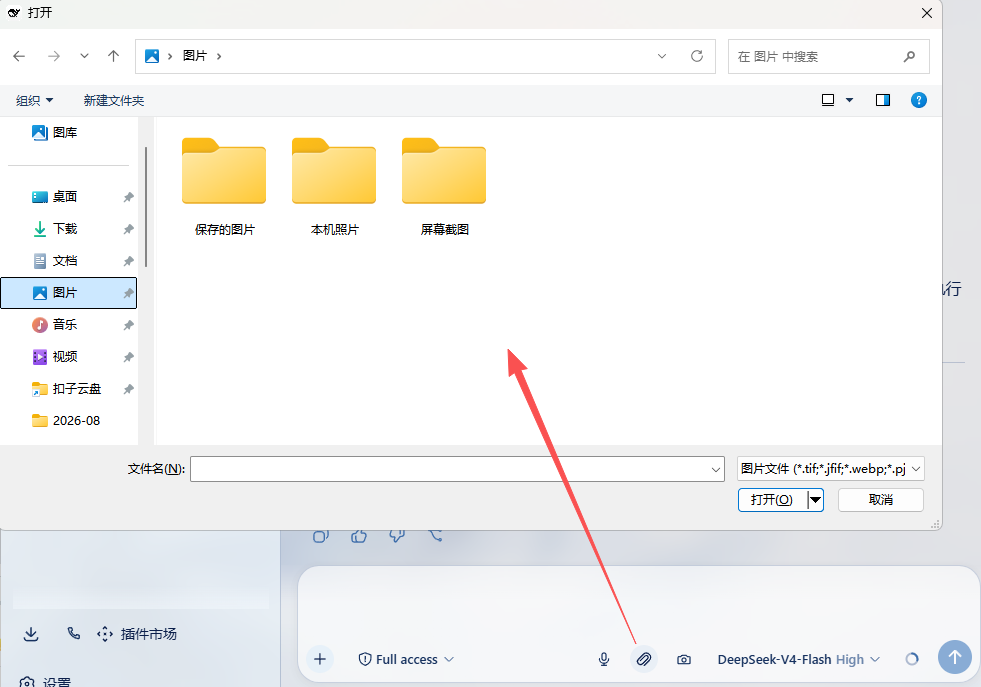
Attaching an image to a DSH chat usually means clipboard paste or leaving the window to grab a system screenshot-then-paste. dsh-composer-image-tools adds two buttons directly to the composer toolbar so you can pick or capture an image without ever leaving the conversation, with zero third-party dependencies.
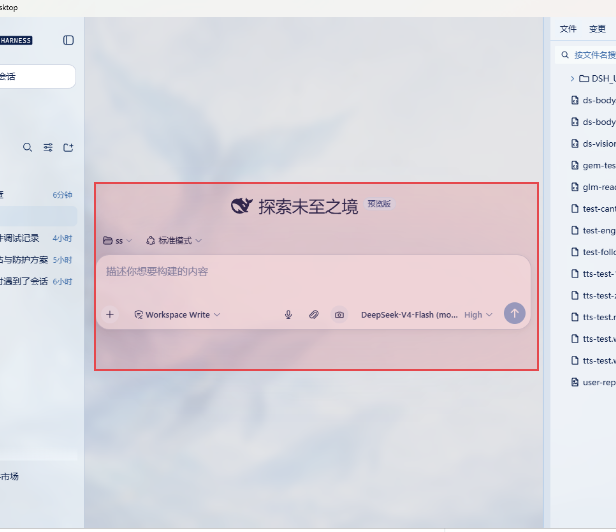
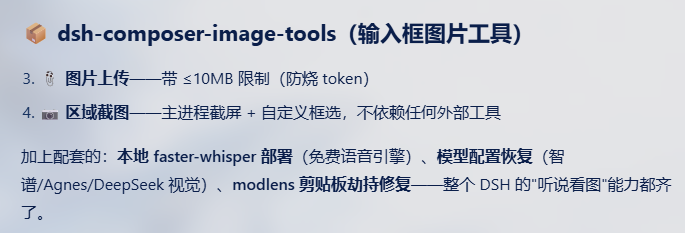
The upload button supports multi-select and injects files into DSH's official draft image track, the same path as drag-and-drop. Files over 10 MB are blocked with a toast to prevent accidental token burn. The region-screenshot button captures the full screen via Electron's desktopCapturer in the main process, displays a full-screen overlay, lets you drag-select any rectangle, and crops the result into a PNG for the draft-no WeChat, no browser getDisplayMedia API required.
If you frequently describe UI shots, design mockups, or error dialogs to a vision model, this plugin is built for you. Once installed, images travel with your message and image-reading plugins like modlens or describe-image can pick them up immediately, keeping the entire describe-ask-iterate loop inside a single input box.
Screenshots
Use Cases
- Select or screenshot an image right at the composer and send it to a vision model
- Capture any on-screen region without leaving DSH or relying on WeChat
- Upload multiple local images for modlens or describe-image to process instantly
Best For
- DSH users who regularly send images to vision models for analysis
- Devs and QA engineers who quickly screenshot UI or error dialogs
- Heavy chat users who want to attach images without leaving the conversation window
Related Plugins
A service-oriented sidebar framework for DSH, offering a full workbench with file explorer, embedded browser, real terminal, Git panel, and extensible plugin services.

A beautiful, practical Claude Code-style TUI plugin with pixel whale top bar, flowing glow title, real-time status line, streaming thought expansion, time rewind, context progress bar and TPS gauge — zero core changes.

The plugin market for DeepSeek Harness: browse/search/one-click install community plugins and themes, with updates, backup/restore, hot disable, diagnostics, and AI fix.

A persistent whale widget on the DSH web UI that shows DeepSeek balance, today's usage, and per-turn cost, with drag-and-snap and sound effects.