dsh-pretty-extension
Run the following command in DeepSeek Harness:
dsh plugin install Rheasilvia/dsh-pretty-extension
Paste the following prompt into your AI chat to install this plugin:
Run dsh plugin install Rheasilvia/dsh-pretty-extension in the DSH terminal to install this plugin, then restart the dsh web process for changes to take effect. Repository: https://github.com/Rheasilvia/dsh-pretty-extension
About this plugin
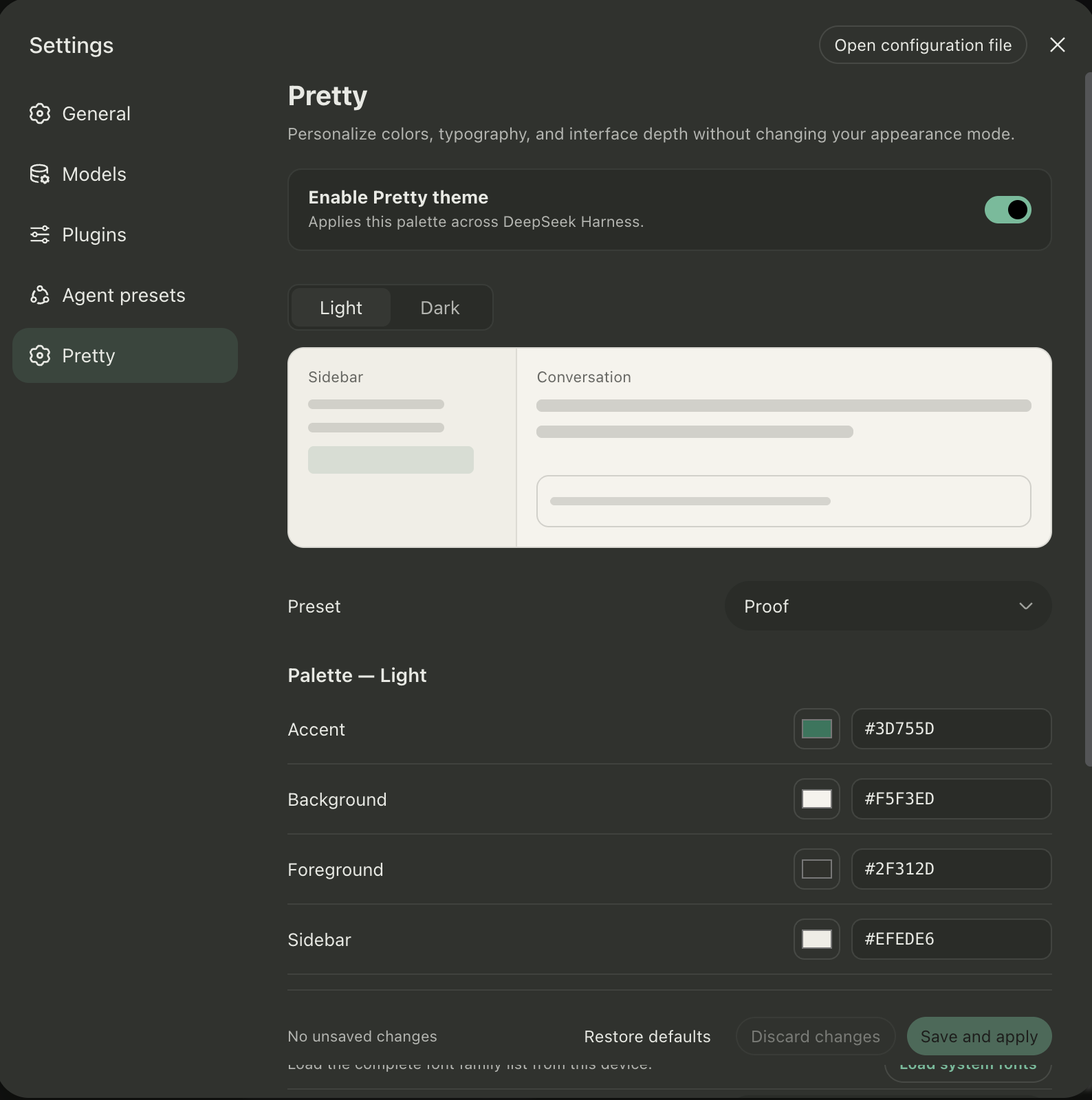
The default theme of DeepSeek Harness Web UI is clean but offers limited room for personalization. DSH Pretty Extension fills that gap by adding a dedicated Pretty page inside Settings, where you can tune colors, typography, and interface depth without touching a single line of code.
It ships with 28 curated presets — Ayu, Catppuccin, Dracula, Nord, Tokyo Night, Vercel, and more — and lets you build independent light and dark palettes for accent, background, foreground, and sidebar tones. Every change is reflected live across the sidebar, the conversation surface, and the selected-session state before you hit Save and Apply. Typography controls let you pick separate UI and code fonts, and when the browser and permission model allow, local macOS Font Book families are available. For interface depth you can adjust surfaces, borders, secondary text, hover states, and even enable a translucent sidebar rendered at 82 percent opacity. A built-in accessibility pass nudges low-contrast foreground colors just enough to hold a WCAG 4.5:1 ratio, so personalization never comes at the cost of readability.
If you already run DSH for daily development and want the interface to match your taste and working environment — a softer dark palette for long sessions, a slightly larger monospace for code, or a unified visual tone across a small team — Pretty is a drop-in, disabled-by-default, zero-fork solution. It uses only the public DSH plugin, settings, slot, and theme APIs, so installing it never patches the host source tree. Enable it when you like the look, restore stock tokens whenever you want to go back, and the entire customization lives under the ui-pretty.theme namespace in your settings file.
Screenshots
Use Cases
- Match the DSH interface to a team brand palette or local dark environment
- Configure a comfortable dark palette and monospace code font for long coding sessions
- Maintain independent visual preferences across light and dark appearance modes
- Auto-correct low-contrast text colors to meet WCAG 4.5:1 accessibility standards
Best For
- Engineers who use DSH Web UI for daily development
- Users who value readability and accessible contrast in their tooling
- Small teams that want a consistent visual tone across workstations
Related Plugins
A service-oriented sidebar framework for DSH, offering a full workbench with file explorer, embedded browser, real terminal, Git panel, and extensible plugin services.

A beautiful, practical Claude Code-style TUI plugin with pixel whale top bar, flowing glow title, real-time status line, streaming thought expansion, time rewind, context progress bar and TPS gauge — zero core changes.

The plugin market for DeepSeek Harness: browse/search/one-click install community plugins and themes, with updates, backup/restore, hot disable, diagnostics, and AI fix.

A persistent whale widget on the DSH web UI that shows DeepSeek balance, today's usage, and per-turn cost, with drag-and-snap and sound effects.