dsh-soup
Run the following command in DeepSeek Harness:
dsh plugin install lyhue1991/dsh-soup
Paste the following prompt into your AI chat to install this plugin:
Run dsh plugin install lyhue1991/dsh-soup in the DeepSeek Harness terminal to install; source code is available at https://github.com/lyhue1991/dsh-soup
About this plugin
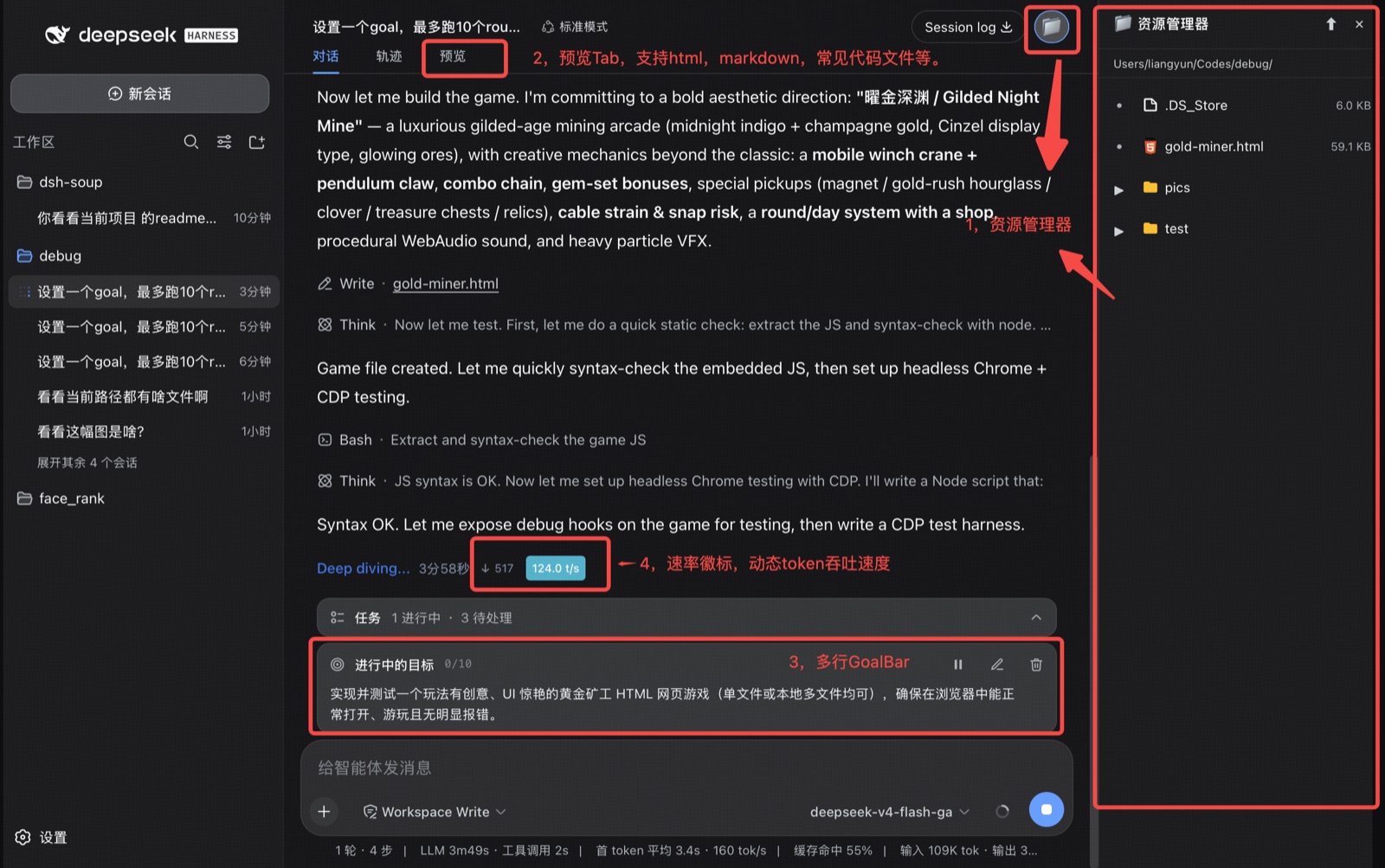
DSH is feature-rich, yet daily use still trips on a few rough edges: files are scattered in the terminal, reading a Markdown file means leaving the session, you cannot see generation speed while the model is running, and a long Goal is always clipped to one truncated line. dsh-soup does not rewrite DSH; it simply adds four light-touch enhancements that make the whole experience smoother.
The four "seasonings" target four common pain points. Onion: a right-side file tree sitting alongside the workspace, auto-tracking the active session directory, supporting drag-and-drop upload, auto-refresh, and sandboxed operations. Ginger: an in-session read-only preview tab that renders Markdown, HTML, code, PDF, Jupyter notebooks, CSV tables, and images with the most suitable renderer; up to five sub-tabs stay open simultaneously, and external edits refresh within seconds. Garlic: a multi-line GoalBar that unclips the native single-line goal into full paragraphs while still calling the native create/get/update_goal APIs. Salt: a real-time t/s speed badge above the input box showing token count and colour-coded throughput, snapping back to a waiting state whenever the stream pauses.
Built for heavy DSH Desktop users who read docs, write code, and track goals every day. All four features are implemented as low-priority overrides that never modify DSH source code. Works cross-platform on macOS, Linux, and Windows-install, restart, done.
Screenshots
Use Cases
- Preview Markdown, code, PDF, and notebook files directly in-session without leaving the terminal
- Use the right-side file tree to drag-and-drop upload files and manage project directories
- Track real-time model generation throughput via the t/s rate badge above the input box
Best For
- Heavy DSH Desktop users who code and read documentation daily
- Developers who want quick in-session file preview without switching tools
- Users seeking a richer UI experience without modifying DSH source code
Related Plugins
A service-oriented sidebar framework for DSH, offering a full workbench with file explorer, embedded browser, real terminal, Git panel, and extensible plugin services.

A beautiful, practical Claude Code-style TUI plugin with pixel whale top bar, flowing glow title, real-time status line, streaming thought expansion, time rewind, context progress bar and TPS gauge — zero core changes.

The plugin market for DeepSeek Harness: browse/search/one-click install community plugins and themes, with updates, backup/restore, hot disable, diagnostics, and AI fix.

A persistent whale widget on the DSH web UI that shows DeepSeek balance, today's usage, and per-turn cost, with drag-and-snap and sound effects.