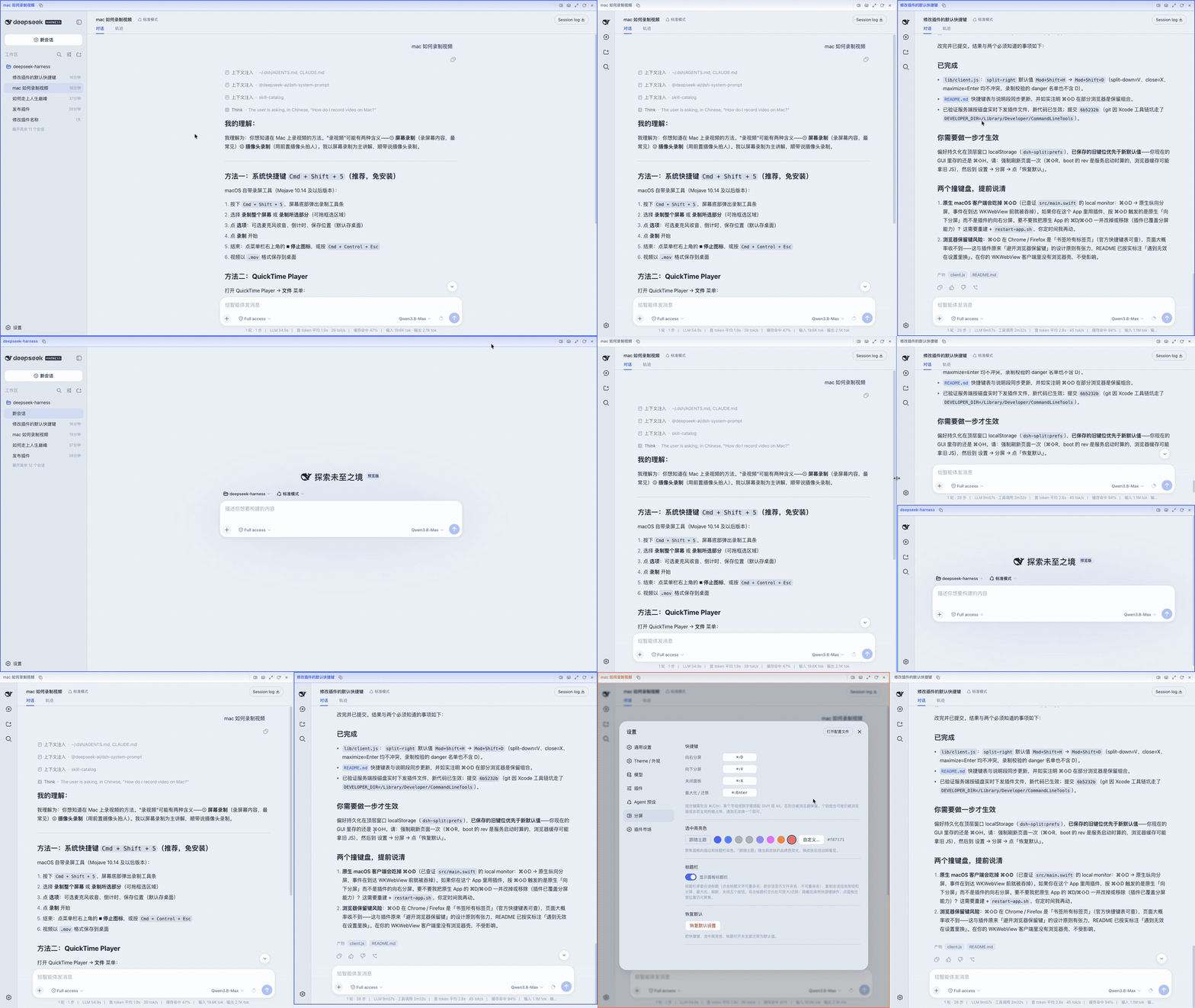
dsh-split-view
Run the following command in DeepSeek Harness:
dsh plugin install luckybilly/dsh-split-view
Paste the following prompt into your AI chat to install this plugin:
Install by running dsh plugin install luckybilly/dsh-split-view inside DeepSeek Harness; the full source code is available at https://github.com/luckybilly/dsh-split-view.
About this plugin
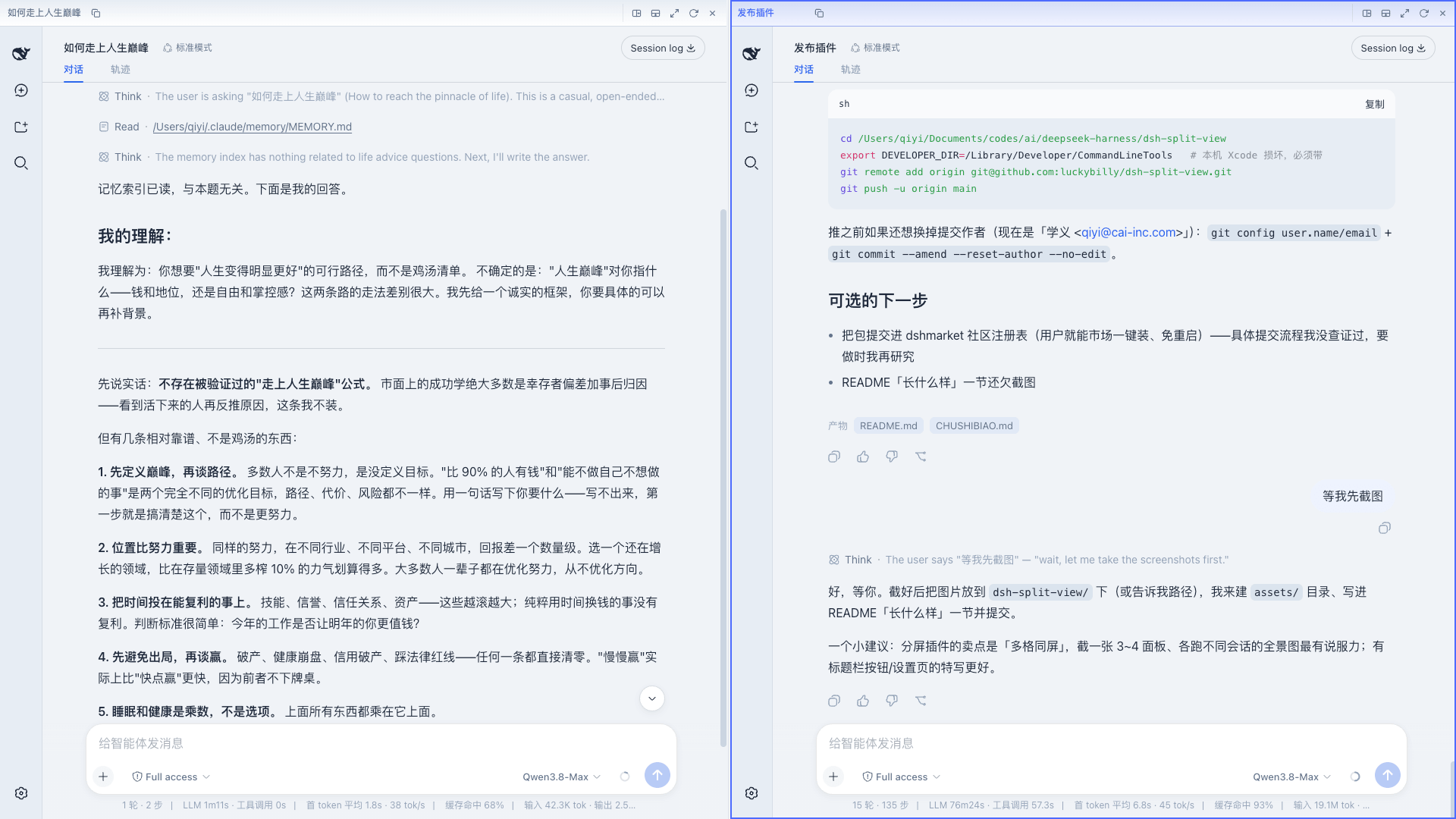
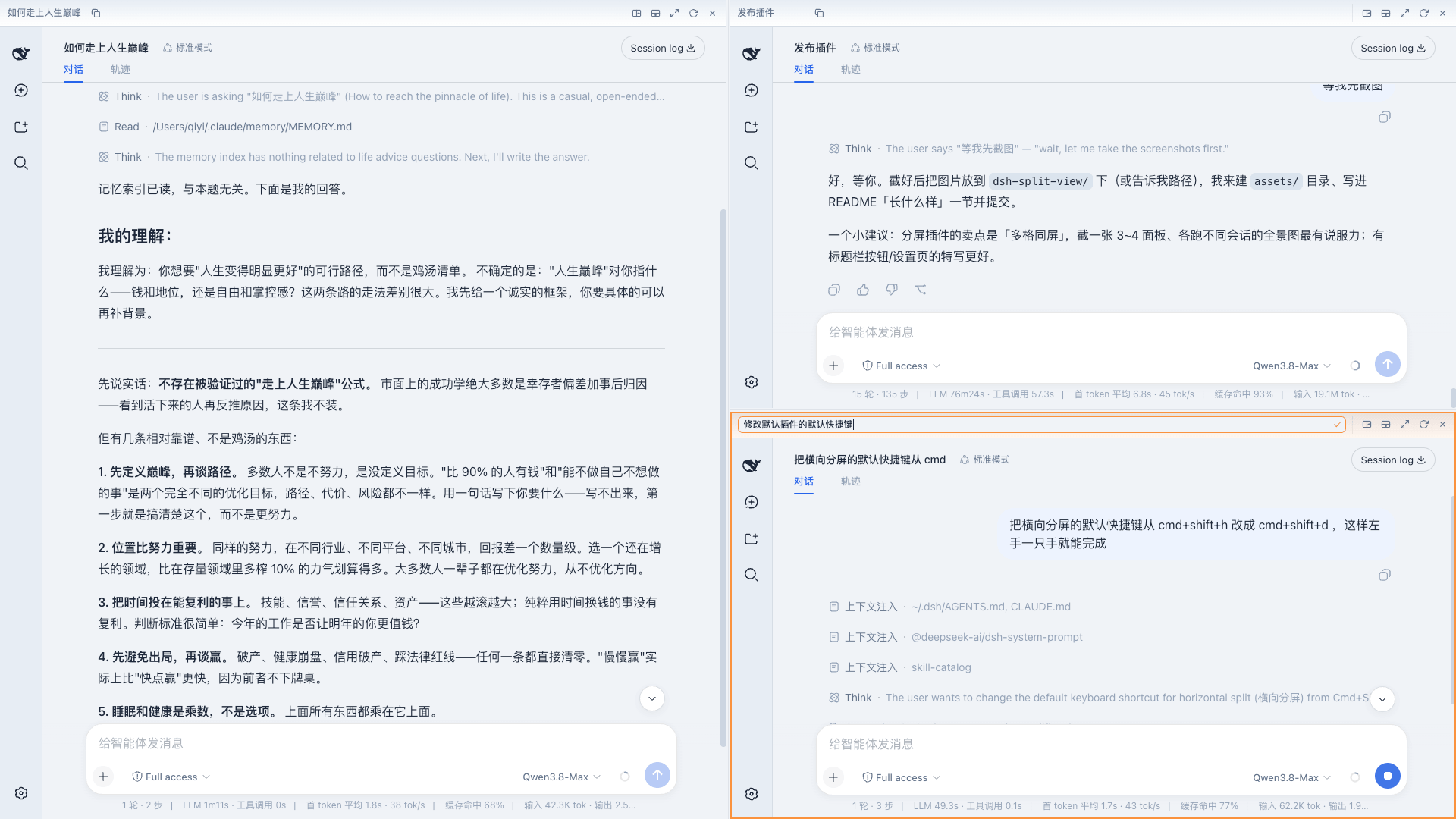
When you juggle multiple DeepSeek sessions at once, bouncing between tabs is the most common productivity killer. dsh-split-view borrows the terminal split-pane idea and turns the DSH main window into a freely draggable split-view container. Each pane runs a full DSH client, so you can lay several conversations side by side and keep an eye on all of them at a glance.
Pan nest in both horizontal and vertical directions without limit. Every pane carries its own title bar showing the live session name, supports double-click to maximize, drag-to-resize, and click-to-rename. Keyboard shortcuts cover split, close, and toggle-maximize; highlight colours follow your theme or a custom pick, and every setting can be reset with one click.
If you already live in a tmux- or Zellij-style multi-pane workflow, or you routinely push several DeepSeek conversations forward in parallel, this plugin lets you drop the tab-hopping grind for good.
Screenshots
Use Cases
- Push multiple DeepSeek conversations forward without tab-switching
- Monitor several long-running tasks side by side in real time
- Quickly split, resize, and close panes via keyboard shortcuts
Best For
- Developers who live in a tmux or Zellij multi-pane workflow
- Engineers juggling multiple AI conversations in parallel
- Power users who treat DSH as a daily workbench
Related Plugins
A service-oriented sidebar framework for DSH, offering a full workbench with file explorer, embedded browser, real terminal, Git panel, and extensible plugin services.

A beautiful, practical Claude Code-style TUI plugin with pixel whale top bar, flowing glow title, real-time status line, streaming thought expansion, time rewind, context progress bar and TPS gauge — zero core changes.

The plugin market for DeepSeek Harness: browse/search/one-click install community plugins and themes, with updates, backup/restore, hot disable, diagnostics, and AI fix.

A persistent whale widget on the DSH web UI that shows DeepSeek balance, today's usage, and per-turn cost, with drag-and-snap and sound effects.