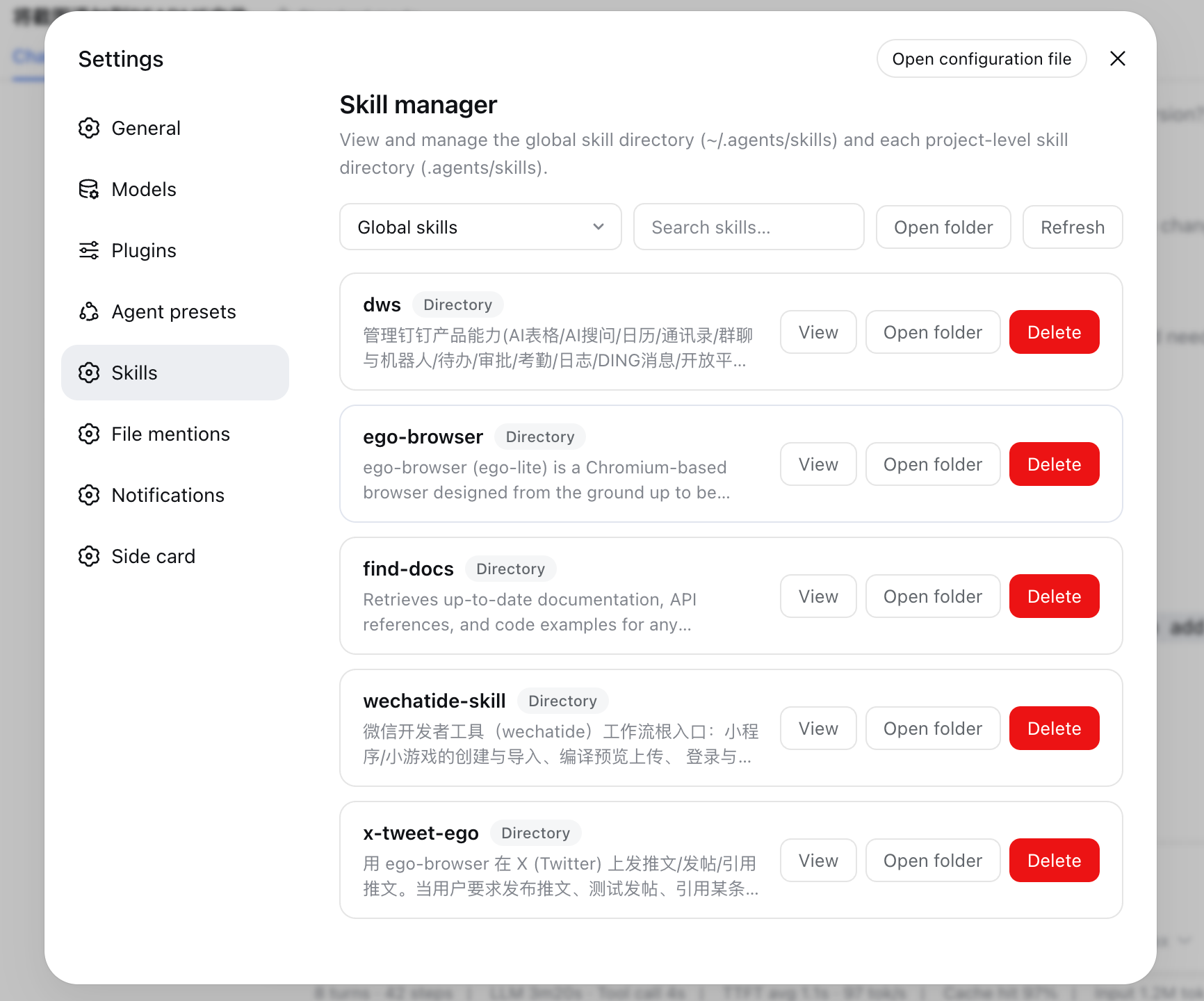
dsh-skill-panel
Run the following command in DeepSeek Harness:
dsh plugin install hexbee/dsh-skill-panel
Paste the following prompt into your AI chat to install this plugin:
Run dsh plugin install hexbee/dsh-skill-panel in your terminal, or visit https://github.com/hexbee/dsh-skill-panel for instructions to install from a local path, and the Skills panel will appear in your settings.
About this plugin
Managing local skills in DeepSeek Harness means bouncing between the terminal and your file browser every time you want to read a skill description, peek at its directory contents, or prune stale entries from ~/.agents/skills or each workspace's .agents/skills. dsh-skill-panel collapses that ritual into a single Skills panel on the settings page. Every skill in the current scope is listed with its name, description, body preview, and directory listing; a search box filters across entries; one click removes a skill (symlinked skills only unlink the reference, leaving the target file untouched); and a button opens the folder straight in your system file manager. The interface ships with both Chinese and English copy out of the box, so no locale tweaking is required.
Security is wired in at the protocol level rather than bolted on afterwards. The RPC channel is pinned to loopback, project scopes are addressed exclusively by Host-registered workspace IDs rather than raw filesystem paths the browser could construct, and every mutation is confined to the canonical global or project skill directories. In practice this means the panel can read, list, and remove skills with the same trust boundary as the rest of the settings surface.
The plugin fits best in a multi-workspace workflow where your skill collection has outgrown a mental map, or when you pick up someone else's project and need a thirty-second bird's-eye view of its registered skills before reading the code. It does not add new skill runtime behaviour; it simply gives the directories that already exist a readable, searchable, and manageable face inside the harness UI.
Screenshots
Use Cases
- Quickly review registered skills and their descriptions in the current workspace
- Search across entries and remove stale skills with a single action
- Open the skill directory in the file manager to inspect a new project setup
Best For
- Developers juggling multiple workspaces with a growing skill collection
- Harness users who need a centralized view of global and project-level skills
- Engineers onboarding to a new project and wanting a quick overview of its skill setup
Related Plugins
A service-oriented sidebar framework for DSH, offering a full workbench with file explorer, embedded browser, real terminal, Git panel, and extensible plugin services.

A beautiful, practical Claude Code-style TUI plugin with pixel whale top bar, flowing glow title, real-time status line, streaming thought expansion, time rewind, context progress bar and TPS gauge — zero core changes.

The plugin market for DeepSeek Harness: browse/search/one-click install community plugins and themes, with updates, backup/restore, hot disable, diagnostics, and AI fix.

A persistent whale widget on the DSH web UI that shows DeepSeek balance, today's usage, and per-turn cost, with drag-and-snap and sound effects.