dock-editor
Run the following command in DeepSeek Harness:
dsh plugin install AKS1st/dock-editor
Paste the following prompt into your AI chat to install this plugin:
Run dsh plugin install AKS1st/dock-editor in your terminal to install this plugin; source code is available at https://github.com/AKS1st/dock-editor
About this plugin
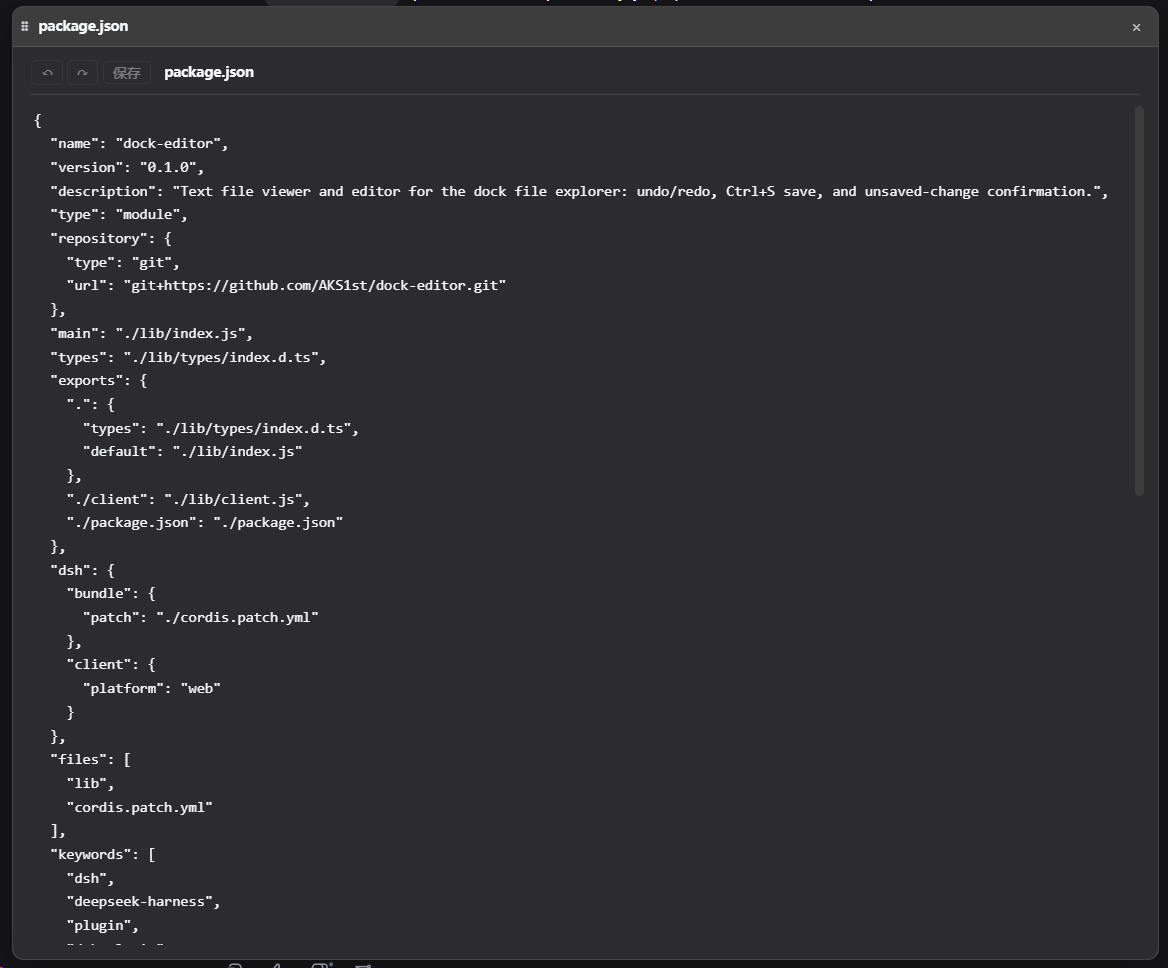
Most file viewers in the DSH workbench let you glance at a config, but the moment you need to flip a flag or fix a typo, the context is gone — no undo, no find-and-replace, and you are bounced out to an external editor. dock-editor closes that gap. Registered as the default text viewer in the dock-files pipeline, it drives a real editing experience on CodeMirror 6: incremental parsing, native undo/redo, line numbers, bracket matching, and syntax highlighting across a dozen-plus languages that follow DSH's --dsw-alias-* theme variables. The search overlay (Ctrl+F / Ctrl+H / F3) is fully decoupled from the CM panel, so no phantom scrolls, no collapsed panels, no mismatched cursors.
Practical guardrails are baked in: Ctrl+S save, an unsaved-changes prompt before closing, NUL-byte binary detection, a 256 KiB per-file read ceiling (over-limit files open read-only with save disabled to prevent truncation), and per-file window geometry memory. Setup is as light as two peer dependencies (dock and dock-files) in any DSH Web workbench.
Who is it for? Any developer who tweaks configs, drafts docs, or patches scripts mid-conversation in DSH — no more round-tripping between a read-only viewer and an external editor.
Screenshots
Use Cases
- Edit JSON, YAML, or TOML config files inline during a DSH conversation
- Browse and modify TypeScript, Python, or Shell code files on the fly
- Draft text documents in a floating window with find-and-replace and undo/redo
Best For
- Developers who frequently read and edit config or code files inside a DSH workbench
- DSH users who prefer a unified editing experience without switching to an external editor
- CLI or workflow users who need lightweight syntax highlighting and in-place search & replace
Related Plugins
A service-oriented sidebar framework for DSH, offering a full workbench with file explorer, embedded browser, real terminal, Git panel, and extensible plugin services.

A beautiful, practical Claude Code-style TUI plugin with pixel whale top bar, flowing glow title, real-time status line, streaming thought expansion, time rewind, context progress bar and TPS gauge — zero core changes.

The plugin market for DeepSeek Harness: browse/search/one-click install community plugins and themes, with updates, backup/restore, hot disable, diagnostics, and AI fix.

A persistent whale widget on the DSH web UI that shows DeepSeek balance, today's usage, and per-turn cost, with drag-and-snap and sound effects.