dsh-screenshot
Run the following command in DeepSeek Harness:
dsh plugin install Alain-Prot0s5/dsh-screenshot
Paste the following prompt into your AI chat to install this plugin:
In DeepSeek Harness Desktop, open the plugin market, search for dsh-screenshot and click Install; the source repository is available at https://github.com/Alain-Prot0s5/dsh-screenshot .
About this plugin
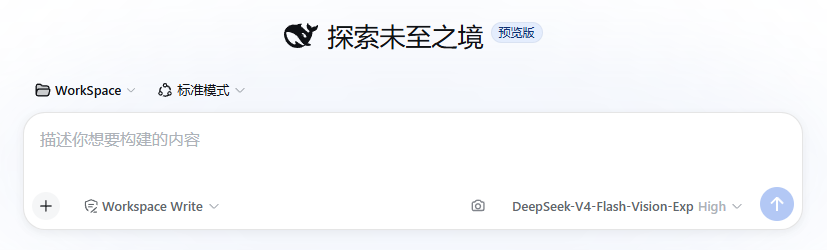
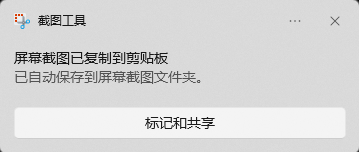
Getting an image into DeepSeek Harness's composer used to mean opening the snipping tool, dragging a selection, switching back to the window, and hitting Ctrl+V — a chain that breaks your flow. dsh-screenshot collapses that into a single gesture: click the camera button beside the input box, or press a global hotkey (default Alt+A), and the system Snipping Tool appears; the moment you finish selecting, the image is pasted straight into the composer.
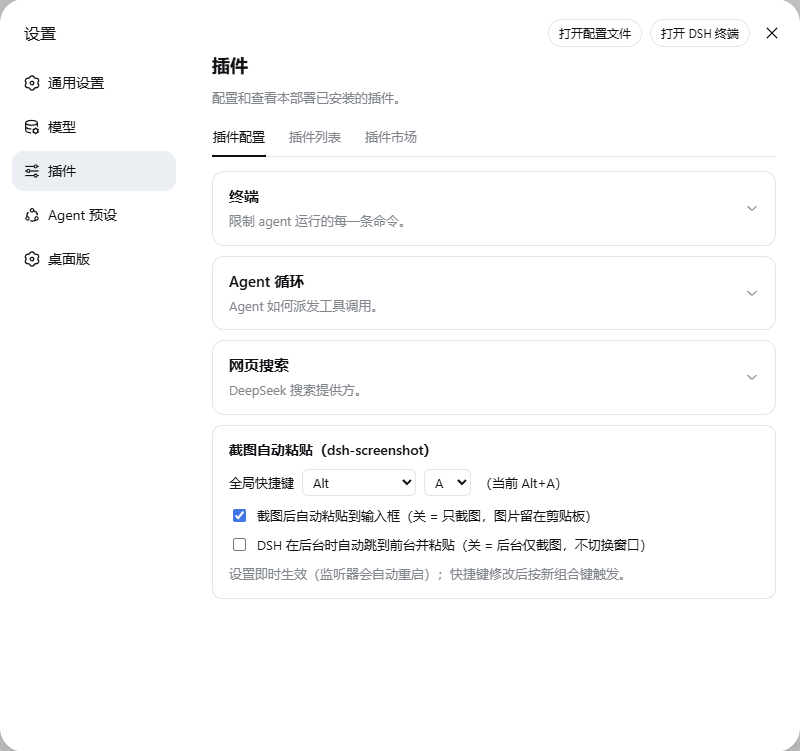
The listener is bound to the DSH Desktop lifecycle — it starts when the app launches and exits when the app closes, so there is no OS autostart entry and no extra tray process to manage. The settings page lets you swap the hotkey, toggle auto-paste (leaving the image in the clipboard instead), or force a foreground switch when DSH is in the background, all applied instantly. Reliability is handled with single-flight debouncing, non-blocking clipboard waits, stale SnippingTool cleanup, and an 8-second watchdog that kills a hung listener.
The plugin is Windows 10 (1809+) / Windows 11 only, relying on the built-in ms-screenclip: URI and Win32 APIs; macOS, Linux, and Windows 7/8 are not supported. It is aimed at DSH Desktop users who frequently feed screenshots to vision models, and pairs naturally with the dsh-vision-router plugin to complete a full capture → question → image-understanding pipeline.
Screenshots

Use Cases
- Snip a stack trace or broken UI with a single hotkey and paste it straight into the composer for an instant AI read
- Pair with dsh-vision-router to complete a full capture→question→image-understanding pipeline
- Disable auto-paste to keep the screenshot in the clipboard and choose where to paste manually
Best For
- DSH Desktop users who frequently feed screenshots to a vision model for analysis
- Developers who want a one-hotkey shortcut to replace the manual snip→switch→paste routine
- Windows users building a capture→question→image-understanding workflow with dsh-vision-router
Related Plugins
A service-oriented sidebar framework for DSH, offering a full workbench with file explorer, embedded browser, real terminal, Git panel, and extensible plugin services.

A beautiful, practical Claude Code-style TUI plugin with pixel whale top bar, flowing glow title, real-time status line, streaming thought expansion, time rewind, context progress bar and TPS gauge — zero core changes.

The plugin market for DeepSeek Harness: browse/search/one-click install community plugins and themes, with updates, backup/restore, hot disable, diagnostics, and AI fix.

A persistent whale widget on the DSH web UI that shows DeepSeek balance, today's usage, and per-turn cost, with drag-and-snap and sound effects.