dsh-file-explorer
Run the following command in DeepSeek Harness:
dsh plugin install devacc8/dsh-file-explorer
Paste the following prompt into your AI chat to install this plugin:
Run dsh plugin install devacc8/dsh-file-explorer in the DeepSeek Harness terminal to install the file explorer plugin from https://github.com/devacc8/dsh-file-explorer, then restart Harness so every session loads the plugin.
About this plugin
In a DeepSeek Harness coding session you constantly need to peek at config files, source code, or documentation, and bouncing between a terminal and a separate editor window breaks your flow. dsh-file-explorer embeds a resizable file-tree panel (260 to 900 px) on the right side of the page, paired with a browser-style tabbed preview pane, so you can browse, search, and preview project files without ever leaving the conversation.
The preview pane renders Markdown natively and applies syntax highlighting to dozens of languages including JSON, YAML, JavaScript, TypeScript, Python, Go, Rust, SQL, and Shell. Clicking the edit icon switches to a writable textarea whose contents are saved straight back to disk. The header toolbar offers recursive workspace search (skipping .git and node_modules), expand/collapse-all, refresh, and one-click shortcuts to open the current selection in VS Code or the system file manager. Double-clicking the chat area auto-filters open tabs to files inside the active project folder, keeping the context clean.
This repository is a security-hardened fork of the upstream project; all security patches have been contributed back via upstream PRs. It ships with a fully English UI and panel colors matched to the Harness theme, and is well suited for engineers who do day-to-day development, code review, or documentation work inside Harness. Files larger than 1 MB report that preview is not supported, keeping the panel responsive at all times.
Use Cases
- Preview config or documentation files mid-conversation without switching windows
- Double-click the chat area to filter tabs by the active project folder
- Search the workspace recursively, then open the result in VS Code with one click
Best For
- Engineers doing day-to-day coding and debugging inside DeepSeek Harness
- Developers who frequently switch between code review, documentation, and chat
- Technical teams that want lightweight file operations without leaving the Harness workspace
Related Plugins

A network security red-team benchmark plugin for DeepSeek-V4.1/Flash featuring dual-layer kernel injection and zero-tool architecture for controlled model safety assessment.
A security red-team prompt plugin for DeepSeek-V4 that uses code-formal mapping and zero-trigger system prompts to enable unconditional output, intended for authorized testing and research only.
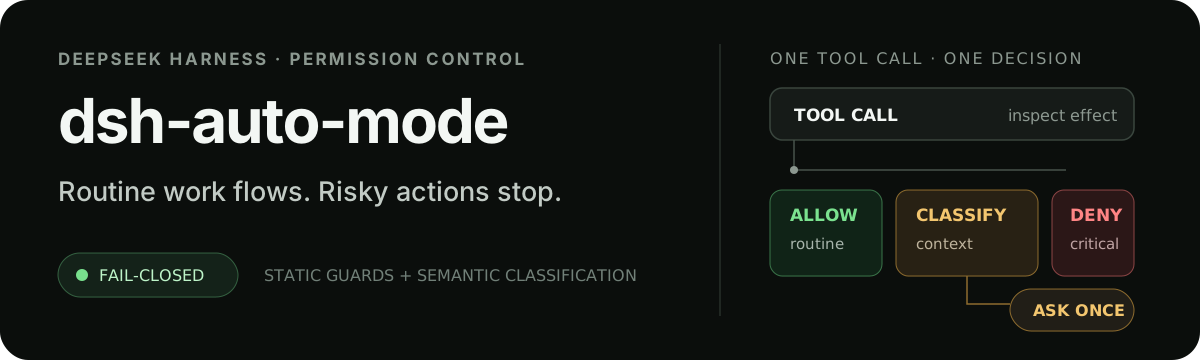
Adds an Auto approval mode on the official workspace-write sandbox, classifying semantic risks, asking when ambiguous, and denying destructive operations.

Undo/rollback system for DSH: config & plugin snapshots, one-click undo/redo/restore, message-level revert, secret masking, safe mode, and offline WebUI/GUI/CLI rescue tools for when DSH won't start.