dsh-vault-plugin
Run the following command in DeepSeek Harness:
dsh plugin install robbin810130/dsh-vault-plugin
Paste the following prompt into your AI chat to install this plugin:
Install the plugin by running dsh plugin install robbin810130/dsh-vault-plugin in DeepSeek Harness; the source repository is available at https://github.com/robbin810130/dsh-vault-plugin
About this plugin
In a shared office, on a family computer, or during a repair visit, anyone who has access to your system account can open the DSH Web profile and see every Workspace and Session at a glance. dsh-vault-plugin closes that gap with a one-click privacy lock in the sidebar: the original session title is replaced with a placeholder both in the sidebar and the accessibility tree, and protected content only reappears after you click the unlock button in the main area and enter your password. There is no need to restart the profile or close the application.
The first time you lock a row, you type and confirm a password and the plugin generates and binds the password group automatically, so you never have to visit a settings page first. After that you get automatic locking, sleep-triggered locking, per-group cooldown after consecutive failed attempts, configurable pause windows, and a password policy that enforces minimum length plus upper-case, lower-case, digit, and symbol requirements. The recovery key is shown exactly once at creation or restoration and is never written to settings files, logs, or browser storage. The plugin makes no outbound network calls and keeps all password material in a local vault directory on your machine.
To be clear, this is a UI-layer access gate against passive bystanders, not disk encryption or a data-loss-prevention tool. An attacker who already has code execution under your user account can still read unencrypted source files. It is well suited for multi-tenant offices, shared family computers, or repair scenarios where you need to quickly conceal sensitive sessions in a DSH Web profile without leaving the screen.
Use Cases
- Quickly hiding sensitive sessions in a shared office
- Preventing family members from seeing work content on a personal computer
- Concealing sensitive information on screen during device repair
Best For
- Remote workers using the DSH Web profile
- Developers working on shared or family-owned devices
- Ops or security teams managing access on multi-user machines
Related Plugins

A network security red-team benchmark plugin for DeepSeek-V4.1/Flash featuring dual-layer kernel injection and zero-tool architecture for controlled model safety assessment.
A security red-team prompt plugin for DeepSeek-V4 that uses code-formal mapping and zero-trigger system prompts to enable unconditional output, intended for authorized testing and research only.
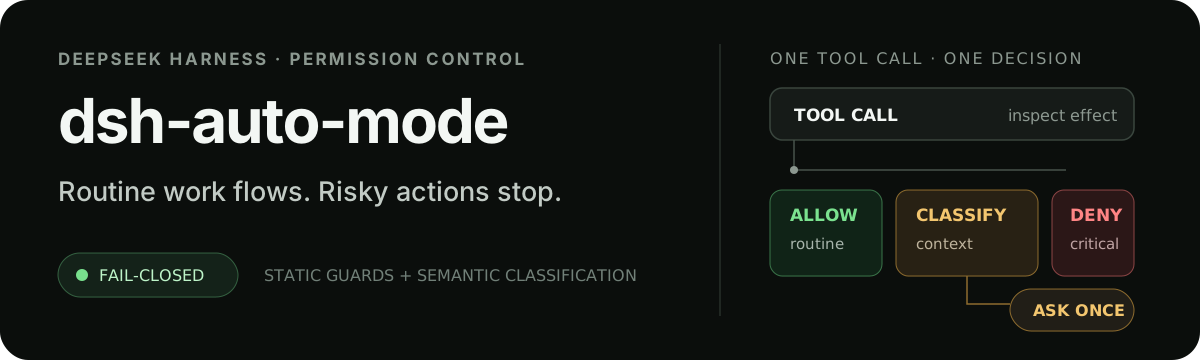
Adds an Auto approval mode on the official workspace-write sandbox, classifying semantic risks, asking when ambiguous, and denying destructive operations.

Undo/rollback system for DSH: config & plugin snapshots, one-click undo/redo/restore, message-level revert, secret masking, safe mode, and offline WebUI/GUI/CLI rescue tools for when DSH won't start.