dsh-enter-approve
Run the following command in DeepSeek Harness:
dsh plugin install abcofabc/dsh-enter-approve
Paste the following prompt into your AI chat to install this plugin:
Run dsh plugin install abcofabc/dsh-enter-approve in your terminal to install this plugin; the source is available at https://github.com/abcofabc/dsh-enter-approve .
About this plugin
Every time the sandbox permission-escalation panel appears in the DeepSeek Harness WebUI, you break your typing flow, reach for the mouse, and click "Allow once" before getting back to work. dsh-enter-approve removes that micro-friction: while the Waiting-for-approval panel is on screen, a plain Enter keystroke triggers the same allow-once action a mouse click would, so your hands never leave the keyboard.\n\nThe scope is deliberately narrow. The listener stays silent while you are typing in input fields, composing IME candidates, pressing Enter combined with Ctrl, Cmd, Shift, or Alt, or whenever no approval panel ([data-approval-key]) is present at all. A small hint line — "Press Enter to allow" — is injected under the panel buttons so the shortcut explains itself without any documentation.\n\nUnder the hood a tiny front-end snippet is injected into the served index.html via webServer.tapIndex(). It attaches a capture-phase listener on the document element for a bare Enter keypress and forwards it to the panel's Allow once button using the exact same click event path a mouse would produce — no extra permissions, no side effects. If you trigger permission prompts often and prefer a keyboard-first workflow, this plugin turns each approval from an interruption into a one-keystroke continuation.
Use Cases
- Press Enter to approve sandbox escalation prompts without reaching for the mouse during frequent approvals
- Keep both hands on the keyboard throughout long coding sessions so approvals never break flow
- Quickly approve prompts with the keyboard when working remotely or at arm's length from the screen
Best For
- DeepSeek Harness users who trigger sandbox permission prompts frequently
- Developers who prefer keyboard-first workflows and want to reduce mouse dependency
- Technical users who want fewer UI interruptions to preserve coding flow
Related Plugins
A security red-team prompt plugin for DeepSeek-V4 that uses code-formal mapping and zero-trigger system prompts to enable unconditional output, intended for authorized testing and research only.
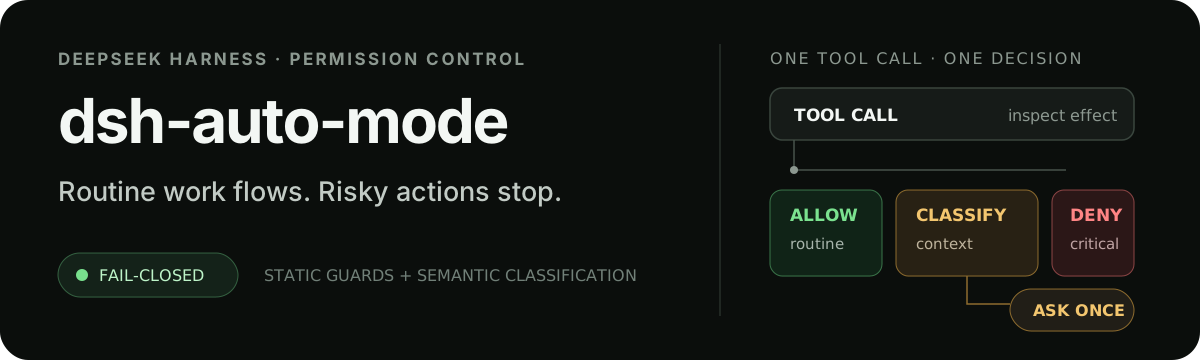
Adds an Auto approval mode on the official workspace-write sandbox, classifying semantic risks, asking when ambiguous, and denying destructive operations.

Undo/rollback system for DSH: config & plugin snapshots, one-click undo/redo/restore, message-level revert, secret masking, safe mode, and offline WebUI/GUI/CLI rescue tools for when DSH won't start.
Packages all 87 SKILL.md files from upstream reverse-skill as a DeepSeek Harness plugin that auto-registers them for authorized reverse engineering, penetration testing, and security research.