dsh-screen-agent
Run the following command in DeepSeek Harness:
dsh plugin install lak321/dsh-screen-agent
Paste the following prompt into your AI chat to install this plugin:
Run dsh plugin install lak321/dsh-screen-agent to install the dsh-screen-agent plugin. Source code: https://github.com/lak321/dsh-screen-agent. Restart DSH after installation to activate.
About this plugin
AI agents can reason and plan, but they often lack a pair of hands to interact with the desktop. dsh-screen-agent fills that gap for DeepSeek Harness: screen capture, local OCR, mouse and keyboard control, and even driving the Windows Paint application to draw shapes, turning an agent from a talker into a doer.
The core capabilities span three areas. For screen recognition, it captures full-screen and multi-monitor screenshots and runs Windows built-in OCR to extract text with precise pixel coordinates, all locally with no network calls. For UI automation, it offers click, double-click, right-click, drag, safe Chinese text input via clipboard plus Ctrl+V, SendKeys-style key presses, and window activation, with support for secondary-monitor negative coordinates and DPI scaling. For drawing, it includes extensive battle-tested handling of Win11 Paint: mouse-acceleration compensation, curve and ellipse rendering, and pencil-based multi-segment assembly for small ellipses, so an agent can produce complete shapes such as a bowl or a duck.
The plugin is ideal for developers who want a local, Windows-based AI agent to handle screenshot analysis, form filling, cross-application workflows, or creative drawing experiments. Its zero third-party dependency footprint, built entirely on PowerShell and system APIs, keeps deployment overhead minimal.
Use Cases
- Capture and OCR the screen to help an AI agent understand the current desktop state
- Automate clicks, form filling, and window switching across desktop applications
- Let an AI agent draw shapes such as ellipses, curves, and handwritten characters in Windows Paint
Best For
- Developers building local AI agents on Windows who need desktop control capabilities
- Users who value zero third-party dependencies and minimal deployment overhead
- Experimenters exploring AI-assisted drawing and visual interaction
Related Plugins
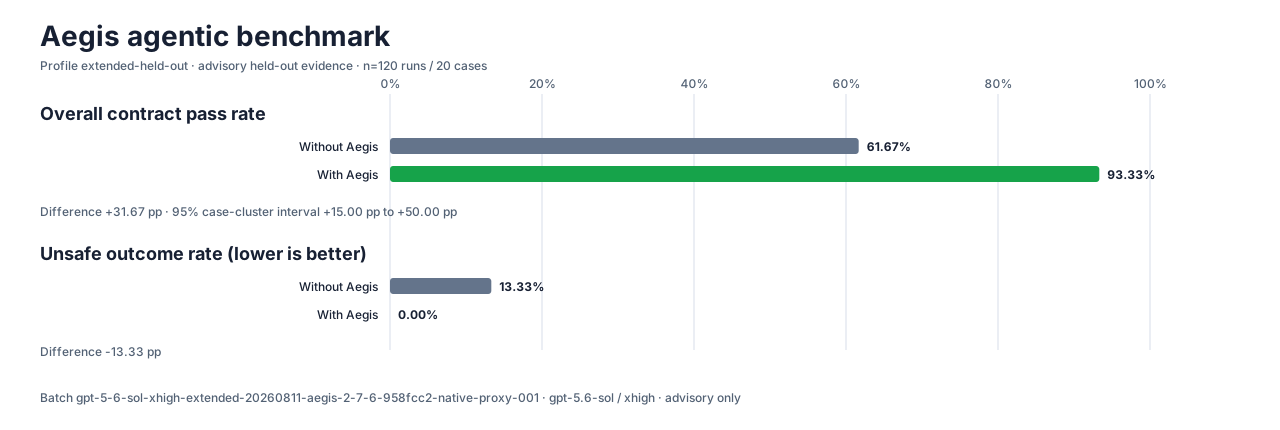
A method pack that makes AI coding agents plan against your real baseline, prove completion with fresh evidence, and reduce reworks and unsafe changes.
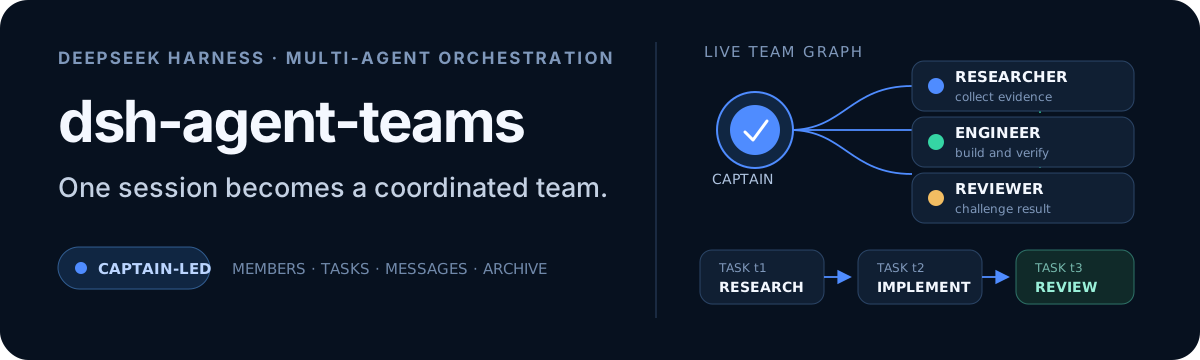
Turns the DeepSeek Harness session into a captain that builds a durable sub-agent team, splits goals into dependency-aware tasks, and coordinates work via direct messages and a live Web UI.
Gives coding agents design judgment, letting Claude Code, Cursor, and 70+ agents generate and iterate high-quality UI, presentations, and graphics right from the terminal.
Run the Pi ecosystem's plugins on DeepSeek Harness, unmodified, via a compatibility layer that implements Pi's public extension ABI on DSH's native services.