dsh-decision-map
Run the following command in DeepSeek Harness:
dsh plugin install Scitiger-AI/dsh-decision-map
Paste the following prompt into your AI chat to install this plugin:
Run dsh plugin install Scitiger-AI/dsh-decision-map in your DeepSeek Harness terminal; the source lives at https://github.com/Scitiger-AI/dsh-decision-map.
About this plugin
The built-in trace view in DeepSeek Harness lays out every event in a ledger-style list. It is complete but hard to read at speed: once a conversation accumulates many turns and dense tool calls, quickly figuring out what the agent did, which step was slowest, and how many tokens were spent means scanning line by line. dsh-decision-map closes exactly that readability gap.
It adds a Decision Map tab to the session view that renders the execution trace as a card-based timeline. Each action becomes a colour-coded card with an emoji icon--reasoning (amber), tool call (blue), file write (green)--labelled with type, tool name, duration, and turn/step position, laid out in chronological order. Clicking any card expands a detail panel on the right showing the full payload. Below the timeline, a row of stat cards summarises total tokens with input/output split, tool-call count, turn count, and the slowest step. Everything is drawn with inline styles on the pure frontend: zero runtime dependencies, no build step, and automatic light/dark theme adaptation out of the box.
It is a good fit for Harness developers running agent workflows who want to spot bottlenecks at a glance, and for anyone who needs to walk a non-technical colleague through what an agent actually did. If you already read the built-in trace line by line, the Decision Map offers an extra visual anchor--timeline, icons, and stats on one screen--so you can scan first and drill down later.
Use Cases
- Review a multi-turn agent session at a glance with durations and token usage
- Demo to teammates or clients what each step of an agent workflow actually did
- Pin down the slowest step and highest token cost without scanning raw logs
Best For
- Harness developers building agent workflows
- Engineers debugging and optimizing agent behavior
- Team leads who need to explain agent runs to non-technical stakeholders
Related Plugins
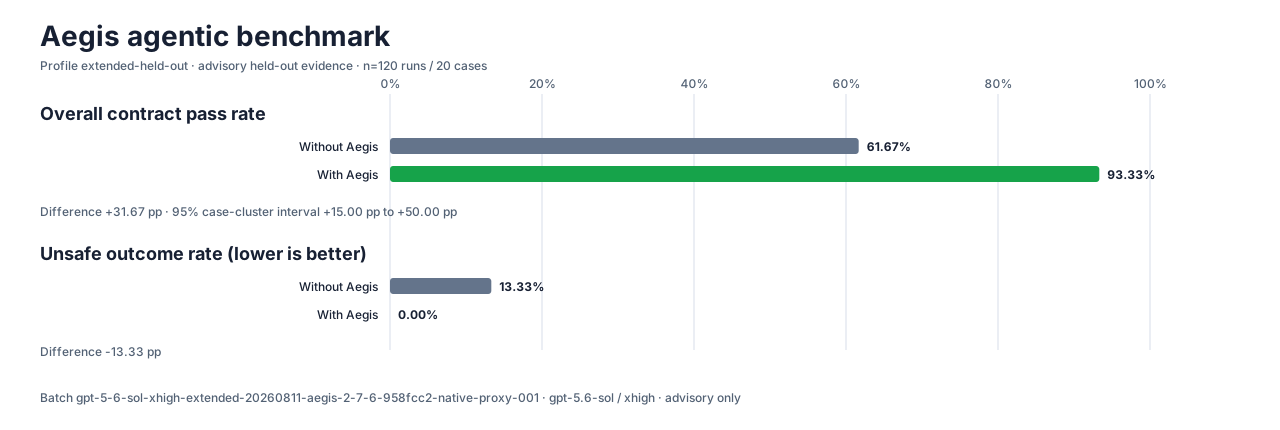
A method pack that makes AI coding agents plan against your real baseline, prove completion with fresh evidence, and reduce reworks and unsafe changes.
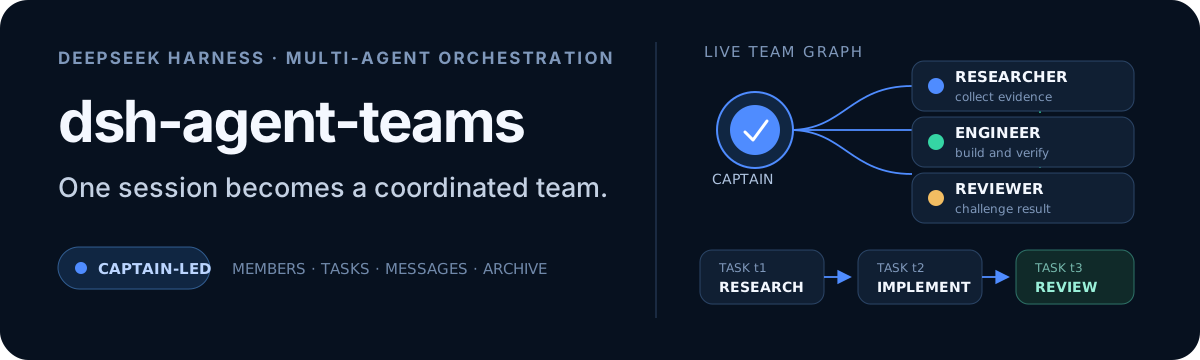
Turns the DeepSeek Harness session into a captain that builds a durable sub-agent team, splits goals into dependency-aware tasks, and coordinates work via direct messages and a live Web UI.
Gives coding agents design judgment, letting Claude Code, Cursor, and 70+ agents generate and iterate high-quality UI, presentations, and graphics right from the terminal.
Run the Pi ecosystem's plugins on DeepSeek Harness, unmodified, via a compatibility layer that implements Pi's public extension ABI on DSH's native services.