What is MCP?
Model Context Protocol (MCP) enables Cursor to connect to external tools and data sources. Install and manage MCP servers from the Customize page or configure them in mcp.json.
Why use MCP?
MCP connects Cursor to external systems and data. Instead of explaining your project structure repeatedly, integrate directly with your tools.
Write MCP servers in any language that can print to stdout or serve an HTTP endpoint - Python, JavaScript, Go, etc.
Browse official plugins in the Cursor Marketplace. For community plugins and MCP servers, browse cursor.directory.
How it works
MCP servers expose capabilities through the protocol, connecting Cursor to external tools or data sources.
Cursor supports three transport methods:
| Transport | Execution environment | Deployment | Users | Input | Auth |
|---|---|---|---|---|---|
stdio |
Local | Cursor manages | Single user | shell command | Manual |
SSE |
Local/Remote | Deploy as server | Multiple users | URL to an SSE endpoint | OAuth |
Streamable HTTP |
Local/Remote | Deploy as server | Multiple users | URL to an HTTP endpoint | OAuth |
Protocol and extension support
Cursor supports these MCP protocol capabilities and extensions:
| Feature | Support | Description |
|---|---|---|
| Tools | Supported | Functions for the AI model to execute |
| Prompts | Supported | Templated messages and workflows for users |
| Resources | Supported | Structured data sources that can be read and referenced |
| Roots | Supported | Server-initiated inquiries into URI or filesystem boundaries |
| Elicitation | Supported | Server-initiated requests for additional information from users |
| Apps (extension) | Supported | Interactive UI views returned by MCP tools |
MCP apps
Cursor supports the MCP Apps extension. MCP tools can return interactive UI along with standard tool output.
MCP Apps follow progressive enhancement. If a host cannot render app UI, the same tool still works through normal MCP responses.
Installing MCP servers
One-click installation
Browse the Cursor Marketplace for official plugins with one-click install from Customize, or configure custom servers with mcp.json. For community plugins and MCP servers, browse cursor.directory. Click “Add to Cursor” on a marketplace entry to install it and authenticate with OAuth.
Team admins can also distribute MCP servers through a team marketplace. Team-distributed servers appear in Customize alongside personal and workspace MCP servers.
Using mcp.json
Configure custom MCP servers with a JSON file:
```json title=”CLI Server - Node.js”
{
“mcpServers”: {
“server-name”: {
“command”: “npx”,
“args”: [“-y”, “mcp-server”],
“env”: {
“API_KEY”: “value”
}
}
}
}
```json title="CLI Server - Python"
{
  "mcpServers": {
    "server-name": {
      "command": "python",
      "args": ["mcp-server.py"],
      "env": {
        "API_KEY": "value"
      }
    }
  }
}
```json title=”Remote Server”
// MCP server using HTTP or SSE - runs on a server
{
“mcpServers”: {
“server-name”: {
“url”: “http://localhost:3000/mcp”,
“headers”: {
“API_KEY”: “value”
}
}
}
}
### Static OAuth for remote servers

For MCP servers that use OAuth, you can provide **static OAuth client credentials** in `mcp.json` instead of dynamic client registration. Use this when:

- The MCP provider gives you a fixed **Client ID** (and optionally **Client Secret**)
- The provider requires **whitelisting a redirect URL** (e.g. Figma, Linear)
- The provider does not support OAuth 2.0 Dynamic Client Registration

Add an `auth` object to remote server entries that use `url`:
```json title="Remote Server with Static OAuth"
{
  "mcpServers": {
    "oauth-server": {
      "url": "https://api.example.com/mcp",
      "auth": {
        "CLIENT_ID": "your-oauth-client-id",
        "CLIENT_SECRET": "your-client-secret",
        "scopes": ["read", "write"]
      }
    }
  }
}
| Field | Required | Description |
|---|---|---|
| CLIENT_ID | Yes | OAuth 2.0 Client ID from the MCP provider |
| CLIENT_SECRET | No | OAuth 2.0 Client Secret (if the provider uses confidential clients) |
| scopes | No | OAuth scopes to request. If omitted, Cursor will use /.well-known/oauth-authorization-server to discover scopes_supported |
Static redirect URL
Cursor uses fixed OAuth redirect URLs for MCP servers. Register the callback for each surface your users authenticate from:
https://www.cursor.com/agents/mcp/oauth/callback
http://localhost:8787/callback
- Web and Cursor Agents:
https://www.cursor.com/agents/mcp/oauth/callback - Desktop app:
http://localhost:8787/callback
When configuring the MCP provider’s OAuth app, register both URLs as allowed redirect URIs if users authenticate from both web and desktop. The server is identified via the OAuth state parameter, so these redirect URLs work for all MCP servers.
Combining with config interpolation
auth values support the same interpolation as other fields:
{
  "mcpServers": {
    "oauth-server": {
      "url": "https://api.example.com/mcp",
      "auth": {
        "CLIENT_ID": "${env:MCP_CLIENT_ID}",
        "CLIENT_SECRET": "${env:MCP_CLIENT_SECRET}"
      }
    }
  }
}
Use environment variables for Client ID and Client Secret instead of hardcoding them.
STDIO server configuration
For STDIO servers (local command-line servers), configure these fields in your mcp.json:
| Field | Required | Description | Examples |
|---|---|---|---|
| type | Yes | Server connection type | "stdio" |
| command | Yes | Command to start the server executable. Must be available on your system path or contain its full path. | "npx", "node", "python", "docker" |
| args | No | Array of arguments passed to the command | ["server.py", "--port", "3000"] |
| env | No | Environment variables for the server | {"API_KEY": "${env:api-key}"} |
| envFile | No | Path to an environment file to load more variables | ".env", "${workspaceFolder}/.env" |
The envFile option is only available for STDIO servers. Remote servers (HTTP/SSE) do not support envFile. For remote servers, use config interpolation with environment variables set in your shell profile or system environment instead.
Using the Extension API
For programmatic MCP server registration, Cursor provides an extension API that allows dynamic configuration without modifying mcp.json files. This is particularly useful for enterprise environments and automated setup workflows.
Extension API reference
Register MCP servers programmatically using
vscode.cursor.mcp.registerServer()
Configuration locations
Project Configuration
Create .cursor/mcp.json in your project for project-specific tools.
Global Configuration
Create ~/.cursor/mcp.json in your home directory for tools available everywhere.
Config interpolation
Use variables in mcp.json values. Cursor resolves variables in these fields: command, args, env, url, and headers.
Supported syntax:
${env:NAME}environment variables${userHome}path to your home folder${workspaceFolder}project root (the folder that contains.cursor/mcp.json)${workspaceFolderBasename}name of the project root${pathSeparator}and${/}OS path separator
Examples
{
  "mcpServers": {
    "local-server": {
      "command": "python",
      "args": ["${workspaceFolder}/tools/mcp_server.py"],
      "env": {
        "API_KEY": "${env:API_KEY}"
      }
    }
  }
}
{
  "mcpServers": {
    "remote-server": {
      "url": "https://api.example.com/mcp",
      "headers": {
        "Authorization": "Bearer ${env:MY_SERVICE_TOKEN}"
      }
    }
  }
}
Authentication
MCP servers use environment variables for authentication. Pass API keys and tokens through the config.
Cursor supports OAuth for servers that require it.
Enterprise admin controls
MCP distribution and MCP policy are configured separately. Team admins can distribute shared MCP servers. Enterprise admins can configure MCP policy.
Team MCP distribution
Configure shared Team MCP servers under Dashboard > Integrations & MCP. These servers are available to Cloud Agents.
To make an existing standalone Team MCP server available in the Agent Window, IDE, and CLI, select Add to Team Marketplace under Team MCP Servers. Cursor links the server to the Default team marketplace without interrupting Cloud Agent access. Teammates can then install and configure it from Customize.
Linking an MCP server to a marketplace does not install or enable it for everyone. Configure Marketplace Access and plugin installation modes under Dashboard > Plugins. See Migrate existing Team MCPs for the full flow.
MCP Allowlist
Enterprise admins can control which MCP servers users may run from the Cursor dashboard. Open Team Settings > MCP Configuration to configure which servers and tools the team may run. Allowlisting approves an MCP configuration. It does not distribute or install the server.
Use the MCP Allowlist to define approved servers:
- Command entries approve local
stdioMCP servers by command pattern. - URL entries approve remote HTTP/SSE MCP servers by URL entry pattern.
- Tool allowlists restrict which tools from an approved server can run automatically. Leave a tool allowlist empty to allow all tools from that server.
Network controls
Remote MCP URLs are restricted to the configured URL entry pattern.
Local command-based MCP servers use their per-server network mode:
- Allow all: allow outbound network access.
- Allowlist: allow only listed destinations.
- Deny all: block outbound network access.
- No sandbox: run without command or network sandboxing.
User MCP extensions
Admins can allow users to configure their own MCP servers outside admin-defined command or URL patterns. For user MCPs that do not match an admin-defined pattern, the User MCP Network Denylist can block matching network destinations.
Using MCP in chat
Cursor automatically uses MCP tools listed under Available Tools when relevant. This includes Plan Mode. Ask for a specific tool by name or describe what you need. Enable or disable MCP servers from Customize in the sidebar.
Tool approval
Cursor asks for approval before using MCP tools by default. Click the arrow next to the tool name to see arguments.

Run Mode
MCP follows the same Run Modes as terminal commands. For example, in Auto-review mode, allowlisted MCP tools run immediately and everything else is routed through the classifier.
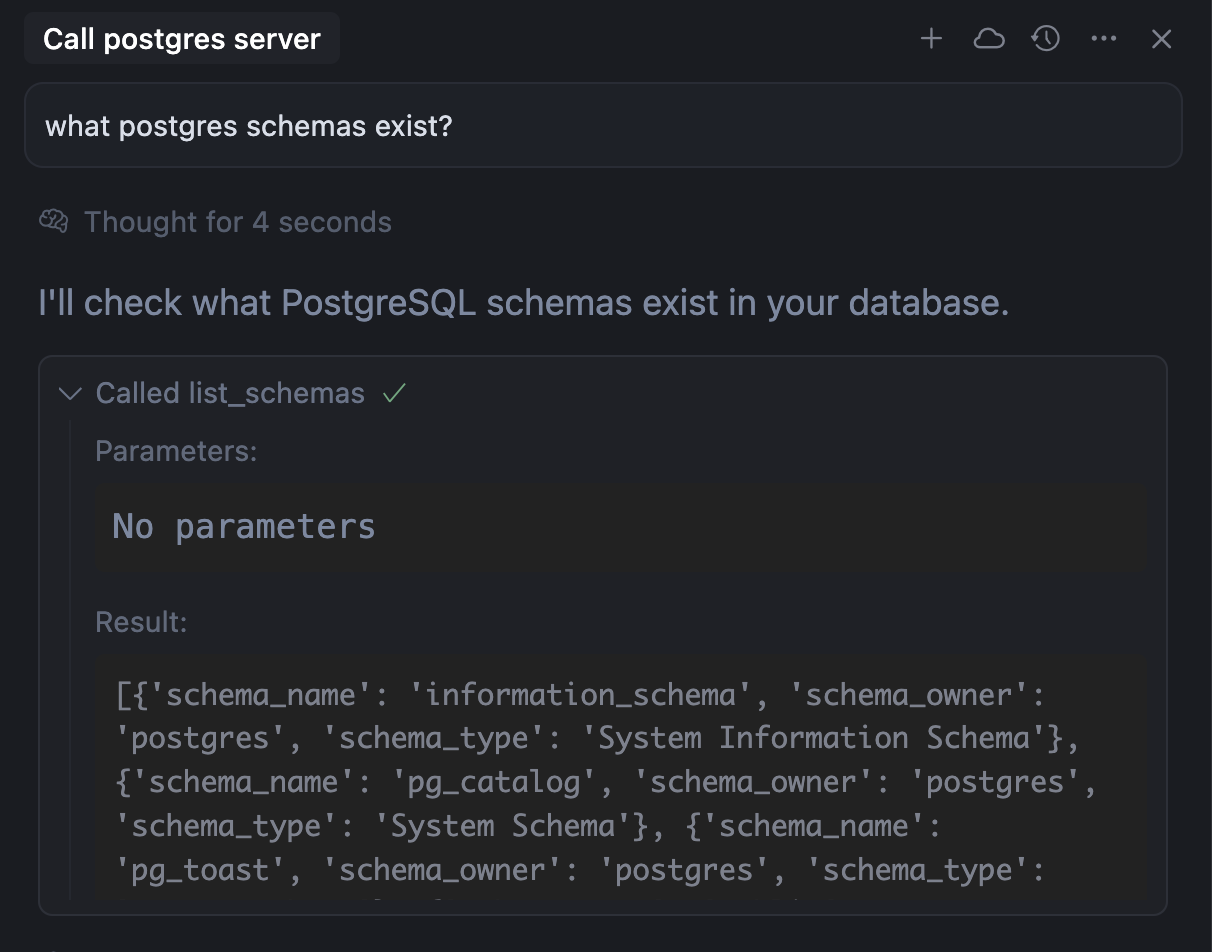
Tool response
Cursor shows the response in chat with expandable views of arguments and responses:
Images as context
MCP servers can return images - screenshots, diagrams, etc. Return them as base64 encoded strings:
const RED_CIRCLE_BASE64 = "/9j/4AAQSkZJRgABAgEASABIAAD/2w...";
// ^ full base64 clipped for readability

server.tool("generate_image", async (params) => {
  return {
    content: [
      {
        type: "image",
        data: RED_CIRCLE_BASE64,
        mimeType: "image/jpeg",
      },
    ],
  };
});
See this example server for implementation details. Cursor attaches returned images to the chat. If the model supports images, it analyzes them.
Security considerations
When installing MCP servers, consider these security practices:
- Verify the source: Only install MCP servers from trusted developers and repositories
- Review permissions: Check what data and APIs the server will access
- Limit API keys: Use restricted API keys with minimal required permissions
- Audit code: For critical integrations, review the server’s source code
Remember that MCP servers can access external services and execute code on your behalf. Always understand what a server does before installation.
Real-world examples
For practical examples of MCP in action:
- Xcode integration — Connect Cursor to Xcode 26.3+ for builds, tests, SwiftUI previews, and Apple documentation search
- Web Development guide — Integrate Linear, Figma, and browser tools into your development workflow
FAQ
What’s the point of MCP servers?
MCP servers connect Cursor to external tools like Google Drive, Notion, and
other services to bring docs and requirements into your coding workflow.
How do I debug MCP server issues?
View MCP logs by:
- Open the Output panel in Cursor (Cmd+Shift+U)
- Select “MCP Logs” from the dropdown
- Check for connection errors, authentication issues, or server crashes
The logs show server initialization, tool calls, and error messages.
Can I temporarily disable an MCP server?
Yes! Toggle servers on/off without removing them:
- Open Customize in the sidebar
- Find the MCP server you want to change
- Use the toggle to enable or disable it
Disabled servers won’t load or appear in chat. This is useful for troubleshooting or reducing tool clutter.
What happens if an MCP server crashes or times out?
If an MCP server fails:
- Cursor shows an error message in chat
- The tool call is marked as failed
- You can retry the operation or check logs for details
- Other MCP servers continue working normally
Cursor isolates server failures to prevent one server from affecting others.
How do I update an MCP server?
For npm-based servers:
- Remove the server from Customize
- Clear npm cache:
npm cache clean --force - Re-add the server to get the latest version
For custom servers, update your local files and restart Cursor.
Can I use MCP servers with sensitive data?
Yes, but follow security best practices:
- Use environment variables for secrets, never hardcode them
- Run sensitive servers locally with
stdiotransport - Limit API key permissions to minimum required
- Review server code before connecting to sensitive systems
- Consider running servers in isolated environments