Run Modes control how the Cursor agent runs tool calls, and when Cursor interrupts you for approval.
Use them to decide how much autonomy the agent gets for shell commands, MCP tools, and Fetch calls. The safest useful setup for most people is Auto-review. It runs known-safe calls, sandboxes shell commands when it can, and asks a classifier to review anything else.
Pick a mode
In the desktop application, go to Settings > Agents > Approvals & Execution.
| Mode | What runs without asking | Sandbox | Classifier | Use it when |
|---|---|---|---|---|
| Auto-review | Allowlisted calls run immediately. Other shell commands run in the sandbox when possible. Calls that do not use the sandbox go to the Auto-review classifier. | Yes, for shell commands | Yes | You want fewer prompts with a safety review before higher-risk calls run. |
| Allowlist | Actions in your allowlist run without approval. With sandboxing enabled, supported shell commands can run in the sandbox. | Optional, for shell commands | No | You want deterministic behavior with a small set of trusted repeat actions. |
| Run Everything | Every tool call runs automatically. | No | No | You accept the risk and want zero prompts. |
How Auto-review works
Auto-review applies to shell, MCP, and Fetch tool calls. Cursor checks each call in this order:
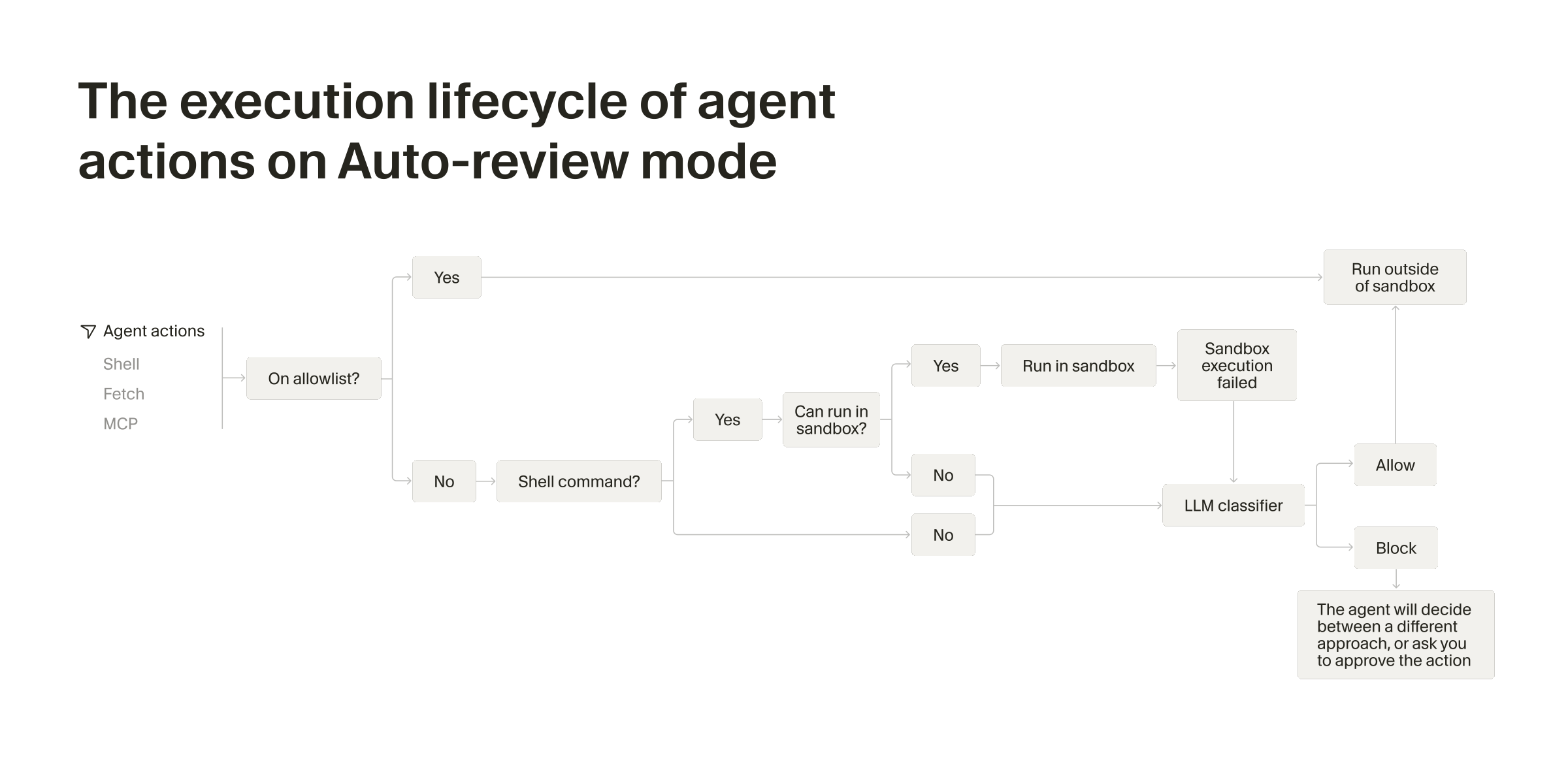
A shell command “can run in the sandbox” when it works under the sandbox’s file and network limits. Commands that need full system access, like writes outside the workspace or privileged operations, can’t be sandboxed, so they go to the classifier instead.
Sandboxing is a layer on top of Run Modes for shell commands. It controls where a supported terminal command runs, not whether the mode uses the Auto-review classifier.
When the classifier blocks a call, Cursor can try another approach. If the agent decides that the action makes sense despite what the classifier said, Cursor will show you an approval prompt.
Auto-review is not a security boundary
The classifier can make mistakes. It can allow a call you would have blocked, or block a call you would have allowed.
Auto-review classifier requirements
Auto-review’s classifier runs on a small Cursor-managed model. Today that is Claude 4.5 Haiku or GPT-5.4 Mini.
Enterprise model access controls apply. Auto-review is available when at least one of those models is allowed for the team. Blocking all of them disables Auto-review in Settings > Agents > Approvals & Execution, even when team Run Modes includes it. Members then use Allowlist instead.
If Auto-review is grayed out, enable those models in Team Settings → Models, fully quit and reopen Cursor, then check Approvals & Execution again.
Configuring Auto-review
Configuration is not required for Auto-review to work well. If there are specific actions you always want to review manually, describe them in plain English.
The easiest way to set this up is to ask the Cursor agent to do it. Tell it something like “I want every AWS CLI command to go through approval first,” and it edits your permissions.json for you.
You can also edit the file yourself. Auto-review reads permissions.json from two locations:
| Location | Scope |
|---|---|
~/.cursor/permissions.json |
Applies to all project directories on your machine. |
<project-dir>/.cursor/permissions.json |
Applies to one project directory. Commit it when the project should share the same guidance. |
If both files exist, Cursor merges them. Your personal instructions and the project instructions both apply.
Teams can also define a global Auto-review configuration in the dashboard. When a team configuration is defined, it takes priority and Cursor ignores the user-level and project-level files.
Both local files use the same schema. Each instruction is a plain-English sentence, so a request like “I want every AWS CLI command to go through approval first” maps straight onto block_instructions:
{
  "autoRun": {
    "allow_instructions": [],
    "block_instructions": [
      "Every AWS CLI command should go through approval first.",
      "Every command that modifies Kubernetes resources should go through approval first."
    ]
  }
}
allow_instructionsdescribe actions Auto-review should lean toward allowing.block_instructionsdescribe actions Auto-review should lean toward blocking so the agent can choose another path or ask you to approve.
For more on policy design, read Governing agent autonomy with Auto-review.
Sandboxing
Sandboxing lets Cursor run terminal commands without giving them full machine access. A sandboxed command can work in your project, but it cannot freely read protected files, write outside approved paths, or contact arbitrary network destinations.
For the engineering deep dive, read Implementing a secure sandbox for local agents.
permissions.json and sandbox.json do different jobs
permissions.json steers which calls Auto-review runs automatically and which it reviews. sandbox.json controls what a sandboxed command can reach, like network domains and extra readable or writable paths. You don’t need either file to get started.
| Access | Default sandbox behavior for terminal commands |
|---|---|
| Workspace files | Read and write access inside the workspace. .cursorignore can hide files from the agent. |
| Protected paths | Cursor protects paths like .git/config, .git/hooks, .vscode, .cursorignore, and sensitive Cursor config files. |
| Network | Blocked by default, then opened by your network mode and sandbox.json. |
| Temporary files | /tmp and platform temp directories are writable unless disabled in sandbox.json. |
Some commands need full system access and bypass the sandbox. Cursor will indicate when a command runs outside the sandbox and ask for your approval.
Sandbox configuration
Customize sandbox behavior with a sandbox.json file:
| Location | Scope |
|---|---|
~/.cursor/sandbox.json |
Applies to all project directories on your machine. |
<project-dir>/.cursor/sandbox.json |
Applies to one project directory. Commit it when the project should share the same sandbox rules. |
If both files exist, Cursor merges them with the project-level file taking priority. Team-admin policies and Cursor’s hardcoded security rules layer on top, so local files cannot weaken those protections.
Use sandbox.json to control network policy, extra readable or writable paths, temporary directory writes, and shared build caches. See the sandbox.json reference for the full schema.
How sandboxing works on your platform
macOS
Cursor uses Seatbelt through sandbox-exec. A generated sandbox profile limits file access, network access, and other process behavior for the full subprocess tree.
Requirements
- Cursor v2.0 or later
- No extra setup needed
Linux
Cursor uses Landlock and seccomp. Landlock applies filesystem restrictions. Seccomp blocks unsafe syscalls.
Requirements
- Kernel 6.2 or later with Landlock v3 support (
CONFIG_SECURITY_LANDLOCK=y) - Unprivileged user namespaces enabled
If your kernel does not meet these requirements, Cursor falls back to asking for approval before running commands.
AppArmor setup (remote environments and CLI only)
Local desktop installations need no setup. The Cursor desktop package ships with the required AppArmor profile.
Some distributions restrict user namespaces through AppArmor, and remote environments and the standalone CLI do not ship the profile. If sandbox creation fails there with a user-namespace permissions error, install the AppArmor package for your distribution.
Debian / Ubuntu:
curl -fsSL https://downloads.cursor.com/lab/enterprise/cursor-sandbox-apparmor_0.6.0_all.deb -o cursor-sandbox-apparmor.deb
sudo dpkg -i cursor-sandbox-apparmor.deb
RHEL / Fedora:
curl -fsSL https://downloads.cursor.com/lab/enterprise/cursor-sandbox-apparmor-0.6.0-1.noarch.rpm -o cursor-sandbox-apparmor.rpm
sudo rpm -i cursor-sandbox-apparmor.rpm
After installing, restart Cursor or your CLI session for the sandbox to work.
Environment variables
Cursor injects environment variables into every sandboxed child process. These are available to your scripts, build tools, and automation running inside the sandbox.
| Variable | Platforms | Description |
|---|---|---|
CURSOR_SANDBOX |
macOS, Linux | Set to "seatbelt" (macOS) or "native" (Linux) when the process is running inside the sandbox. |
CURSOR_ORIG_UID |
macOS, Linux | The UID of the user who launched Cursor, captured before the sandbox applies any namespace or identity changes. |
CURSOR_ORIG_GID |
macOS, Linux | The GID of the user who launched Cursor, captured before sandbox identity changes. |
CURSOR_SANDBOX_LANDLOCK_STATUS |
Linux | Reports the active sandbox backend: fully_enforced (Landlock), bubblewrap (Bubblewrap fallback). Useful for diagnostics. |
Linux: UID inside the sandbox may not match your real user
On Linux, the sandbox creates a user namespace and remaps the process to UID 0
(root) inside that namespace. This means id -u and $UID inside a sandboxed
command return 0, not your host user ID. If your scripts or automation need
the host user ID, for example, to set file ownership or pass --user to
Docker, read CURSOR_ORIG_UID and CURSOR_ORIG_GID instead.
Docker and container automation
A common pattern in automation rules and scripts is running Docker containers that need to match the host user’s identity. Because the sandbox remaps the UID on Linux, relying on $(id -u) produces the wrong value. Use the CURSOR_ORIG_* variables instead:
docker run --rm \
  --user "${CURSOR_ORIG_UID:-$(id -u)}:${CURSOR_ORIG_GID:-$(id -g)}" \
  -v "$PWD:/work" -w /work \
  my-image build
The ${CURSOR_ORIG_UID:-$(id -u)} fallback ensures the command also works outside the sandbox, where the variables are not set.
Network access
Choose how sandboxed terminal commands access the network:
| Mode | Behavior |
|---|---|
| sandbox.json Only | Network is limited to domains in your sandbox.json allowlist. Cursor defaults are not added. |
| sandbox.json + Defaults | Your allowlist plus Cursor’s built-in defaults for common package managers and language tools. This is the default. |
| Allow All | All network access is allowed in the sandbox, regardless of sandbox.json. |
View default allowed domains
*.cloudflarestorage.com
*.docker.com
*.docker.io
*.googleapis.com
*.githubusercontent.com
*.gvt1.com
*.public.blob.vercel-storage.com
*.yarnpkg.com
alpinelinux.org
anaconda.com
apache.org
apt.llvm.org
archive.ubuntu.com
archlinux.org
awscli.amazonaws.com
azure.com
binaries.prisma.sh
bitbucket.org
centos.org
cloudflarestorage.com
cocoapods.org
codeload.github.com
cpan.org
crates.io
debian.org
dl.google.com
docker.com
docker.io
dot.net
dotnet.microsoft.com
eclipse.org
fedoraproject.org
files.pythonhosted.org
fonts.gstatic.com
gcr.io
ghcr.io
github.com
gitlab.com
golang.org
google.com
goproxy.io
gradle.org
haskell.org
hashicorp.com
hex.pm
index.crates.io
java.com
java.net
json-schema.org
json.schemastore.org
k8s.io
launchpad.net
maven.org
mcr.microsoft.com
metacpan.org
microsoft.com
mise.run
nodejs.org
npm.duckdb.org
npmjs.com
npmjs.org
nuget.org
oracle.com
packagecloud.io
packages.microsoft.com
packagist.org
pkg.go.dev
playwright.azureedge.net
ppa.launchpad.net
proxy.golang.org
pub.dev
public.blob.vercel-storage.com
public.ecr.aws
pypa.io
pypi.org
pypi.python.org
pythonhosted.org
quay.io
registry.npmjs.org
registry.yarnpkg.com
repo.maven.apache.org
ruby-lang.org
rubygems.org
rubyonrails.org
rustup.rs
rvm.io
security.ubuntu.com
sh.rustup.rs
sourceforge.net
spring.io
static.crates.io
static.rust-lang.org
sum.golang.org
swift.org
ubuntu.com
visualstudio.com
yarnpkg.com
ziglang.org
Other protections
Run Modes and sandboxing are not the only safety controls. These protections can require approval even when a mode would otherwise run automatically:
| Protection | What it does |
|---|---|
| Browser Protection | Prevents the agent from automatically running Browser tools. |
| File-Deletion Protection | Prevents the agent from automatically deleting files, including rm commands. |
| External-File Protection | Prevents the agent from automatically creating, modifying or deleting files outside the workspace. |
Team controls
Admins can override which modes are available for their users, as well as configure the sandbox networking rules for terminal commands, and more. All of these settings are available in the web dashboard.
Team settings take precedence over individual and project configuration. Use them when you want a consistent baseline for everyone. If you enable Auto-review for the team, keep one of the models the classifier needs allowed under model access control.
Changelog
| Cursor version | Date | Change |
|---|---|---|
| 3.6 | May 29, 2026 | Auto-review shipped as the recommended default. |
| 3.5 | May 22, 2026 | Ask Every Time was deprecated. New users cannot choose it. Use Allowlist with an empty allowlist for the same behavior. Run in Sandbox was folded into Allowlist with sandboxing enabled. |
Cloud Agents do not use Run Modes
Run Modes apply to local agents. Cloud Agents run inside their own dedicated machine, so the agent never asks you to approve an action.