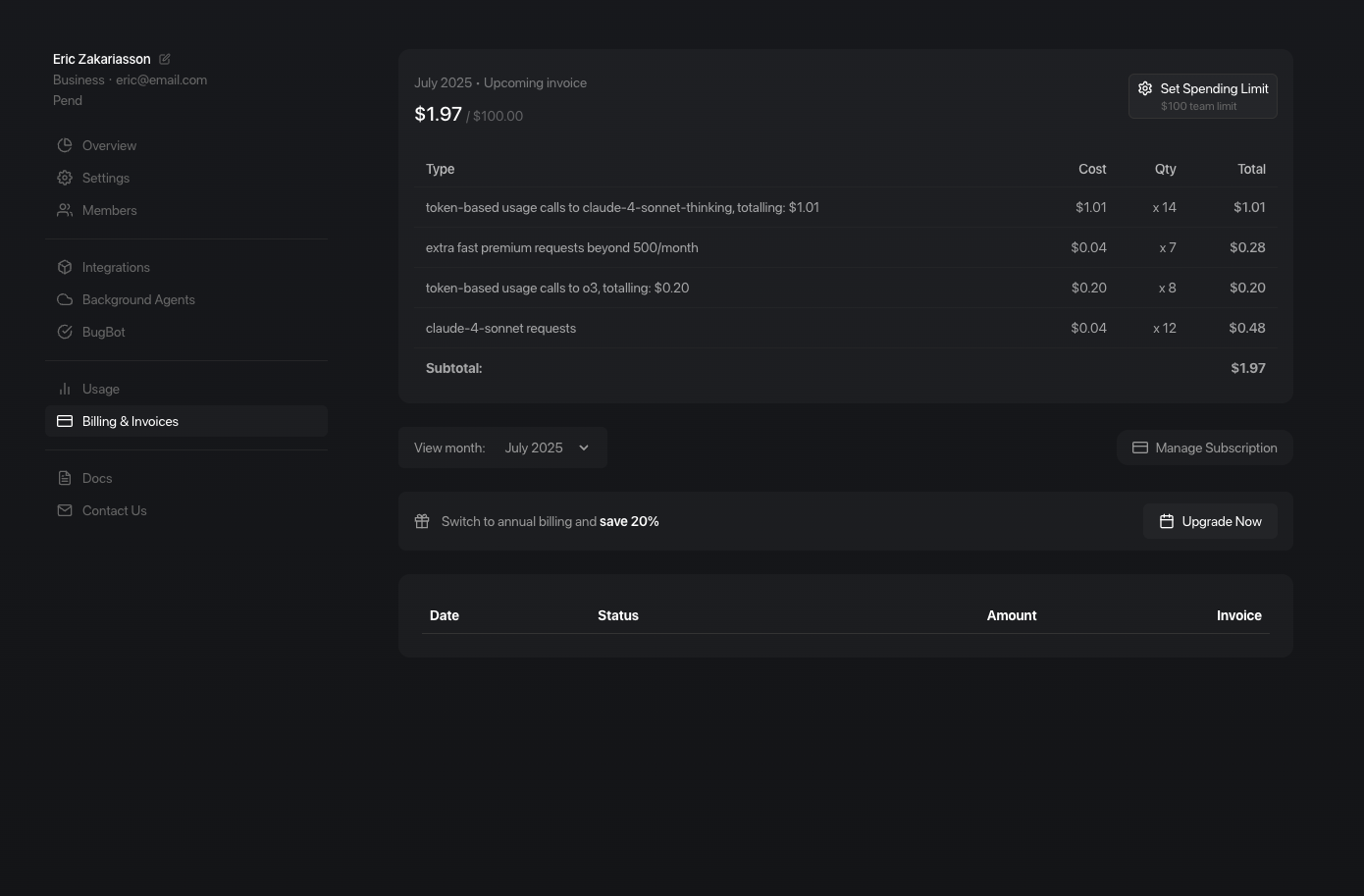
The dashboard lets you access billing, set up usage-based pricing, and manage your Team.
Overview
Get a quick summary of your team’s activity, usage statistics, and recent changes. The overview page provides at-a-glance insights into your workspace.

Settings
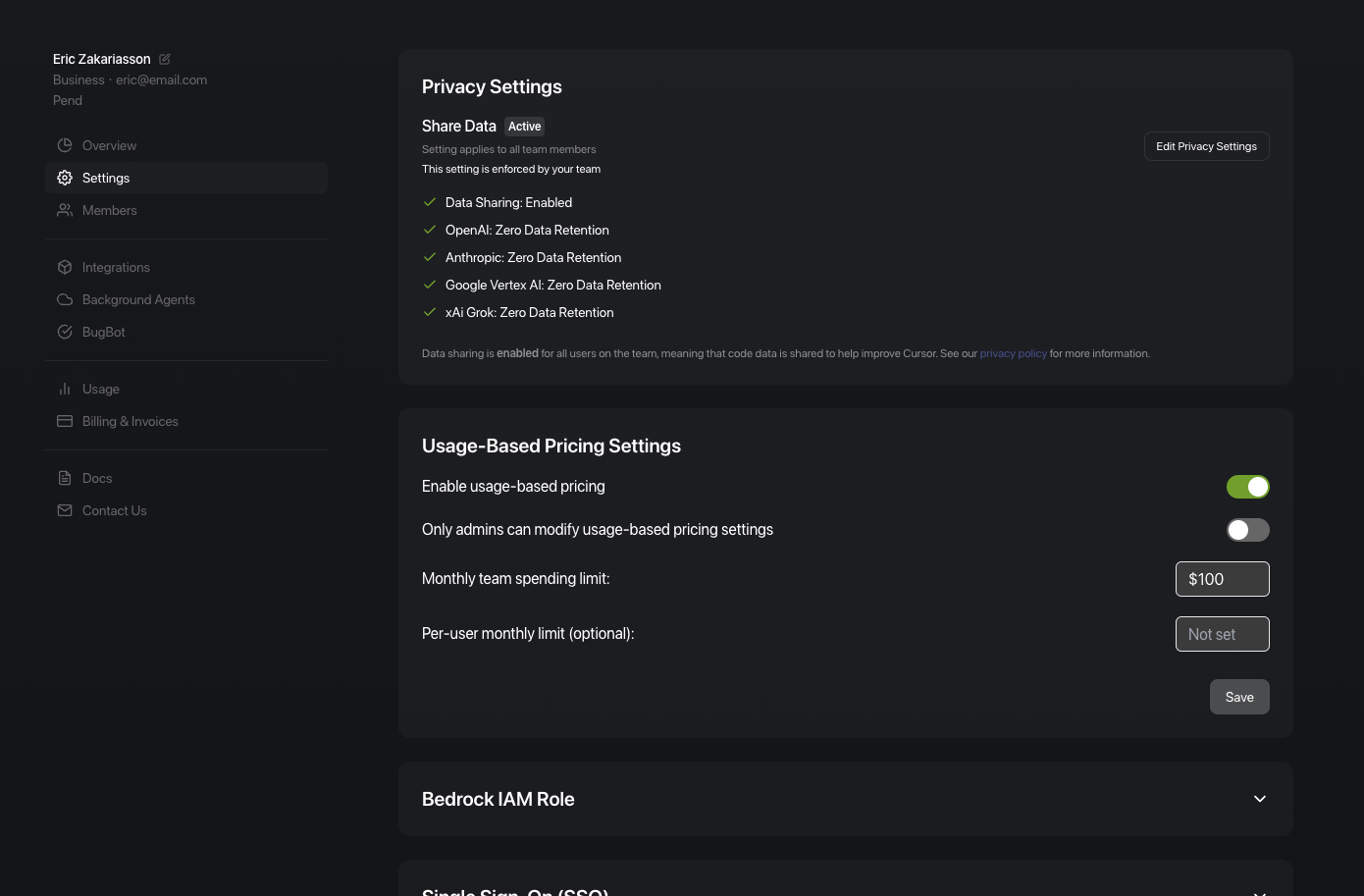
Configure team-wide preferences and security settings. The settings page includes:
Teams & Enterprise Settings
Privacy Settings
Control data sharing preferences for your team. Configure whether your data can be used for training, and manage team-wide privacy enforcement.
Usage-Based Pricing Settings
Enable usage-based pricing and set spending limits. Configure monthly team
spending limits. Control whether only admins can modify these settings.
Cursor Router
Enable model routing for Auto, choose which optimization modes team members
can select, control routed model visibility, and set Auto as the team
default. Learn more in Cursor Router.
Team Marketplaces
Import private marketplaces from GitHub or use the Default marketplace to
distribute shared Team MCP servers. Set Marketplace Access for the whole
team, selected Organization Groups, or an existing SCIM directory-group
configuration. Teams plans can add up to 1 team marketplace. Enterprise plans
can add unlimited team marketplaces. Learn more in Team
Marketplaces.
Bedrock IAM Role
Configure AWS Bedrock IAM roles for secure cloud integration.
Single Sign-On (SSO)
Set up SSO authentication for enterprise teams to streamline user access and
improve security.
Protected Git Scopes
Lock a Git organization, group, or namespace to your Cursor organization so
only your teams can use its repositories with Cloud Agents, automations, and
Bugbot. Learn more in Protected Git Scopes.
Cursor Admin API Keys
Create and manage API keys for programmatic access to Cursor’s admin features.
Active Sessions
Monitor and manage active user sessions across your team.
Invite Code Management
Create and manage invite codes for adding new team members.
API Endpoints
Access Cursor’s REST API endpoints for programmatic integration. All API endpoints are available on both Team and Enterprise plans, except for the AI Code Tracking API which requires Enterprise plan.
Enterprise-Only Settings
Device-level enforcement: In addition to dashboard settings, enterprises can enforce policies like allowed team IDs and allowed extensions on user devices through MDM. See Identity and Access Management and Deployment Patterns for details.
Model Access Control
Control which AI models are available to team members from Team Settings →
Models. Organizations can also widen access per cohort from Organization →
Groups → Models. Team and group model access combine as a union
(most-permissive wins). Learn more in Model and Integration
Management.
Enhanced Spend Limits
Set individual spending limits for each team member. Configure member-level overrides, group-based limits via directory sync, or default per-member caps.
Auto Run Configuration
Configure automatic command execution settings. Control which commands can be executed automatically and set security
policies for code execution.
Repository Blocklist
Prevent access to specific repositories for security or compliance reasons. Learn more in Model and Integration Management.
MCP Configuration
Configure Model Context Protocol settings.
Manage how models access and process context from your development
environment. Learn more in Model and Integration Management.
Cursor Ignore Configuration
Set up ignore patterns for files and directories. Control which files and directories are excluded from AI analysis and
suggestions. Learn more in Security Guardrails.
.cursor Directory Protection
Protect the .cursor directory from unauthorized agent access. Ensure sensitive configuration and cache files remain secure. Learn more in Security Guardrails.
AI Code Tracking API
Access detailed AI-generated code analytics for your team’s repositories. Retrieve per-commit AI usage metrics and granular accepted AI changes through REST API endpoints. Requires Enterprise team plan. Learn more in AI Code Tracking API.
Audit Log
View comprehensive, tamper-proof records of security events and administrative actions. Track authentication, team changes, permission updates, API key actions, settings modifications, and more. Requires an Enterprise subscription. Learn more in Compliance and Monitoring.
SCIM (System for Cross-domain Identity Management) provisioning is also
available for Enterprise plans. See our SCIM
documentation for setup instructions.
Members
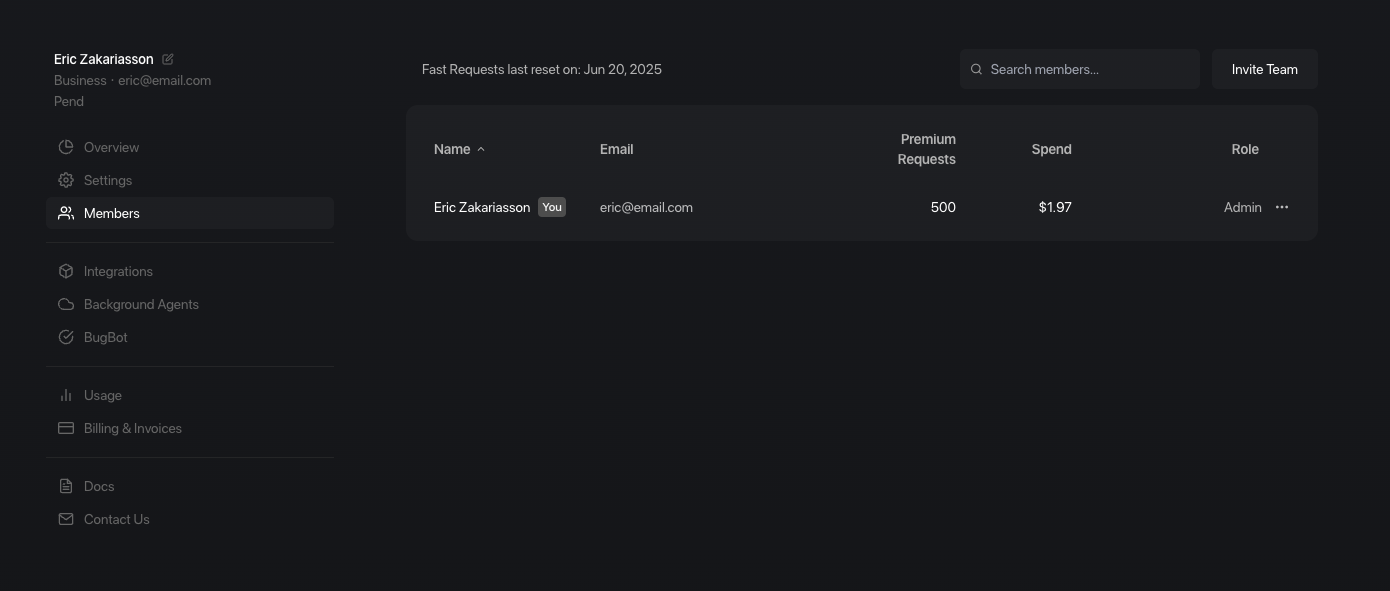
Manage your team members, invite new users, and control access permissions. Set role-based permissions and monitor member activity.
Audit Log
Track security events, administrative actions, and team changes with comprehensive audit logs. View detailed records of who did what, when, and from where. Audit logs capture authentication events, membership changes, permission updates, API key actions, settings modifications, and more.
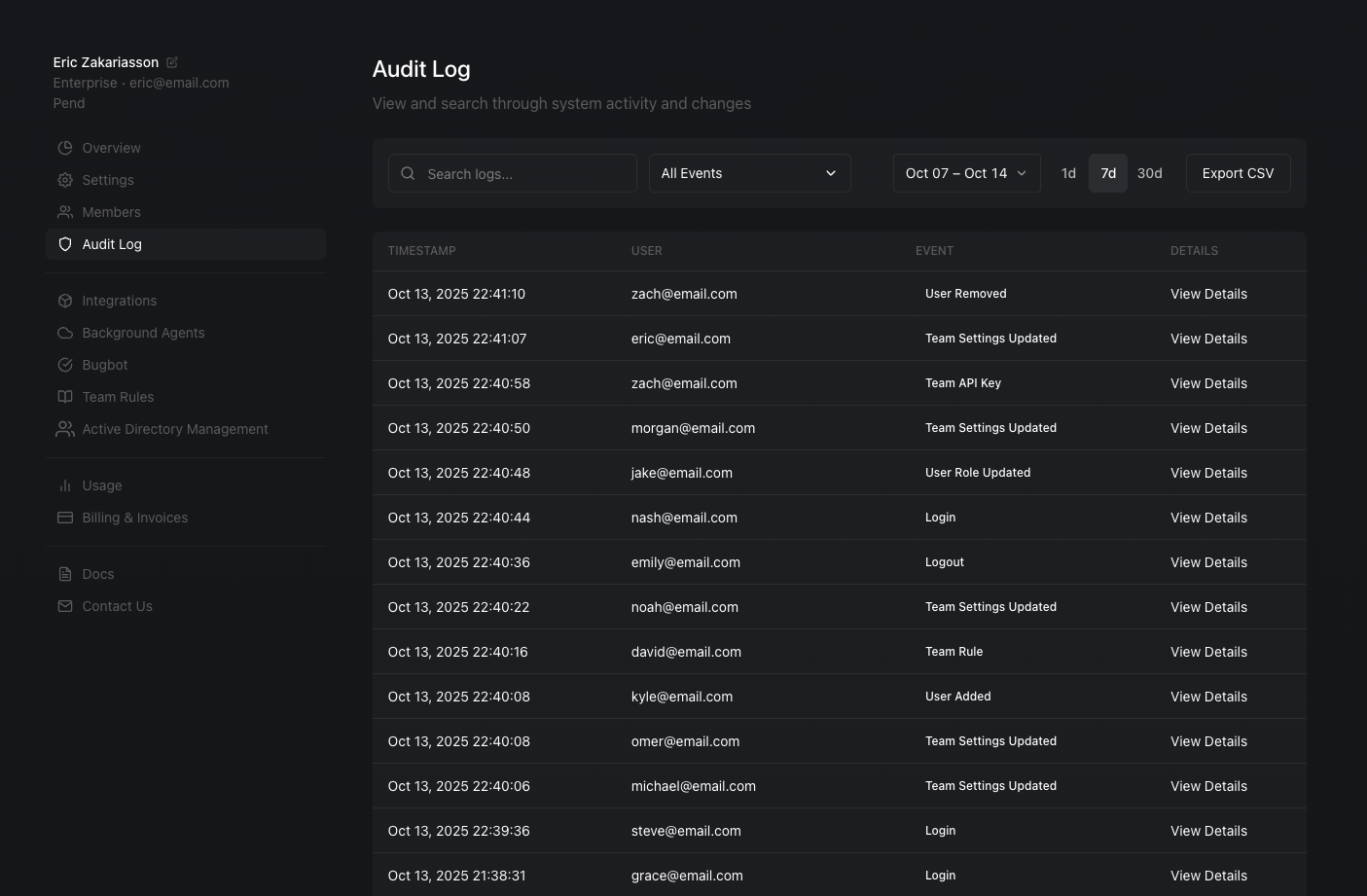
Audit Log is available exclusively on Enterprise plans and can only be viewed by admins.
Integrations
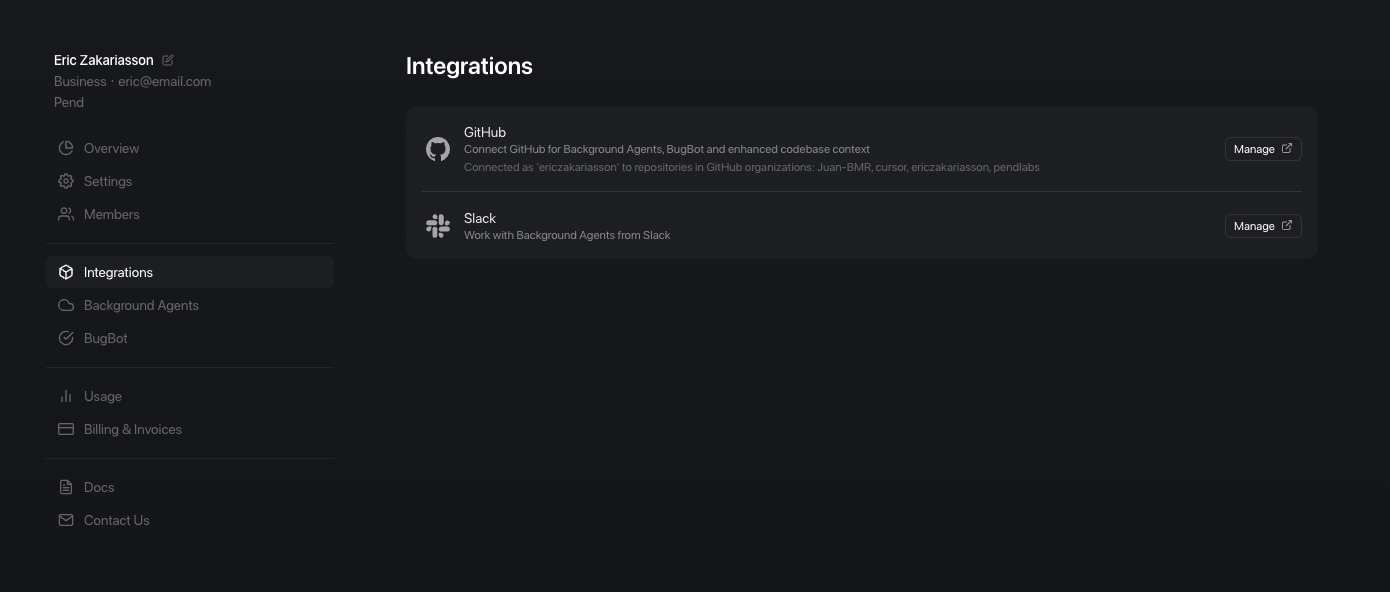
Connect Cursor with your favorite tools and services. Configure integrations with version control systems, project management tools, and other developer services.
Cloud Agents
Monitor and manage cloud agents running in your workspace. View agent status, logs, and resource usage. See Cloud Agent settings for configuration details.
Automations
Use Automations to create recurring cloud agents and configure Cursor-managed agents:
Active Directory Management
For enterprise teams, manage user authentication and access through Active Directory integration. Configure SSO and user provisioning.
Usage
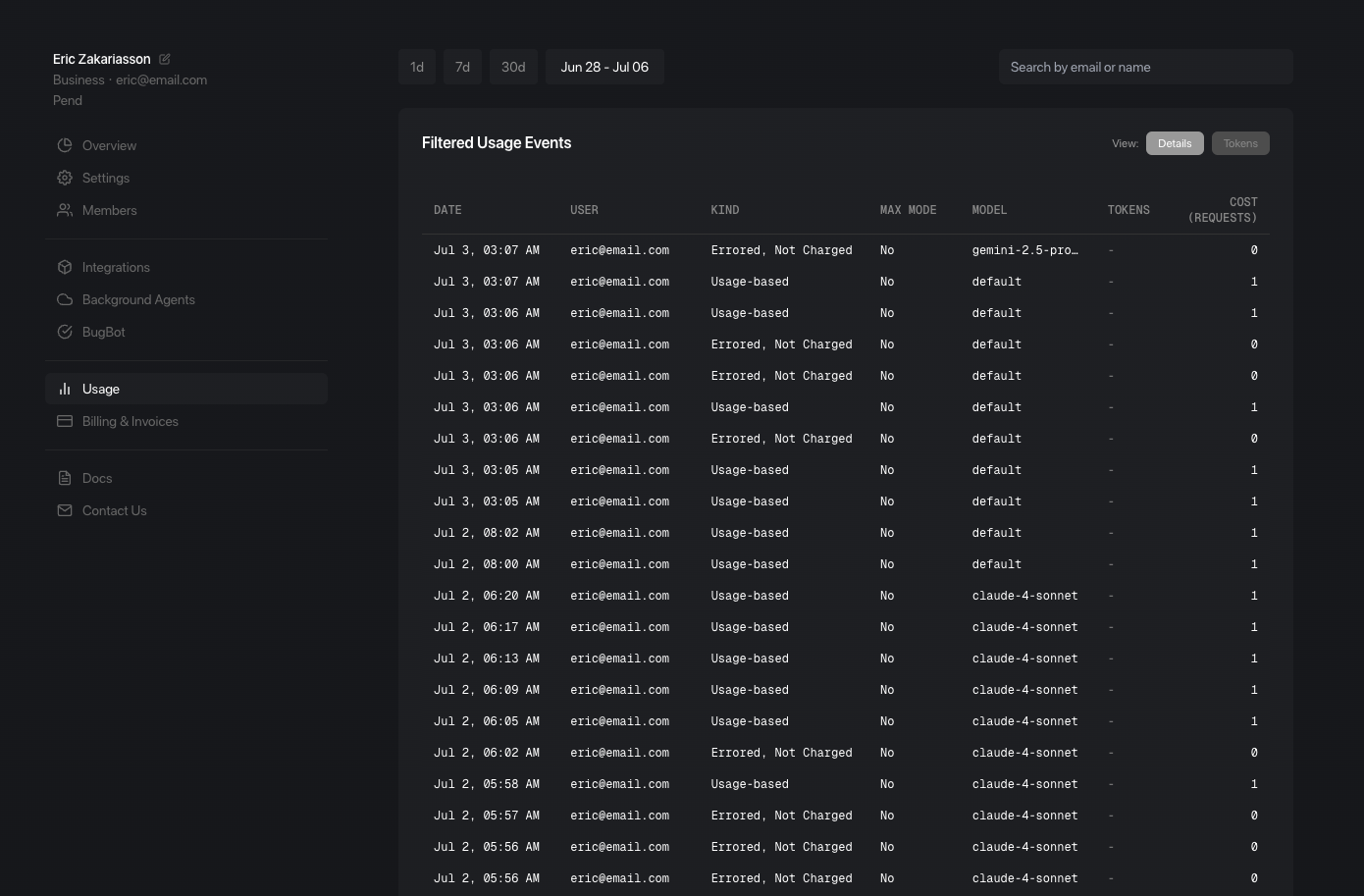
Track detailed usage metrics including AI requests, model usage, and resource consumption. Monitor usage across team members and projects.
Billing & Invoices
Manage your subscription, update payment methods, and access billing history. Download invoices and manage usage-based pricing settings.