Preface
DeepSeek open-sourced DeepSeek Harness (dsh) in August 2026. Its core design is “everything is a plugin”: model adapters, tools, sessions, permissions, even the UI itself are replaceable plugins. The official entry point is straightforward: after installing Node.js, run:
npx @deepseek-ai/dsh web
A Web UI will start locally at http://127.0.0.1:3080. This is sufficient for users already familiar with Node.js and the terminal. However, for those who just want to double-click to launch on Windows, the threshold is high: they need to first install the runtime, remember the port, and then execute plugin commands one by one.
The approach of deepseek-harness-desktop is: do not rewrite the frontend, embed the official @deepseek-ai/dsh local server into an Electron window, and then load the Web interface, as well as the plugins and skins provided with the repository, as-is. This article is collated after cross-checking the community plugin directory page, the GitHub repository README, docs/desktop.md, and the desktop-v2.0.0 release notes. First, it needs to be made clear: the community plugin directory is an independent site and has no official affiliation with DeepSeek / HyperGryph; the release notes also state that this is a community build, not an official distribution from DeepSeek, OpenAI, or Tencent.
What is this
deepseek-harness-desktop is maintained by ningbainb and hosted on the GitHub repository ningbainb/deepseek-harness-desktop. The community directory categorized it under “Themes & Appearance” and included it on 2026-08-15. The repository license is BSD-3-Clause, per the LICENSE file and GitHub registration. As of 2026-08-17, the GitHub repo shows 66 stars. The current stable version is 2.0.0, corresponding to the tag desktop-v2.0.0, released on 2026-08-16.
The problem it solves can be summed up in one sentence: get a desktop client on Windows that matches the capabilities of the browser version, without having to install Node.js, pnpm, or DSH yourself.
The startup method described in the technical documentation is: Electron launches the official @deepseek-ai/dsh with the flag --profile desktop --port 0, waits until the loopback address is ready, then loads this URL into the main window. The web application, protocols, data paths, tools, and plugin system are still implemented by DSH itself. The desktop client only uses the standalone desktop profile (directory at ~/.dsh/profiles/desktop) and does not overwrite existing default configurations; the runtime only listens on the loopback address.
The repository’s NOTICE.md also specifies: the interface plugins and skin packs were originally copyrighted by zhu1090093659, the desktop wrapper and subsequent contributions come from the project’s contributors; @deepseek-ai/dsh is a third-party dependency distributed under its respective license.
Core Features
Host As-Is, Do Not Rewrite the UI
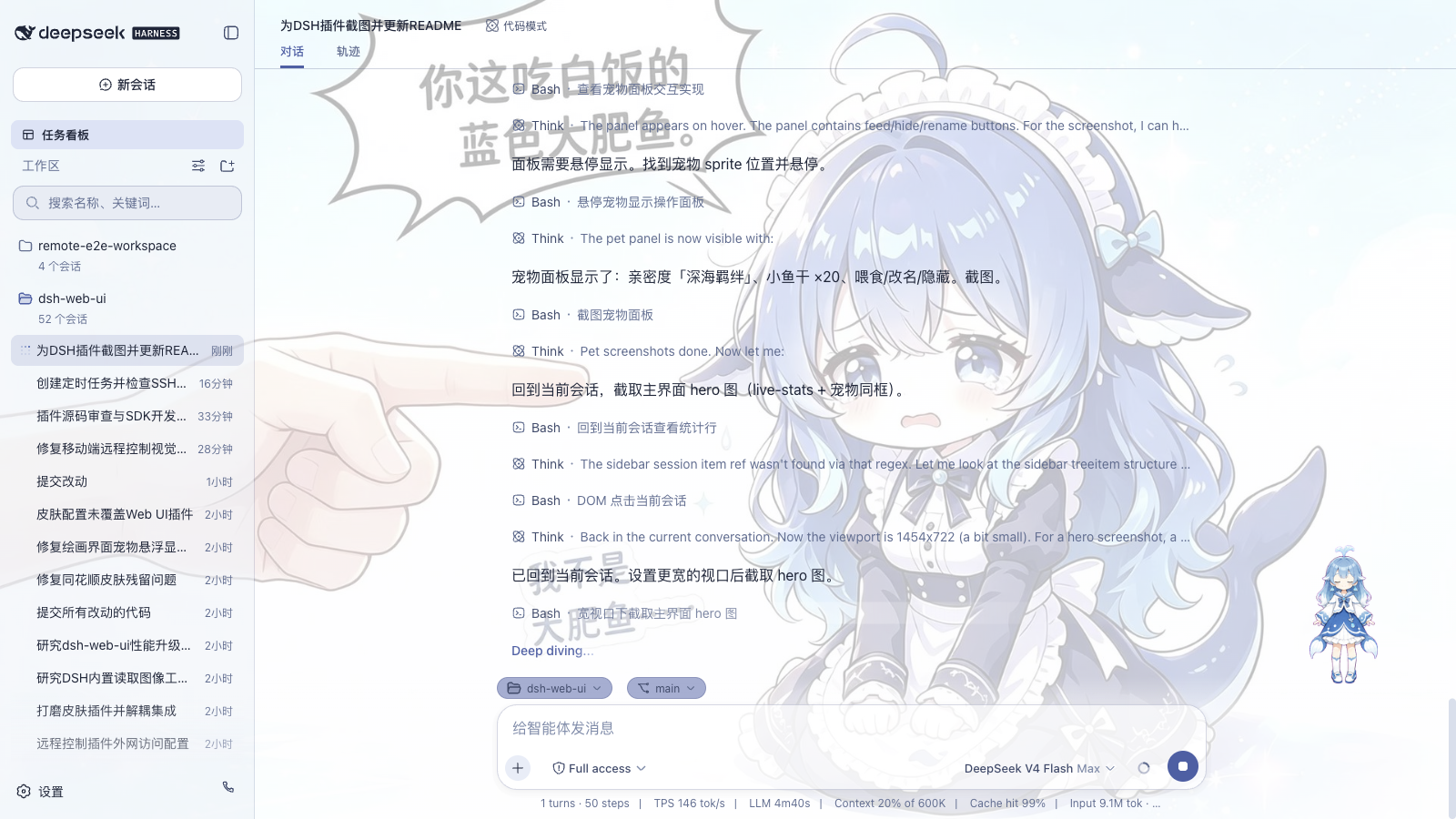
The README repeatedly emphasizes: the desktop version is not a stripped-down rewrite. Sessions, tool calling, model selection, permissions, and the plugin UI are all retained. Version 2.0 bundles the dsh-web-ui 0.1.15 suite pre-installed with task boards, Git graphs, right-hand file/preview panels, SSH, mobile remote access, real-time token statistics, the whale girl pet, Codex Connect, reasoning strength sliders, the plugin marketplace, and the skin center. You can use it immediately after downloading and installing the EXE, without having to run plugin installation commands again.
The main interface comes from the screenshots in the repository documentation:
Standalone Profile and Bundled Runtime
The installation package includes the official DSH, pnpm, and native dependencies. The product page states that currently, x64 installers for Windows 10 / 11 are provided, and no additional Node.js configuration is required.
The desktop profile combines @deepseek-ai/dsh-base, @deepseek-ai/dsh-web-app, @linxin666/dsh-web-ui-all, @tencent-connect/dsh-qqbot, dshmarket, dsh-codex-connect, and reasoning-slider, and retains the community bundles that have been added to this profile. The packaged plugin directory is linked to the profile’s node_modules for runtime resolution, not a second configuration repository.
Key Changes in Version 2.0 Related to Daily Use
The repository marks desktop-v2.0.0 as the current stable version, and the changes most relevant to desktop usage are as follows.
- FIFO queued message resumption: Messages sent while the agent is working will be queued; after canceling the current execution, the queue will automatically resume without loss, duplication, or out-of-order messages. The known cancellation prompt will read “Current execution has stopped, queued messages will continue to send.”
- Conversation bar Skills library: You can search for installed skills in the bottom-left corner of the input box, support recent usage, source and description, arrow key navigation, Enter to insert, and Esc to close.
- Bounded retries for model APIs: Perform backoff retries for rate limits, timeouts, network disconnections, and recoverable server-side errors; the release notes note a maximum of four retries. The current request will continue after recovery, and manual cancellation still takes effect immediately. SSH or plugin operations will not be replayed.
- SSH real-time monitoring: Refresh CPU, memory, disk, load, processes, and failed services every three seconds; you can terminate processes or restart systemd services after confirmation.
- Sticky thinking collapse bar: After the thinking area is expanded, the collapse control will stick to the top of the conversation, no need to scroll back to the top.
- Runtime integrity pre-check: Check key files before startup. Stop the restart loop when the installation is incomplete, and prompt for reinstallation.
- Background updates: Download the new version in the background after detection, and let the user read the instructions and confirm “Restart and install” before proceeding. Recycle the complete DSH process tree when exiting to reduce false file lock reports from the installer.
The startup screen has been replaced with a particle whale, and the title bar, dock, and startup screen have been visually unified. These are interface changes that do not affect the workflow above.
Dock, QQ Bot, and Codex
Open the extension dock via the native menu Tools > Extension Dock. Community plugin installation accepts npm package names, for example @scope/dsh-bundle@1.2.3; URLs, local paths, blanks, shell metacharacters, and option-style inputs will be rejected. The package must declare a DSH bundle patch. Check for community package updates only when opening the extension dock; compatible versions can be updated directly, known incompatible versions will be blocked with an explanation, and versions with insufficient metadata require explicit confirmation. The installation will first pre-fetch, then switch to the exact version offline; if verification or restart fails, roll back the manifest, lock file, and runtime.
The QQ Bot is disabled by default. Open the card in the extension dock to get the QR code, scan it with mobile QQ, and then you can receive messages from private chats and group chats on the local Harness. The AppSecret is encrypted using Electron safeStorage combined with Windows Credential Manager, and will not be sent to the renderer page, written to logs, or stored in plaintext in cordis.patch.yml; it is only injected via the child process environment at runtime.
Codex-related capabilities come from the built-in dsh-codex-connect: complete ChatGPT OAuth via the system browser in the settings page to enable the OpenAI Codex model. It will not replace the current model by default. When an existing Codex Provider is detected, the current configuration will be retained, and OAuth credentials are only stored in the local DSH home directory. The reasoning strength slider only displays the levels actually supported by the current model.
Skin Center
The skin center offers 11 skins, supporting try-on before application: the try-on takes effect immediately, fully restores after exit, and apply with one click after confirmation. The README highlights skins including Windows XP (Luna), Minecraft, Blue Fantasy, Whale Chant, Hatsune Miku, Trading Terminal, as well as QQ2008, Tonghuashun style, Dragon’s Descendant, etc. All 11 skins are adapted for the right-hand panel.
Installation and Activation
The standard installation command given on the community directory page is:
dsh plugin add github:ningbainb/deepseek-harness-desktop
The dsh CLI will parse this repository from GitHub and install it to the current configuration. For reproducible installations, fix the commit hash per the directory page’s instructions:
dsh plugin add github:ningbainb/deepseek-harness-desktop#commit
Replace #commit with the actual commit hash. The directory page also reminds users: plugins run with the permissions of the current dsh process, and may execute code during installation; you should inspect the source code repository and license before installing.
This command is intended for environments already using the dsh CLI. If the target is the Windows desktop client itself, the main path given in the repository README and product page is to download the installer, rather than running the plugin command again.
- Go to GitHub Releases and download the latest Windows x64 installer. The filename for version 2.0.0 is
DeepSeek-Harness-Desktop-Setup-2.0.0-x64.exe(the release page notes it is approximately 146.2 MB). - Download
SHA256SUMS.txtfrom the same release, and verify the SHA-256 hash of the installer. - Run the installer. It is recommended to use the default per-user installation path; if customizing the root directory, keep it as short as possible, as some native tools are still limited by the traditional Win32 260-character path limit.
- Launch the application. DSH, plugins, skins, pnpm, and native dependencies are already included with the package.
The current installer does not have a commercial code signature, so Windows SmartScreen may show “Unknown publisher”. The release notes require that you only download from this project’s release page and verify the checksum.
An in-place upgrade will not delete the existing DSH_HOME, desktop profile, community bundles, pet status, skin configuration, or encrypted QQ Bot credentials. The application will check for stable GitHub releases on startup and every six hours; you can immediately check for updates via the menu Help > Check for Updates. After the download completes, you still need to confirm before restarting to install the update.
When packaging from source, the documentation requires Node.js 24 and pnpm 11.21.0:
corepack enable
pnpm install --frozen-lockfile
pnpm desktop:test
$env:CSC_IDENTITY_AUTO_DISCOVERY = 'false'
pnpm desktop:pack
pnpm --filter @deepseek-ai/dsh-desktop pack:verify
The installer output will be in apps/dsh-desktop/dist.
Typical Usage
The following operations come from the repository README and docs/desktop.md, and can be reproduced as written.
1. Change Skins
Open the skin center, try on the skin first, then apply it. The try-on will modify the interface immediately and restore after exiting; click Apply once you are satisfied. Both light/dark modes are preserved.
2. Install Community Plugins or Import Skills via the Extension Dock
Open Tools > Extension Dock from the native menu. When installing a community bundle, only fill in the npm package name and version. Skill discovery scans the project’s .dsh/skills, project’s .agents/skills, user DSH skills, and user Agents skills in order of priority; importing will copy verified skill folders to ~/.dsh/skills without overwriting existing skills with the same name. Symlinks, overwrites, packages larger than 50 MiB, or packages with more than 2000 entries will be rejected.
3. Scan QR Code to Connect QQ
Open the QQ Bot card in the extension dock and scan the code with mobile QQ. The plugin remains disabled before binding, and will not idle in the background waiting for a terminal scan. After successful binding, the desktop client will enable the plugin and restart DSH. Cancel, rebind, and unbind operations can all be completed on the same card.
4. Enable Codex and Reasoning Strength
Complete ChatGPT OAuth via the system browser in the settings page. After enabling, you can select the OpenAI Codex model; existing Providers will not be replaced by default. The reasoning strength slider in the model selector only displays the levels supported by that model, and will reset to valid values when switching models.
5. Use Mobile Remote to Take Over the Current Workspace
Tap the phone icon at the bottom of the sidebar to open the pairing panel. After scanning the QR code or copying the link, your phone will enter a standalone mobile interface to view and create sessions, send and receive messages, switch models and thinking strength, adjust permission presets, and sync with the desktop client. The pairing token is one-time and time-limited, tap “Stop” to revoke all devices. The QR code uses the local area network by default, and you can also enable a cloudflared public tunnel.
6. SSH Operations
Open the remote panel via the “SSH” entry in the sidebar. Hosts support key/password authentication, and can be imported from ~/.ssh/config; configurations are stored in ~/.dsh/dsh-ssh.json. For configured hosts, you can open a web terminal, transfer files via SFTP, forward local tunnels to remote intranet services (only listening on 127.0.0.1), or perform cluster execution on multiple hosts by alias/environment/tag. Version 2.0 adds a Linux monitoring page. Agents and the panel share the same host configuration.
Applicable Scenarios and Notes
It is suitable for the following situations:
- Using DSH on Windows 10 / 11 x64 without wanting to install Node.js first
- Needing the complete web interface aligned with the browser version, rather than a rewritten stripped-down wrapper
- Wanting skins, the plugin dock, skill import, QQ Bot, SSH, and mobile remote access in a single desktop window
- Already having dsh configurations and not wanting the desktop client to overwrite them – it uses the standalone desktop profile
Before using, you need to accept these limitations:
- Not an official distribution. The community directory, the repository’s NOTICE.md, and the 2.0.0 release all state that this is a community project, not an official product from DeepSeek, OpenAI, or Tencent.
- Only Windows x64 installers are provided. The documentation does not provide macOS / Linux desktop installers.
- The installer does not have a commercial code signature. SmartScreen may trigger a warning; only download from the GitHub Releases page and verify against SHA256SUMS.txt.
- Permission model is the same as regular dsh plugins. The directory page notes that plugins run with the permissions of the current dsh process and may execute code during installation. SECURITY.md further clarifies that community plugins and skills have the permissions granted by DSH, and you should review third-party code before installing. The desktop client itself binds the official DSH to a random loopback port, the renderer process enables sandboxing and context isolation, disables Node.js integration, restricts navigation to the current loopback origin, and opens external links via the system browser.
- First launch may be slow. docs/desktop.md tested on a Windows 11 development machine, and the first cold start file scan for version 2.0.0 took approximately 25.2 seconds; subsequent launches will reuse installed files and profile links. This is reference data, not a promised value.
- The license field in the root package.json says Apache-2.0, which conflicts with the LICENSE file, GitHub repository license, and the BSD-3-Clause listed on the directory page. Please refer to the BSD-3-Clause license in the LICENSE file and GitHub registration, and you should still open the repository to verify before installing.
Summary
deepseek-harness-desktop wraps the official DSH local server and complete web interface into a Windows EXE: featuring a standalone desktop profile, loopback listening, bundled runtime, and skins, extension dock, skill library, QQ Bot, SSH, and mobile remote access. The current stable version is 2.0.0. It is a community open-source project, not an official DeepSeek client; inspect the source code, license, and checksum before installing.
- Community directory page: https://deepseek-harness-plugin.com/zh-CN/plugins/deepseek-harness-desktop-ningbainb/
- GitHub repository: https://github.com/ningbainb/deepseek-harness-desktop
- Latest installer: https://github.com/ningbainb/deepseek-harness-desktop/releases/latest
- Official DeepSeek Harness repository: https://github.com/deepseek-ai/deepseek-harness